Bemærk venligst, at dette blogindlæg blev udgivet i juli 2012, så afhængigt af hvornår du læser det, kan visse dele være forældede. Desværre kan jeg ikke altid holde disse indlæg fuldt opdaterede for at sikre, at oplysningerne forbliver nøjagtige.
If you like using Eclipse as your preferred IDE for your coding, there is an easy way to use the built in External tools feature in Eclipse to launch Node.js applications, without having to install any external plugins.
Here is a short guide how.
The Hello World JavaScript project
Here is a simple overview of a typical Hello World application in JavaScript that prints out the phrase "Hello World" to the console.log.

Creating the External tool launcher
To launch this, we need to create a custom External tool launch configuration. Start by opening up your External tool configurations.
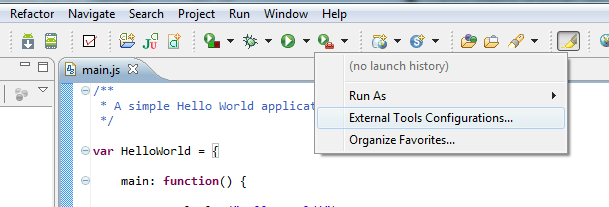
This can by done by going "Run" - "External Tools" - "External Tools Configurations...", or by clicking on the External tools shortcut in the toolbar:
Select "Program" and then click on the "New launch configuration" button:

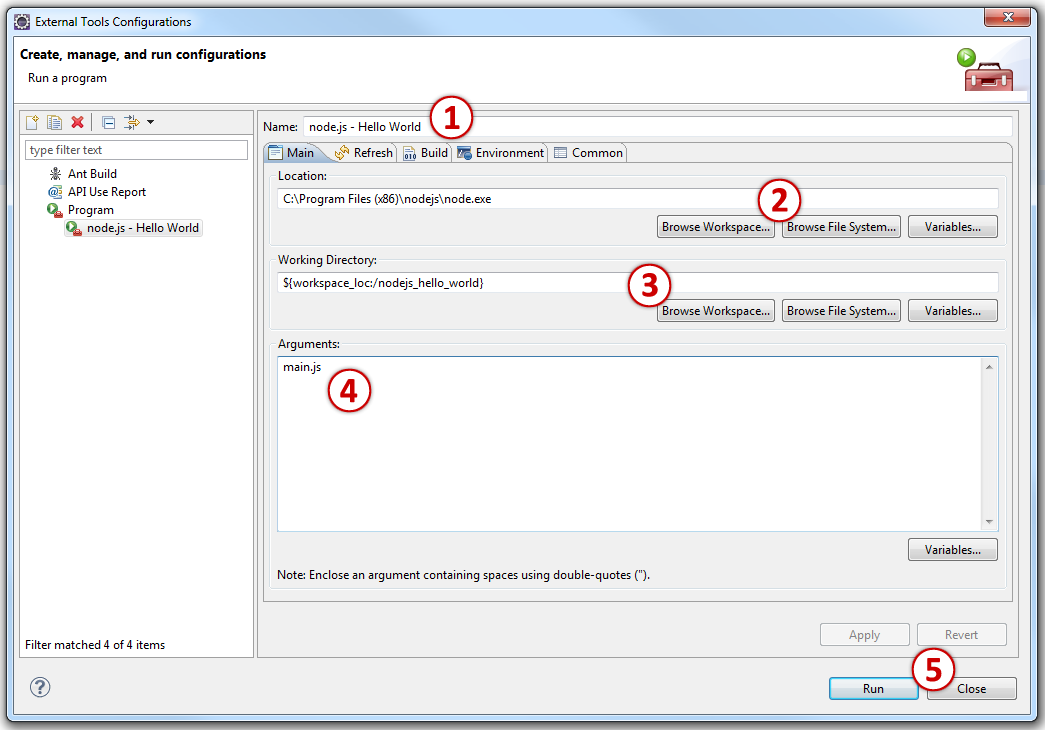
Once the configuration window opens, do the following:
- static.specialagentsqueaky.com example "node.js - Hello World".
- "Location" should point towards node.js launch command, for Window-users this can point directly to node.exe.
- "Working Directory" should points towards your project. This can be done by clicking on the "Browse Workspace..." button.
- Enter the name of the JavaScript file you want node.js to execute. In my case it is "main.js".
- Apply and close the window.
Running your application
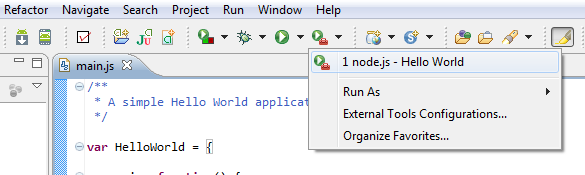
Your launch configuration is now ready to be called from the "External tool" button:
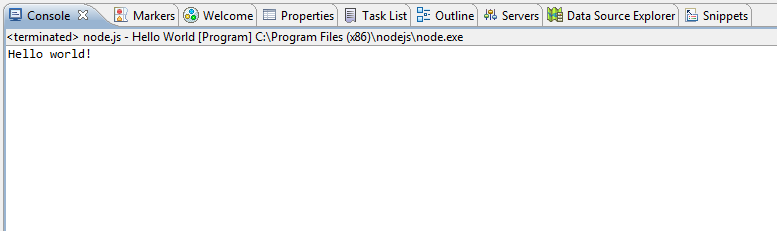
Running it will use the console view in Eclipse for the output: