Tenga en cuenta que esta entrada del blog se publicó en enero de 2021, por lo que, dependiendo de cuándo la lea, algunas partes podrían estar desactualizadas. Lamentablemente, no siempre puedo mantener estas publicaciones completamente actualizadas para garantizar que la información siga siendo precisa.
So, every streamer should know what an audio compressor is, how it works and the benefits of using one, and as soon as you know the basics, it is very easy to add one for your stream to improve the (sound) experience for your viewers!
This is a very quick guide that explains what an audio compression is and why almost all Twitch & YouTube streamers should use one. So let's just jump straight into it!
Watch the video
If you rather want me talk about this blog post, I have also done a quick video. Feel free to check it out!
Let's start by looking at the Audio Mixer in OBS Studio
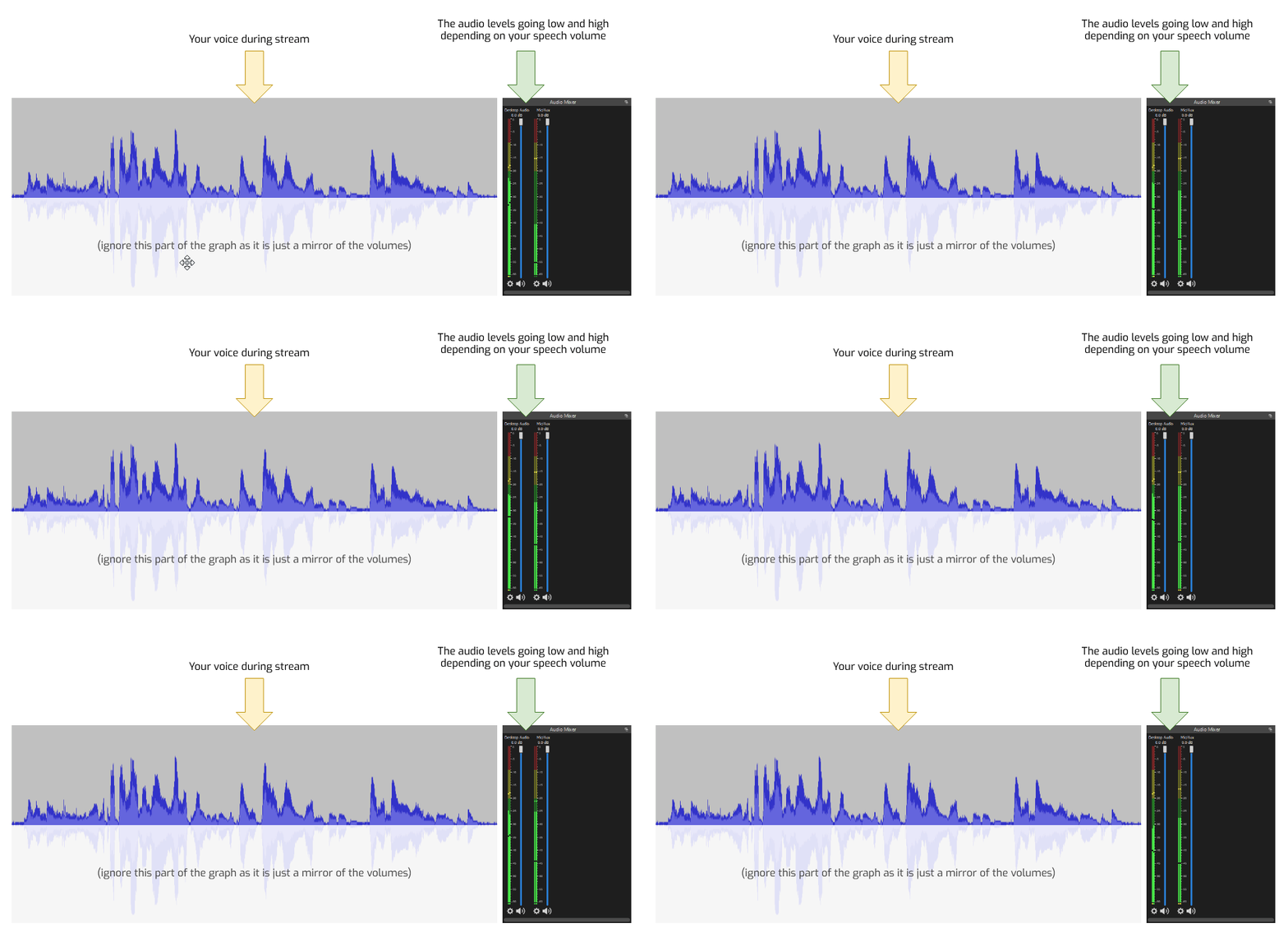
If you open up your OBS Studio and look at the "Audio Mixer" panel, it probably looks something similar to this. Two bars; where the above one is "Desktop audio" while the "Mic/Aux" is your microphone.
Notice how the sound volume changes over time; it goes up and down (from low volume to high volume).
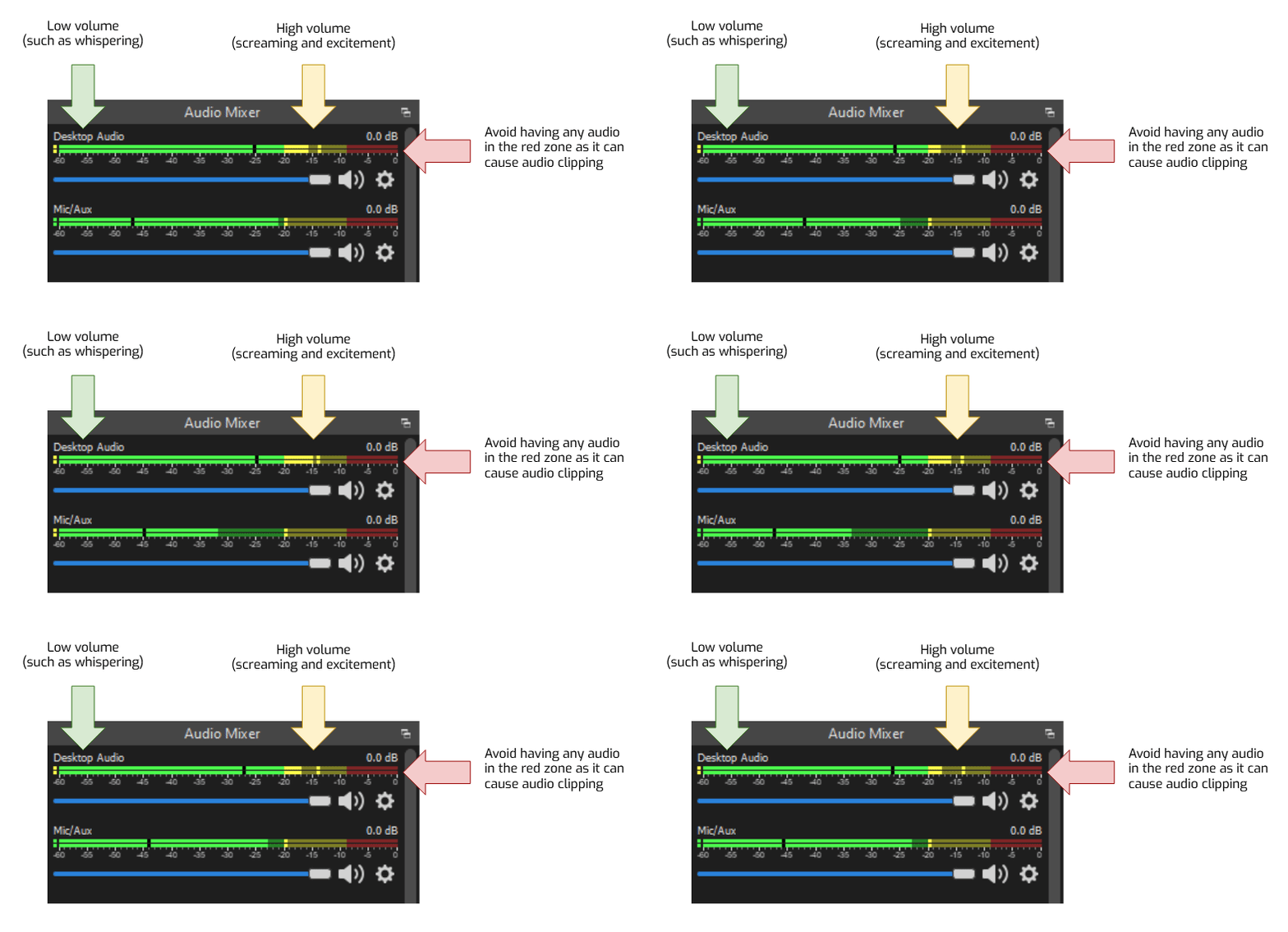
Now, let's rotate the Audio Mixer vertically and put it next to a sound wave for a better visualization. Hopefully this makes much more sense how the volume changes as you speak softly to loudly, compared to a sound wave form.
Always avoid the red zone as it causes audio clipping
Looking back to your Audio Mixer, any audio should never be in the red zone as it can cause audio clipping which sounds terrible for a stream viewer. This should be avoided at all costs.
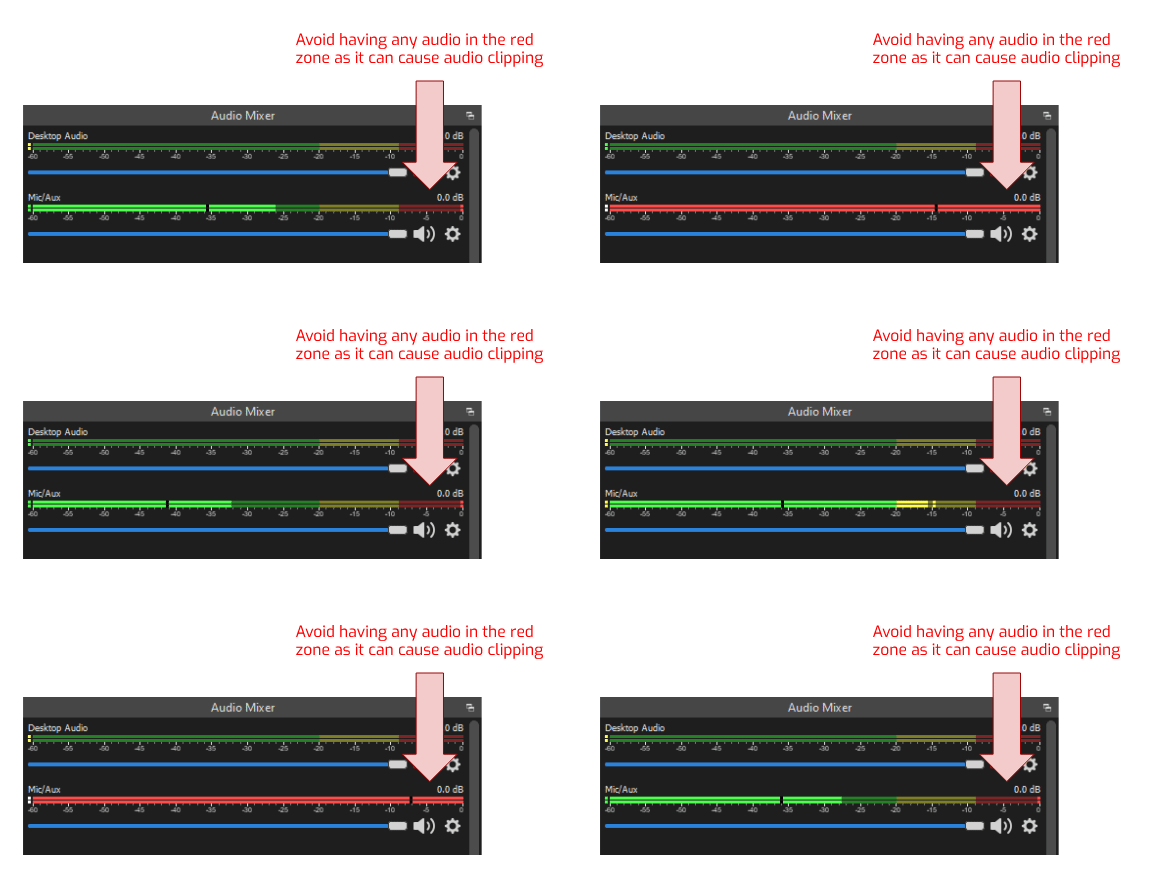
Here is a demo of how audio clipping sounds like. Warning for high volume!
An audio compression helps preventing audio clipping when you are loud
Just because you should avoid the red zone, it doesn't mean you cannot be loud, scream or be excited on stream! An easy fix to this is simply by adding an audio compression!
To explain what an audio compression does, it is much easier to show an image.
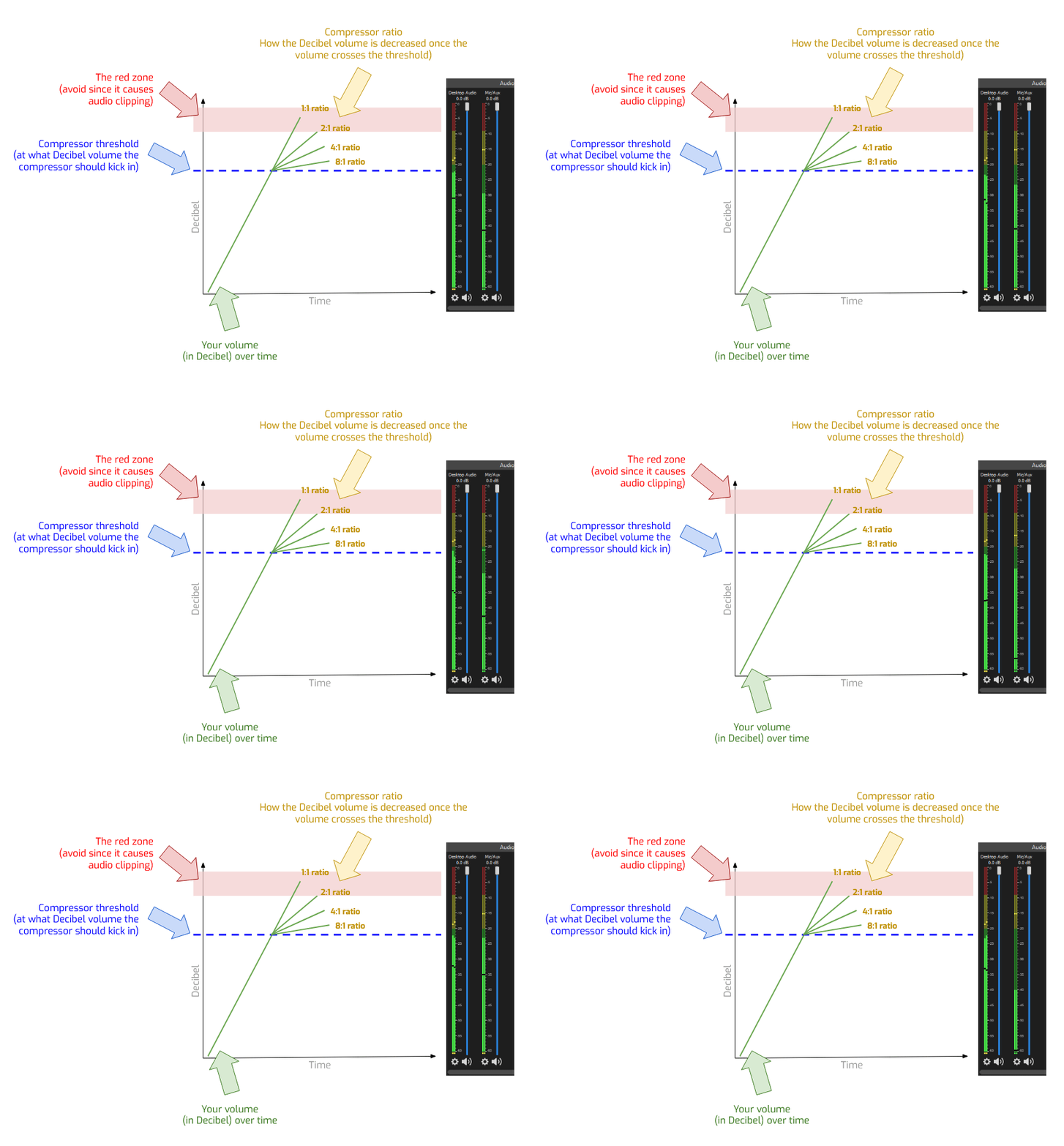
To understand how a compressor works, you need to the two important aspects of a compressor:
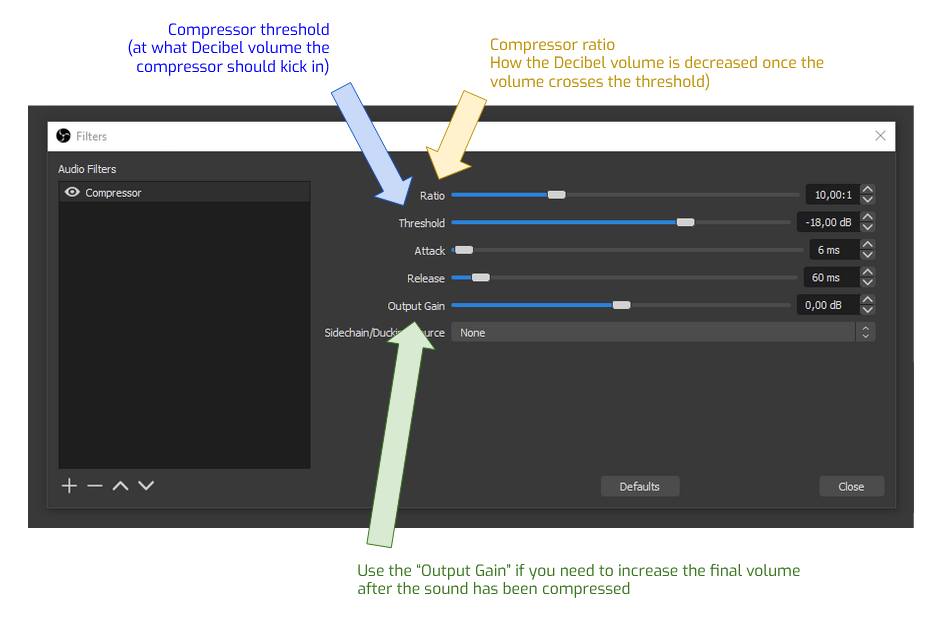
- Threshold - At what Decibel volume the compressor should kick in (should be activated). Any sound that goes above this threshold activates the compressor.
- Ratio - How the sound volume is decreased, by the compressor, once the sound is above the threshold. A ratio of
1:1basically means the sound is not decreased at all (as like there isn't any compressor at all). Any other ratio value (1:2,1:4, etc) just specifies how aggressively the volume should be decreased by the compressor.
So in the image below you will see the blue line is the "threshold" and once the sound volume goes beyond the threshold, you can see how the different "ratio" values will impact the sound level, bringing it down to prevent the overall sound volume going into the red zone and prevent audio clipping.
So by adding an audio compressor, you basically just decrease "how loud you can be", when you are "really loud". I hope that makes sense!
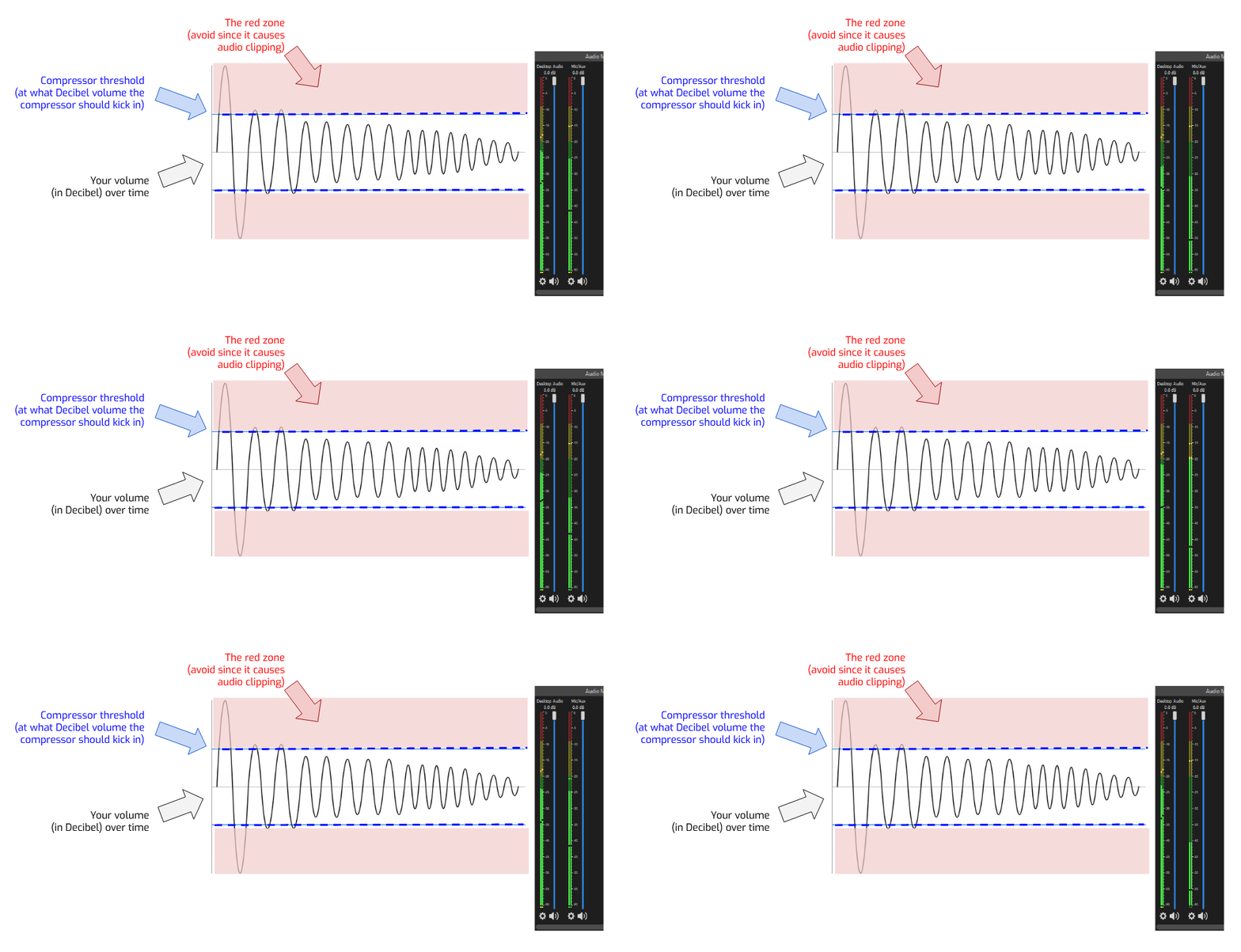
So feel free to scream in fear during a horror game, or show excitement during a stream, as long as you have a compressor in place that will prevent audio clipping! It is really this easy!
How to add a simple audio compression for your stream in OBS Studio
There are multiple ways you can add a compression for your microphone. The easiest way is to add one is to add the built-in version in OBS Studio as a filter to your microphone.
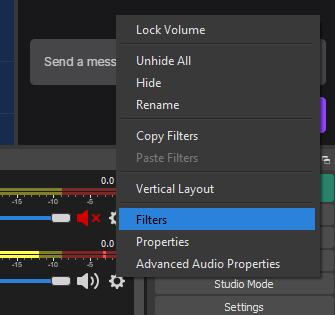
First step is to click on cogwheel ⚙️ button at your microphone source and then click on "Filters".
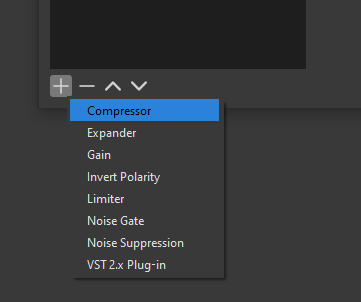
Next click on the plus ➕ button and add a "Compressor".
Next you need to configure your compressor by adjusting the "ratio" and "threshold", as explained above. If you think your final volume is too low after the compression, you can also add a "Output Gain".
It is impossible for me to give you what values you should use for your own stream, since it depends on your current microphone settings, your normal speaking volume, how loud you can become, etc.
However, the best advice I can give you is to scream into your microphone and adjust the settings so you notice the volume never appears in the red zone - Good luck!