
Veuillez noter que cet article a été publié en février 2011. Par conséquent, selon la date à laquelle vous le lisez, certaines parties peuvent être obsolètes. Malheureusement, je ne peux pas toujours maintenir ces articles à jour pour garantir l'exactitude des informations.
As a web developer, I sometimes find myself stuck with an XML but having no XML schema, such as an XSD - and having an XML schema is the holy grail when working with web services that changes constantly.
There are plenty of XML to XSD generators out there, but my favorite tool I have discovered is Trang. Trang is a multi-format schema converter which can convert between a number of different schema languages. Not XML, but also RELAX NG and DTD - and the best thing about it is that its free.
Here is a quick guide for generating an XSD from an XML using Trang:
Step 1 - Downloading
Visit the project's download page and download the latest version. At the current time, the file
trang-20091111.zip is the latest.
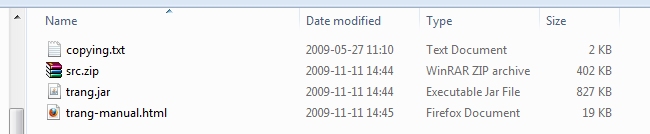
Step 3 - Moving files
Move or copy trang.jar to where you have your XML file. Here I have copied it to the same folder as my "products.xml" is located:

My "products.xml" is a simple XML schema containing two products:
<?xml version="1.0" encoding="utf-8"?>
<products>
    <product>
        <artnbr>A1</artnbr>
        <description>This is the product description for product A1</description>
        <price>123</price>
    </product>
    <product>
        <artnbr>B2</artnbr>
        <description>This is the product description for product B2</description>
        <price>321</price>
    </product>
</products>
Step 4 - Converting
Open a command line and move yourself to the same folder as trang.jar and your XML file is located.
Then type
java -jar trang.jar products.xml products.xsd
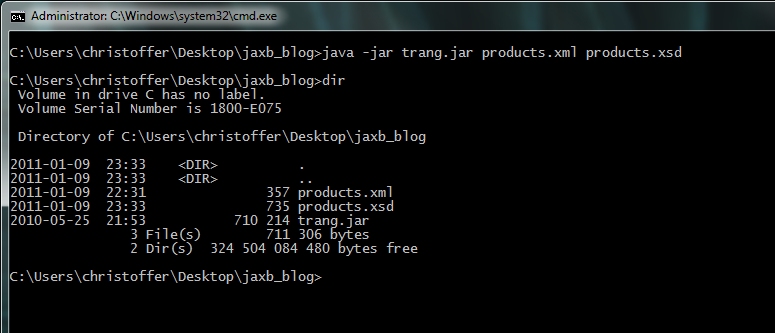
This will generate "products.xsd" based on your "products.xml".
Opening the newly created "products.xsd" will reveal:
<?xml version="1.0" encoding="UTF-8"?>
<xs:schema xmlns:xs="http://www.w3.org/2001/XMLSchema" elementFormDefault="qualified">
  <xs:element name="products">
    <xs:complexType>
      <xs:sequence>
        <xs:element maxOccurs="unbounded" ref="product"/>
      </xs:sequence>
    </xs:complexType>
  </xs:element>
  <xs:element name="product">
    <xs:complexType>
      <xs:sequence>
        <xs:element ref="artnbr"/>
        <xs:element ref="description"/>
        <xs:element ref="price"/>
      </xs:sequence>
    </xs:complexType>
  </xs:element>
  <xs:element name="artnbr" type="xs:NCName"/>
  <xs:element name="description" type="xs:string"/>
  <xs:element name="price" type="xs:integer"/>
</xs:schema>
Additional tips
When looking at the XSD, you will notice that Trang will have created different element types, such as
xs:NCName and xs:string. Since Trang merely does high educated guesses on how the XSD should be specified - based on the data in the XML - it might get a few elements types wrong.
Because of that, I usually take a brief look at the XSD and replace any very specific element types (in this case the
xs:NCName) to more simpler types, such as xs:string.
