
Please note that this blog post was published on June 2021, so depending on when you read it, certain parts might be out of date. Unfortunately, I can't always keep these posts fully up to date to ensure the information remains accurate.
Watch the Video
If you don't want to read this written guide, feel free to watch the video. I also explain things in more depth in the video.
Adding an Item to Your Scene
An item is essentially a transparent PNG image that you add to your scene. What's amazing is that a VTube Studio includes a large collection of free items you can use.
To add an item, simply click the small green circle with the white star on it.
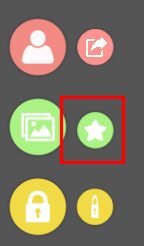
This will open a list of items you can add - including all bundled items and any custom ones you've created yourself. Simply select the item you want to add.
After selecting an item, an Item Order setting will appear. This lets you adjust the z-order of the item (its position relative to your model and other items).
- < 0 (less than zero) → behind your model
- 0 (zero) → your model
- > 0 (greater than zero) → in front of your model
The range of -30 to +30 exists so you can fine-tune the order of each item when you have many items in your scene.
Move and Scale an Item
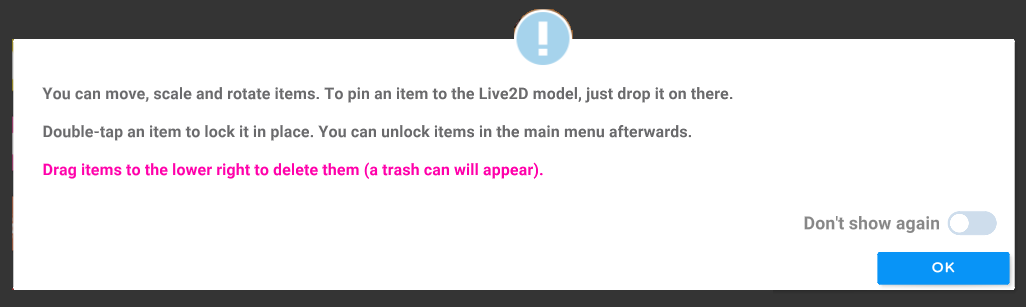
Just like with your model, you can scale (zoom in or out) and move the item around the scene.
Attach an Item to Your Model
You can attach an item to your model, which means it will move and follow your model's body movements. This creates a really cool effect if the item is meant to be part of your model.
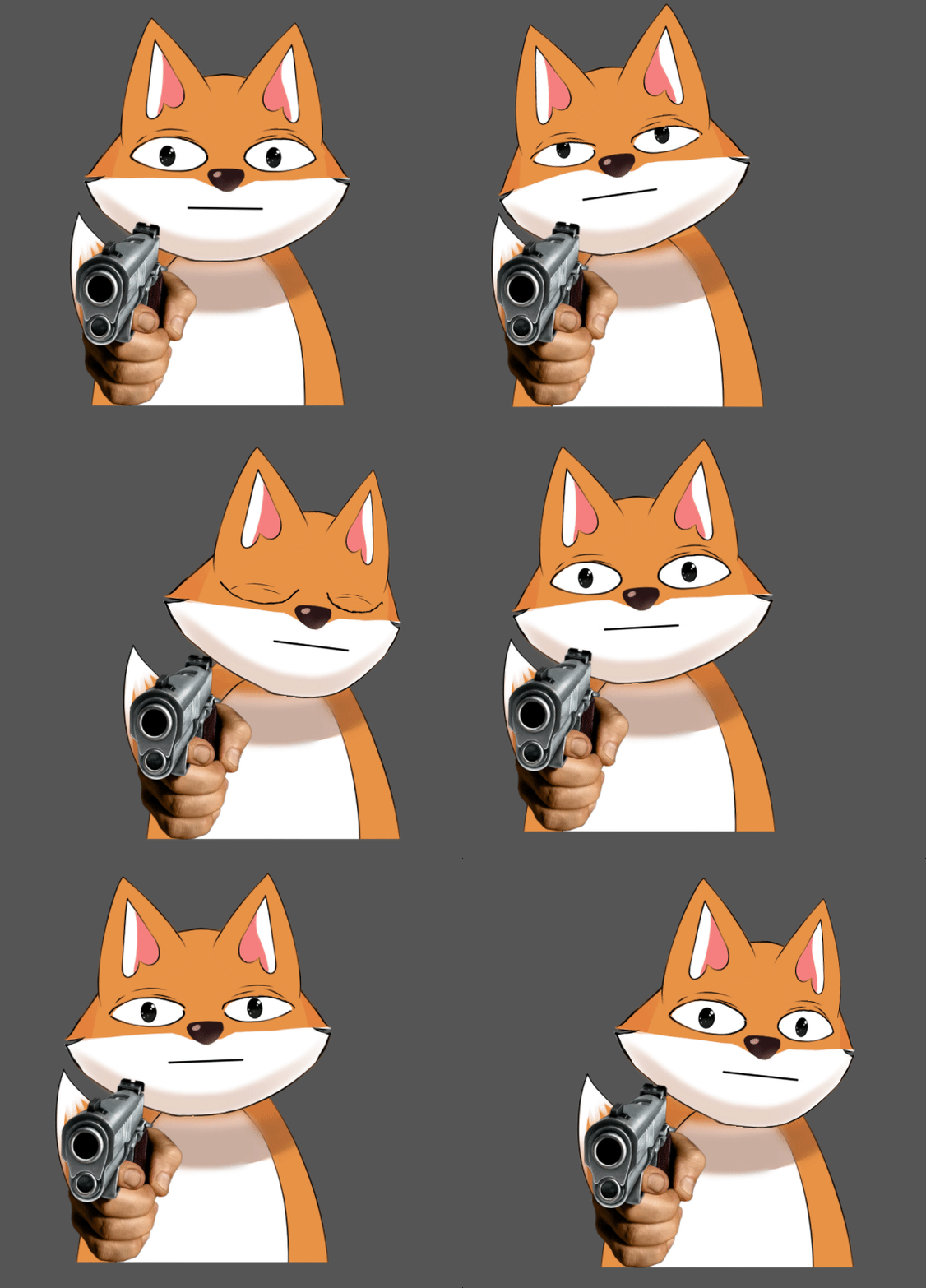
To do this, simply drag the item onto your model. To disconnect it, just drag the item away from your model.
Deleting an Item
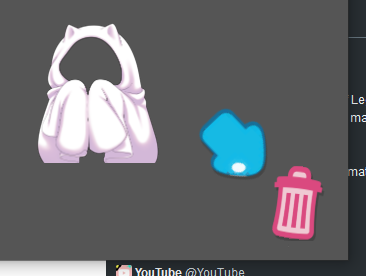
To delete an item from your scene, just drag it to the bottom-right corner.
Adding a Custom Item to VTube Studio
If you want to add your own custom item to your scene, you can't do this within the application - you'll need to do it through Windows.
As you may remember, items are simply PNG images, so we just need to locate where these images are stored on your computer.
To find the folder that contains all the items:
- Right-click on "VTube Studio" in your Steam library.
- Select "Properties..."
- Open the "Local Files" tab and click "Browse..."
This will open your installation folder. From there, navigate to VTube Studio_Data → StreamingAssets → Items
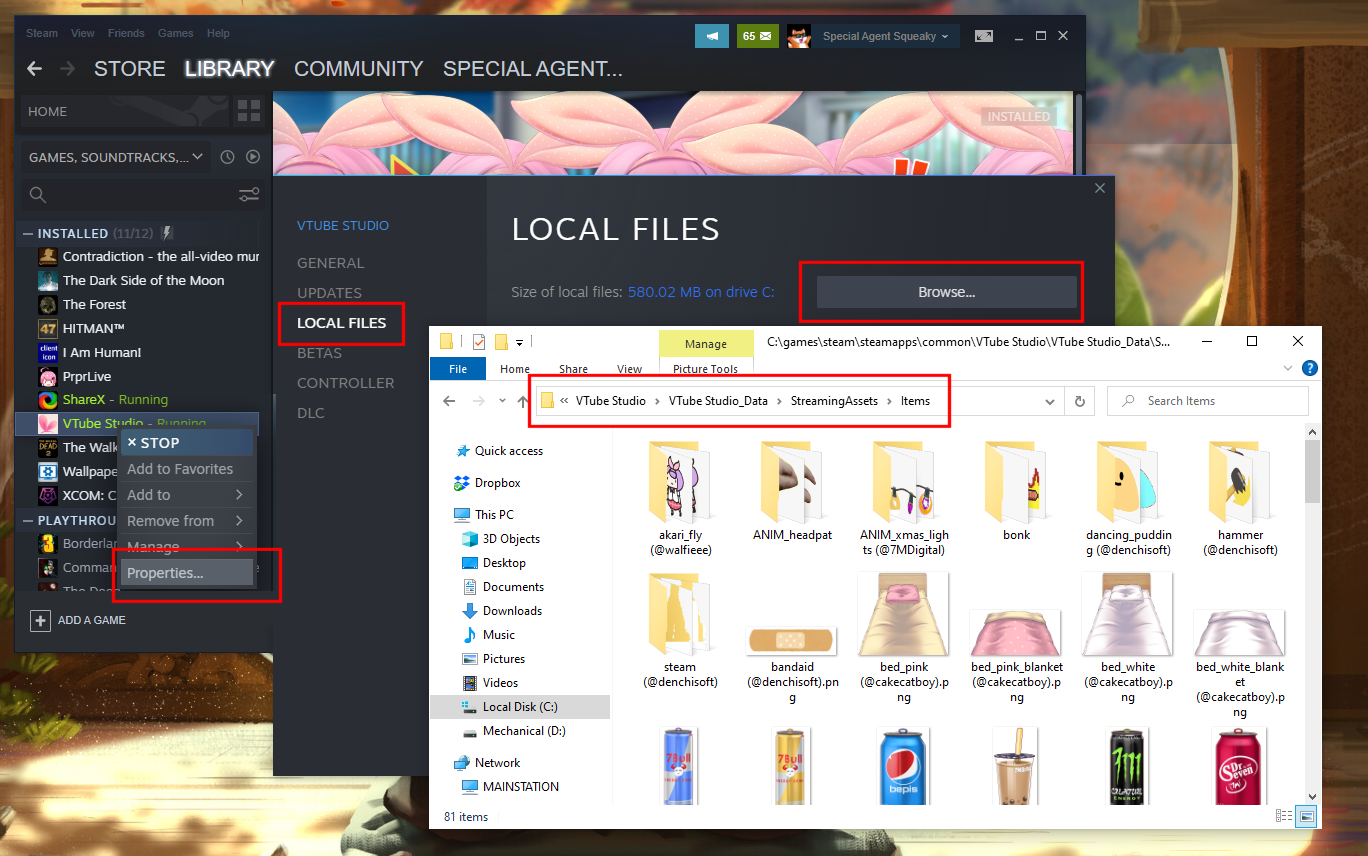
To add a custom item, simply copy your PNG image into this folder.
Your item should now appear and be searchable in VTube Studio.
Adding an Animated Item
VTube Studio doesn't support GIF images, but it does support animated items by placing each animation frame as a PNG file in a folder.
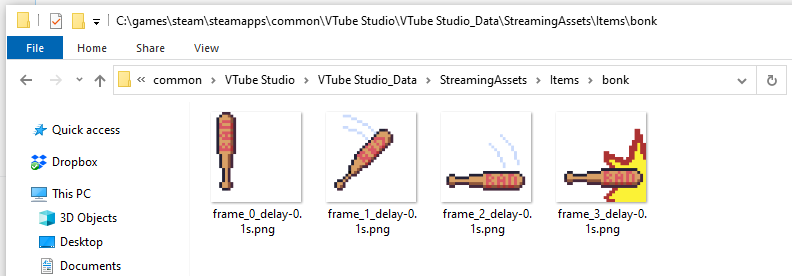
So, if you have a GIF you want to use in VTube Studio, you can split it into individual frames using a tool like EZGIF.com.
Simply upload your GIF there, select "Output images in PNG format," and once it's done, download the ZIP archive and place it in the VTube Studio items folder.
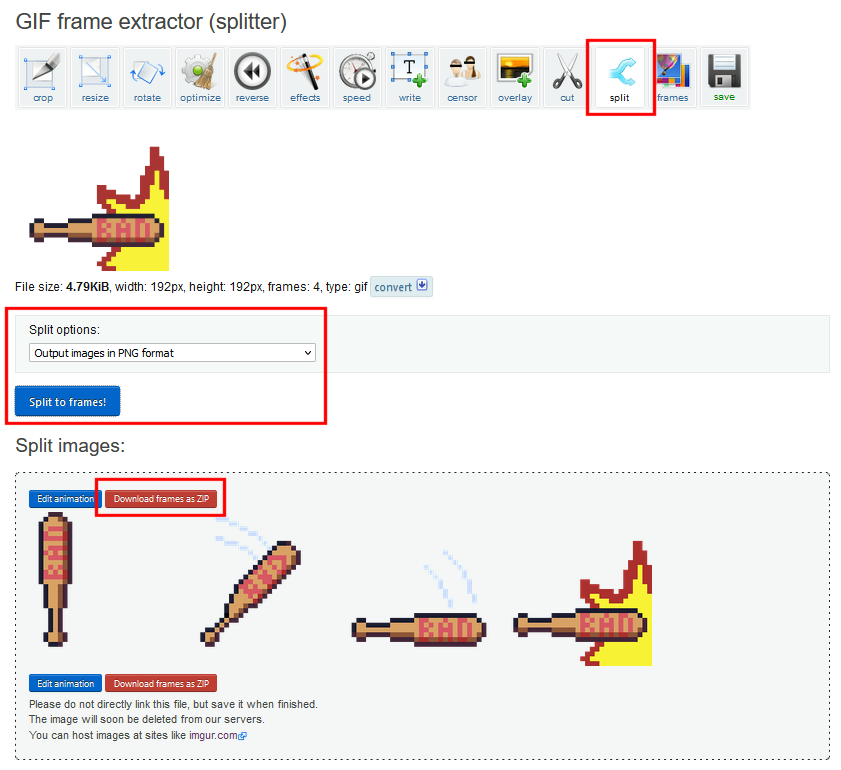
Your animated item should now appear and be searchable in VTube Studio.
Read the VTube Studio Documentation for More Information
I actually learned this by reading the official VTube Studio documentation.
If you want to learn more about the details of VTube Studio, how items work, and what you can do with them, feel free to check out the documentation!
Visit the VTube Studio official documentation