Please note that this blog post was published on May 2022, so depending on when you read it, certain parts might be out of date. Unfortunately, I can't always keep these posts fully up to date to ensure the information remains accurate.
If you're struggling with your Sonos system or simply want to understand more about how your Sonos wireless network is performing (for example, which speakers are connected to which and how strong the connections are), there is a hidden Sonos Network Matrix web interface.
This provides a very helpful overview if you're experiencing wireless connectivity issues.
Step 1 - Install the Sonos Desktop Controller
The first thing you need to do is install the desktop controller. I use Windows personally, but Im sure these steps work for macOS as well.
Simply visit the Sonos download page, then download and install the controller.
Visit Download the Sonos app pageStep 2 - Open Your Sonos System Information
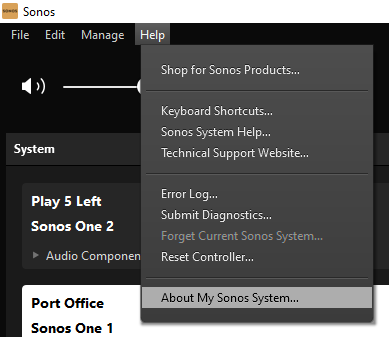
Once you've downloaded, installed, and launched the controller app, go to the Help menu and select "About My Sonos System...".
Step 3 - Get the IP Address of One of Your Speakers
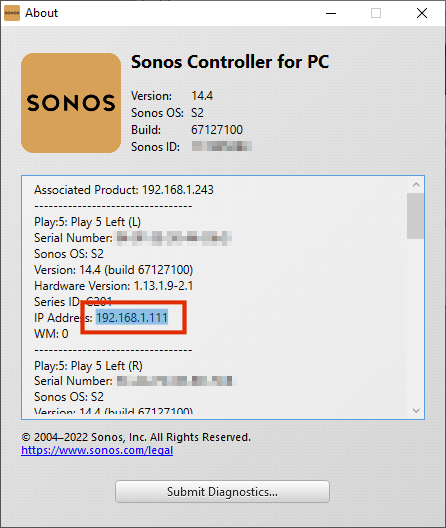
This will show you a list of all your Sonos devices.
Choose any speaker from the list (for example, the first one) and locate its "IP Address" field.
For example, my Play:5 shows the IP address 192.168.1.111.
Copy or note that IP address - you'll need it in the next step.
Step 4 - Visit the Secret Status Page and Open the Sonos Network Matrix
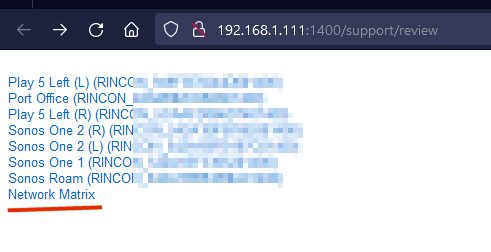
Once you have your IP address (for me, it was 192.168.1.111), open your web browser and go to http://*ipnumber*:1400/support/review:
This opens a hidden internal page where you can view additional information about your Sonos speakers.
However, what we're looking for is the "Network Matrix", so click on that link.
Step 5 - Understanding the Sonos Network Matrix
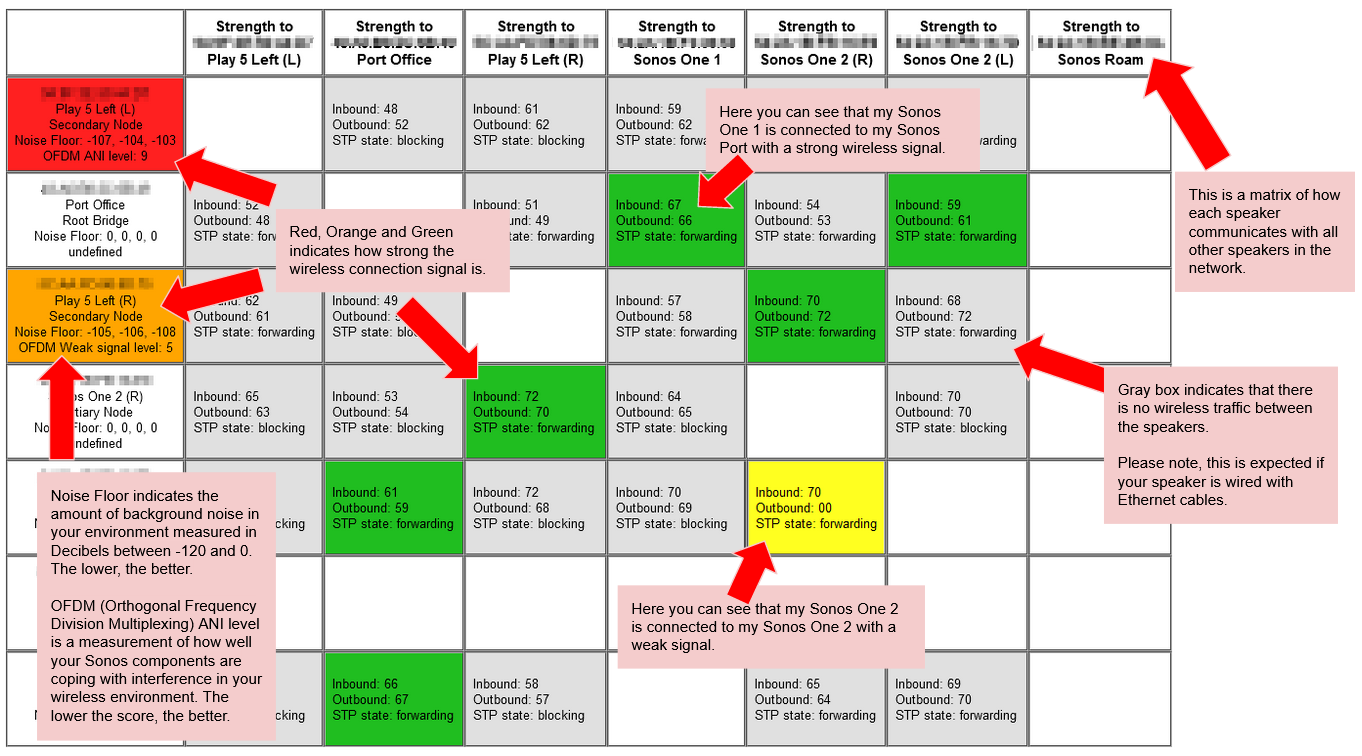
Once you've opened the Sonos Network Matrix, you'll see a literal matrix showing all of your Sonos devices.
Even though I don't personally understand every detail shown here, there are a few key things worth pointing out.
Below is a brief summary - and be sure to check the image as well, since it will help make things clearer!
- This matrix shows how each speaker communicates with every other speaker on the network.
- A box with a gray background means there is no wireless traffic between those speakers. This is normal if the speaker is connected via Ethernet.
- A box with a red, orange, or green background indicates the strength of the wireless connection between the speakers.
- Noise Floor shows the amount of background noise in your environment, measured in decibels from -120 to 0. Lower values are better.
- OFDM ANI level (Orthogonal Frequency Division Multiplexing Adaptive Noise Immunity) measures how well your Sonos devices are handling wireless interference. Lower scores are better.