
Please note that this blog post was published on February 2012, so depending on when you read it, certain parts might be out of date. Unfortunately, I can't always keep these posts fully up to date to ensure the information remains accurate.
Here's a quick guide on how to remove Firefox's error message when trying to access resources on restricted ports, such as port 87:
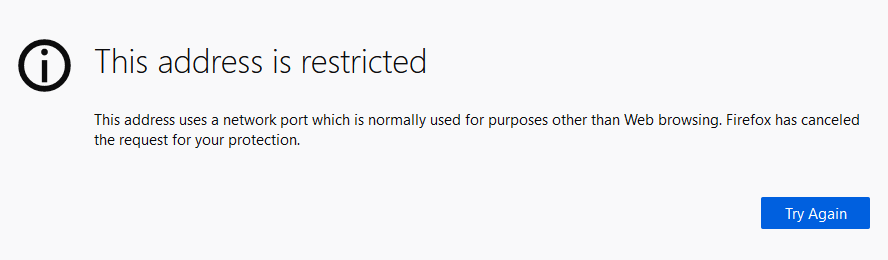
This address is restricted This address uses a network port which is normally used for purposes other than Web browsing. Firefox has canceled the request for your protection.
Step 1 - Open about:config in Firefox
Open Firefox's preferences by typing about:config into the address bar.

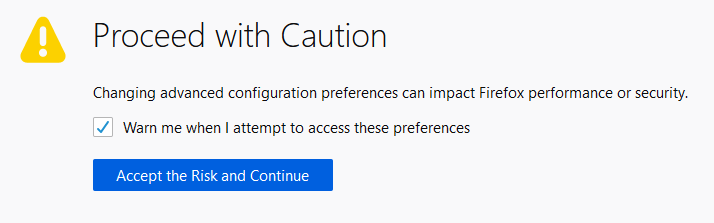
You may see a warning that you're entering advanced settings. If so, proceed with caution:
Step 2 - Find the setting network.security.ports.banned.override
In the filter box, type: network.security.ports.banned.override

Step 3 - Enter a Comma-Separated List of Ports as a String
I've noticed that simply toggling this value to false or deleting it does not actually allow access to restricted ports.
Instead, this preference needs to be set as a String containing a comma-separated list of ports.
So if you already have this preference set as a Boolean, just delete it:

Then recreate the preference as a "String":

Next, enter "87" as the value and save it:

Afterwards, it should look something like this:

If needed, you can also specify multiple ports either as a range such as "1-1024" or even combine with a comma separated list such as "87, 150-300, 350, 400, 450-500".
Step 4 - Refresh the page
Everything should be set now. Simply refresh the page, and you should have no problems accessing the resource!
