
Please note that this blog post was published on January 2021, so depending on when you read it, certain parts might be out of date. Unfortunately, I can't always keep these posts fully up to date to ensure the information remains accurate.
- Watch the Video
- The 3 Basic Rules You Should Follow
- Example of Audio Clipping
- Only Use the Volume Fader as a Last Resort
- Trust the Audio Mixer - Not Your Headphones
- Simple Guide to Setting Up Your Desktop Audio
- Configuring the Twitch Alerts Audio
- Configuring the Music Audio
- Configuring the Game Audio
- Simple Guide to Setting Up Your Microphone Audio
- Configuring the Microphone's Raw Input Level
- Configuring the Audio Compressor in OBS Studio
- Final Video Demo
- Read More
If you search the internet for how to set up your OBS Studio audio for streaming, you'll find a massive number of guides and tutorials - covering everything from the basics to "advanced" or "professional" audio settings. Many of these guides are fantastic and explain exactly how everything works in great detail.
But it's not easy to get it right, and the reality is that you can't simply copy and paste settings from a guide and expect to automatically achieve great audio.
This is because your audio setup depends heavily on your own streaming environment - what you're streaming (music, games, etc.), what microphone you use, and the settings you have for it, among other factors.
There is simply no silver bullet for this, and if you continue reading this blog post, I think you'll understand why.
In this post, however, I will explain three basic rules you should follow - and more importantly, why - when setting up your OBS audio for streaming. I'll also walk through examples showing how to configure different audio sources based on these rules.
Watch the Video
If you don't want to read this written guide, feel free to watch the video. I also explain things in more depth in the video.
The 3 Basic Rules You Should Follow
Let's cut right to the chase: if you look at your "Audio Mixer" in OBS Studio, you'll most likely see something like the image below.
There will be two bars (two audio sources).
The one at the top is Desktop Audio, which represents your computer's audio, and the one at the bottom, Mic/Aux, is your microphone.
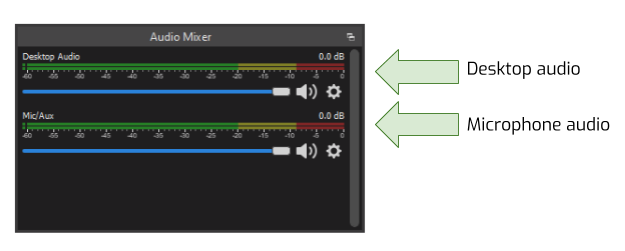
I'm sure you already know this, but what you should pay special attention to is that each bar is divided into three different zones:
- 🟩 Green - safe volume range
- 🟨 Yellow - getting louder, approaching the upper limit
- 🟥 Red - too loud and likely clipping
You should adjust your audio so that the volume for both your desktop audio and your microphone follows these zones.
- Rule 1 - Your desktop sound (music, games, etc.) should stay within the 🟩 green zone.
- Rule 2 - Speech, such as your own voice or your friends' voices, should be in the 🟨 yellow zone. This is because your voice should ideally be louder than any other audio source while streaming.
- Rule 3 - No audio should ever enter the 🟥 red zone, as it can cause clipping - which results in a terrible viewing and listening experience.
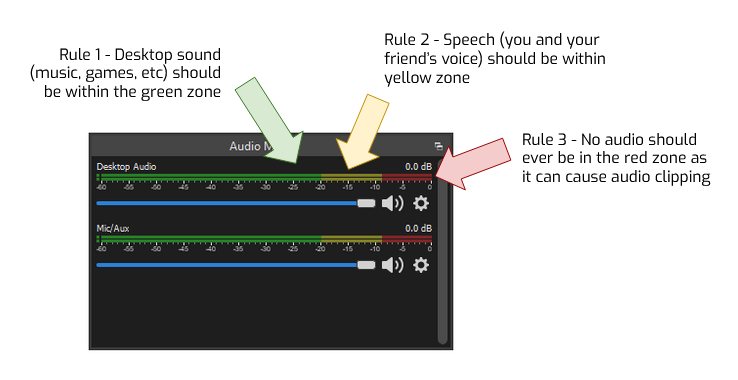
These are the 3 basic rules you should follow when setting up your streaming audio.
Below, I'll walk you through some simple steps for setting up each audio source. Please note that some of the videos may contain loud audio as part of the demonstration.
Example of Audio Clipping
I also want to quickly give you an example of what audio clipping sounds like. In the image below, you can see that I'm speaking normally in the 🟩 green and 🟨 yellow zones, but then I get really loud and enter the 🟥 red zone.
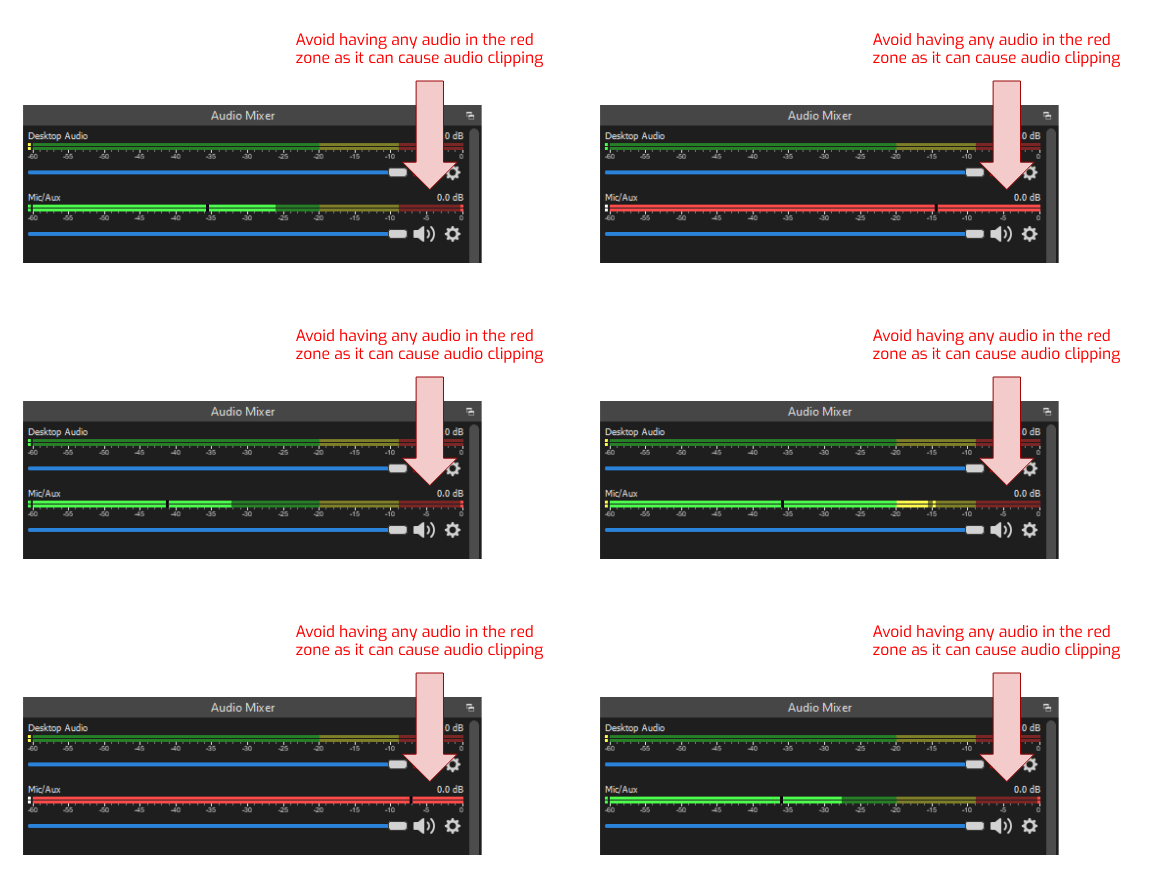
Here is an audio example of me clipping. Be aware - the volume in the video is very loud!
Only Use the Volume Fader as a Last Resort
This might sound strange, but if you think about it, it makes sense. The volume fader in OBS affects all desktop audio, no matter which application the sound comes from.
So if you've already configured each application's audio to the correct level for streaming, changing the main fader will adjust everything - just to fix one source.
So, in practice, it's almost always better to keep the volume fader at 100% and adjust each application's audio individually whenever possible - only using the main fader as a last resort.
Trust the Audio Mixer - Not Your Headphones
What you hear might not be the same as what your viewers hear. You may have different audio levels in your headphones than what is actually being streamed.
For example, my headphones have their own volume control, and it may be set lower than the volume being sent to viewers. So even if everything sounds perfectly fine to me, viewers could still experience audio clipping. That's why it's so important to keep an eye on the Audio Mixer in OBS Studio.
Simple Guide to Setting Up Your Desktop Audio
Configuring the Twitch Alerts Audio
The first thing I need to do is configure my Twitch alerts.
I personally use StreamElements, and in the video below I'm rerunning a "Twitch follow" alert with the music set to 100% volume. Then I lower it to 25% to keep it within the 🟩 green zone. I consider the text-to-speech portion as voice, so it's fine for it to sit in the 🟨 yellow zone.
Configuring the Music Audio
Next, we need to make sure any background music you play sounds balanced. In the video below, I first play the music at 100% volume and then lower it to around 50% to bring it into the 🟩 green zone.
Configuring the Game Audio
Lastly, I need to make sure the game I'm going to stream is within the 🟩 green zone. In Enter the Gungeon (an awesome dungeon crawler), I start with the volume at 100% and then lower it until the audio level sits within the 🟩 green zone.
Simple Guide to Setting Up Your Microphone Audio
Configuring the Microphone's Raw Input Level
In this example, I am using an USB microphone. If you have an analog microphone audio setup you should try and configure your physical device first, regardless if it is an audio interface or a mixer.
In the video below, you'll see me adjusting the recording level for my microphone in the Windows Sound Control Panel so it sits in the 🟨 yellow zone. At 100%, the volume clips, and at 50% it's too quiet, so I settled on around 75%.
As you can see, the audio occasionally touches the 🟥 red zone, but that's okay - the compressor will take care of those peaks.
Configuring the Audio Compressor in OBS Studio
Eve'se an audio compressor for the microphone - no excuses.
A compressor helps normalize audio levels. In other words, it reduces the difference between quiet speech and loud moments (for example, when you get excited during a stream). This is great for viewers because the jump between soft talking and loud talking isn't as drastic.
In the video below, I'm using the built-in OBS Studio compressor. First, I enable the audio filter and reset the settings to default.
Next, I turn the threshold all the way up (essentially disabling the compressor) to demonstrate audio clipping. You'll notice my audio jumps straight into the 🟥 red zone.
Then, I turn the threshold all the way down, which forces the compressor to activate immediately, even when I speak softly. In this case, everything I say becomes compressed and ends up sounding very quiet.
For my own setup, I found that a -25 dB threshold works best. With that setting, my voice stays within the 🟨 yellow zone whether I speak softly or loudly.
Final Video Demo
Here's a short video demo showing the final result after configuring both the desktop audio and microphone audio as described above.
What do you think - does it sound good for streaming?
Read More
If you're curious to learn more about how OBS Studio handles audio and the mixer, feel free to check out their official documentation!
OBS Studio - Understanding The Mixer