Please note that this blog post was published on December 2022, so depending on when you read it, certain parts might be out of date. Unfortunately, I can't always keep these posts fully up to date to ensure the information remains accurate.
- Watch the Video
- Step 1 - Download OBS Studio
- Step 2 - Extract Obs Studio to Two Folders
- Step 3 - Create Obs Studio Shortcuts
- Step 4 - Add the Portable Launch Parameter
- Step 5 - Adding Obs Studio Sources
- Step 6 - Fixing the Audio Mixer
- Step 7 - Output Filename Settings
- Step 8 - Recording to Two Different Video Files
Here is a quick guide on how to achieve selective recording, meaning how to record your desktop or game footage into its own video file, and your webcam footage into another file locally.
This is a built-in feature in Streamlabs Desktop, but you can achieve the same using OBS Studio. Here's how!
Watch the Video
If you don't want to read this written guide, feel free to watch the video. I also explain things in more depth in the video.
Step 1 - Download OBS Studio
The first thing we need to do is download OBS Studio. However, we should not download the installer version but the ZIP archive version.
Visit the OBS Studio download page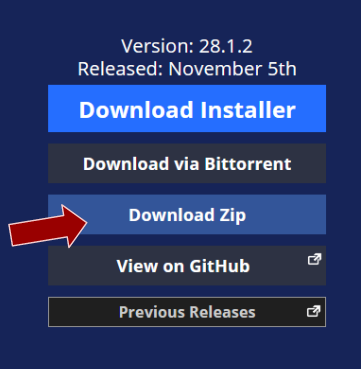
Step 2 - Extract Obs Studio to Two Folders
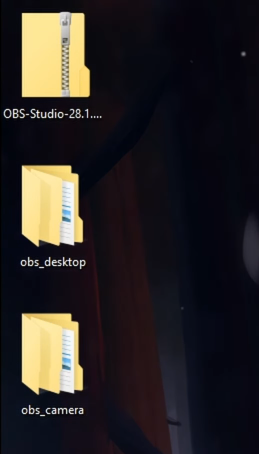
Once OBS Studio has been downloaded to your computer, extract the ZIP archive twice so that you have two folders containing OBS Studio.
I also renamed the folders to "obs_desktop" and "obs_camera" to help me organize the different OBS Studio folders.
Step 3 - Create Obs Studio Shortcuts
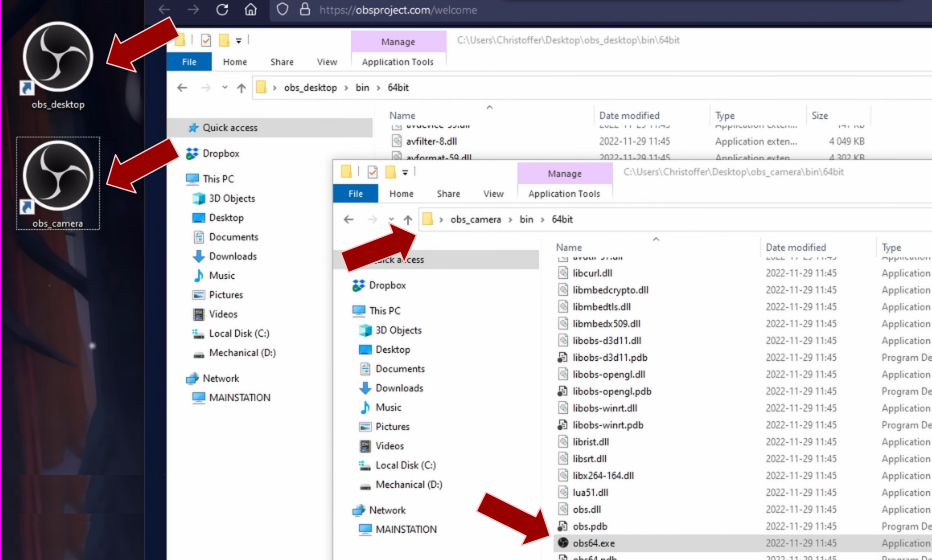
For each of the OBS Studio folders, create a shortcut to the "obs64.exe" application.
I also renamed the shortcuts to "obs_desktop" and "obs_camera" to help me distinguish between them.
Step 4 - Add the Portable Launch Parameter
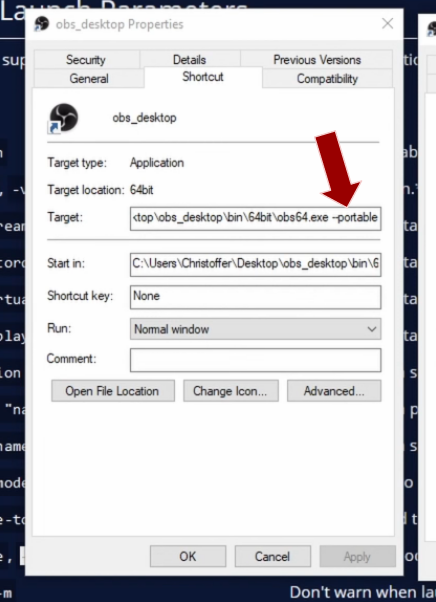
Next, edit each shortcut and add the "--portable" launch parameter to each target.
This will force each OBS Studio to launch in portable mode, meaning each instance will have its own configurations in its own folder (compared to a globally shared one), and it also means you can now launch each OBS Studio simultaneously.
Step 5 - Adding Obs Studio Sources
Now that you can launch each OBS Studio at the same time, simply add the appropriate sources to each OBS Studio. Add your webcam to your "obs_camera" instance and add your desktop or game source to your "obs_desktop" instance.
This will force each OBS Studio to launch in portable mode, meaning each instance will have its own configurations in its own folder (compared to a globally shared one), and it also means you can now launch each OBS Studio simultaneously.

Step 6 - Fixing the Audio Mixer
Also, remember to fix the audio mixer. For example, mute the microphone in the desktop OBS, and mute the desktop sounds in the camera OBS.

Step 7 - Output Filename Settings
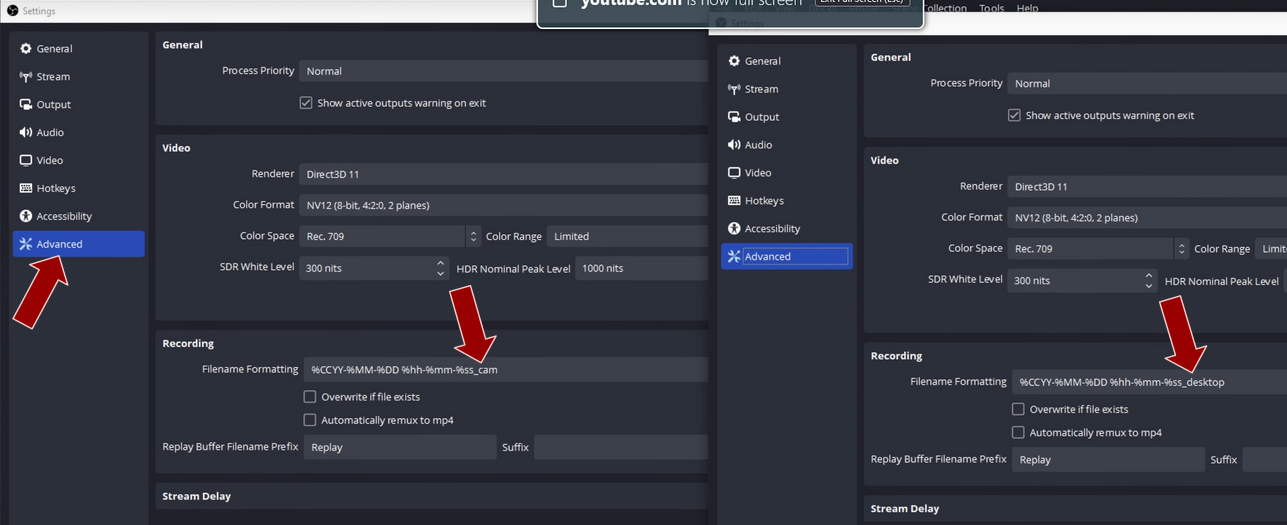
A good tip is to also change the output filename in each OBS Studio. For example, I added the suffix "_cam" in the settings for the OBS Studio camera instance and "_desktop" for the desktop OBS.
Step 8 - Recording to Two Different Video Files
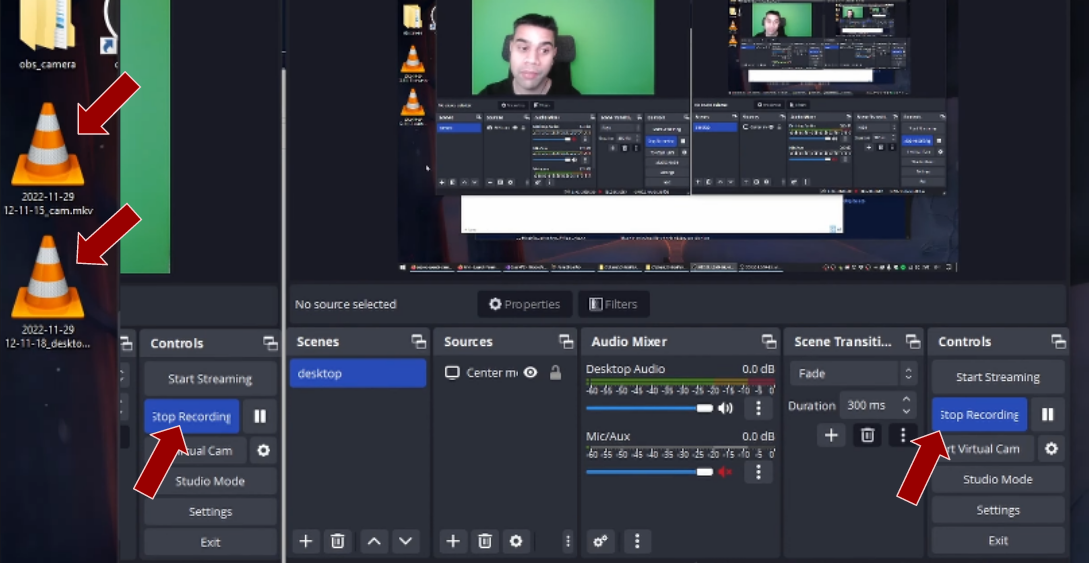
Now, if you press record in both OBS Studios, you will notice that two video files are being created - one for each OBS Studio, one of your camera and one of your game or desktop.