
Please note that this blog post was published on January 2021, so depending on when you read it, certain parts might be out of date. Unfortunately, I can't always keep these posts fully up to date to ensure the information remains accurate.
- Watch the Video
- Let's Start With the Basics - What Is LUFS?
- LUFS Is Used Pretty Much Everywhere, so Why Not by Twitch Streamers?
- Installing a LUFS Loudness Meter of Your Choice in OBS Studio
- A Quick Overview of a LUFS Loudness Meter
- Setting Your Microphone Loudness to -16 LUFS
- Aim for a -10 LUFS Difference Between Your Microphone and All Other Audio (Music and Games)
- Adjusting the Music Audio
- Adjusting the Game Audio
- Adding a Compressor to the Game Audio to Normalize Loudness
If you don't know what LUFS is, don't worry! In this blog post, I'll explain what it is, what I've learned so far, and how I now use it to balance my audio before streaming a game on Twitch.
Watch the Video
I've also made a video about this blog post. I highly recommend watching it, as it goes through each topic and step in a more natural way, hopefully explaining things better than a written guide.
Let's Start With the Basics - What Is LUFS?
There are tons of articles and resources out there that explain what LUFS is in great detail, so I'll just give a quick introduction.
LUFS stands for "Loudness Units Full Scale", and in some articles, it might be referred to as LKFS, which stands for "Loudness K - weighted Full Scale". They're essentially the same thing - different organizations and countries just use different names for it.
LUFS is an absolute and standardized way to measure the perceived loudness of an audio source - whether it's a radio or TV broadcast, a song, or even a game.
It was originally developed to regulate the loudness of audio content by broadcasters, in order to combat the "Loudness war" - a trend where content creators and broadcasters kept increasing audio levels to compete for the listener's attention.
Different organizations (such as the a European Broadcasting Union and the Advanced Television Systems Committee) began developing standards and tools to measure loudness. As a result, LUFS was created to accurately measure loudness, and soon after, government institutions started passing regulations (such as the CALM Act) for broadcasters.
The difference between dBFS (decibels relative to full scale) and LUFS is that dBFS measures only the amplitude - how strong an electronic signal is - while LUFS is designed to provide an absolute, standardized measure of perceived loudness.
To put this in gaming terms: imagine that dBFS is how hard you hit an enemy, while LUFS is the actual damage you deal!
LUFS Is Used Pretty Much Everywhere, so Why Not by Twitch Streamers?
But today, LUFS is used in nearly every industry that deals with audio in one way or another - including, but not limited to, film, television, online music services (such as Spotify, YouTube, and Apple Music), and even the gaming industry - to provide the best possible audio experience for end users.
So, in what applications would LUFS be beneficial? Well, imagine the following simple situations:
- You are a TV network and want to play a commercial, but you don't want it to be much louder than the rest of your content.
- You are a music provider, such as Spotify, YouTube, or Apple Music, and you want all the music you play to have a consistent loudness for your listeners.
- You are creating a video game and want all the music to have the same loudness.
While researching this topic, I found that the following industries and services use these LUFS values:
-
Music services:
-14 LUFS -
Podcasts:
-16 LUFS -
Gaming:
-24 LUFS -
TV broadcasts:
-24 LUFS -
Netflix:
-27 LUFS
As you can see, LUFS is used to make sound mixes more consistent.
So if everyone else is using it, maybe we Twitch streamers should try using it for our streams as well? Well, let's give it a try and see how it works!
Installing a LUFS Loudness Meter of Your Choice in OBS Studio
Installing a LUFS loudness meter is basically the same as installing any other VST plugin in OBS Studio.
During my research on this topic, I found two free plugins:
There might be more plugins out there that I'm not aware of. If so, feel free to contact me, and I'll try to add them to this list.
In the video below, we'll install both plugins so you can see how the installation process works and what each one looks like - helping you decide which one you prefer.
A Quick Overview of a LUFS Loudness Meter
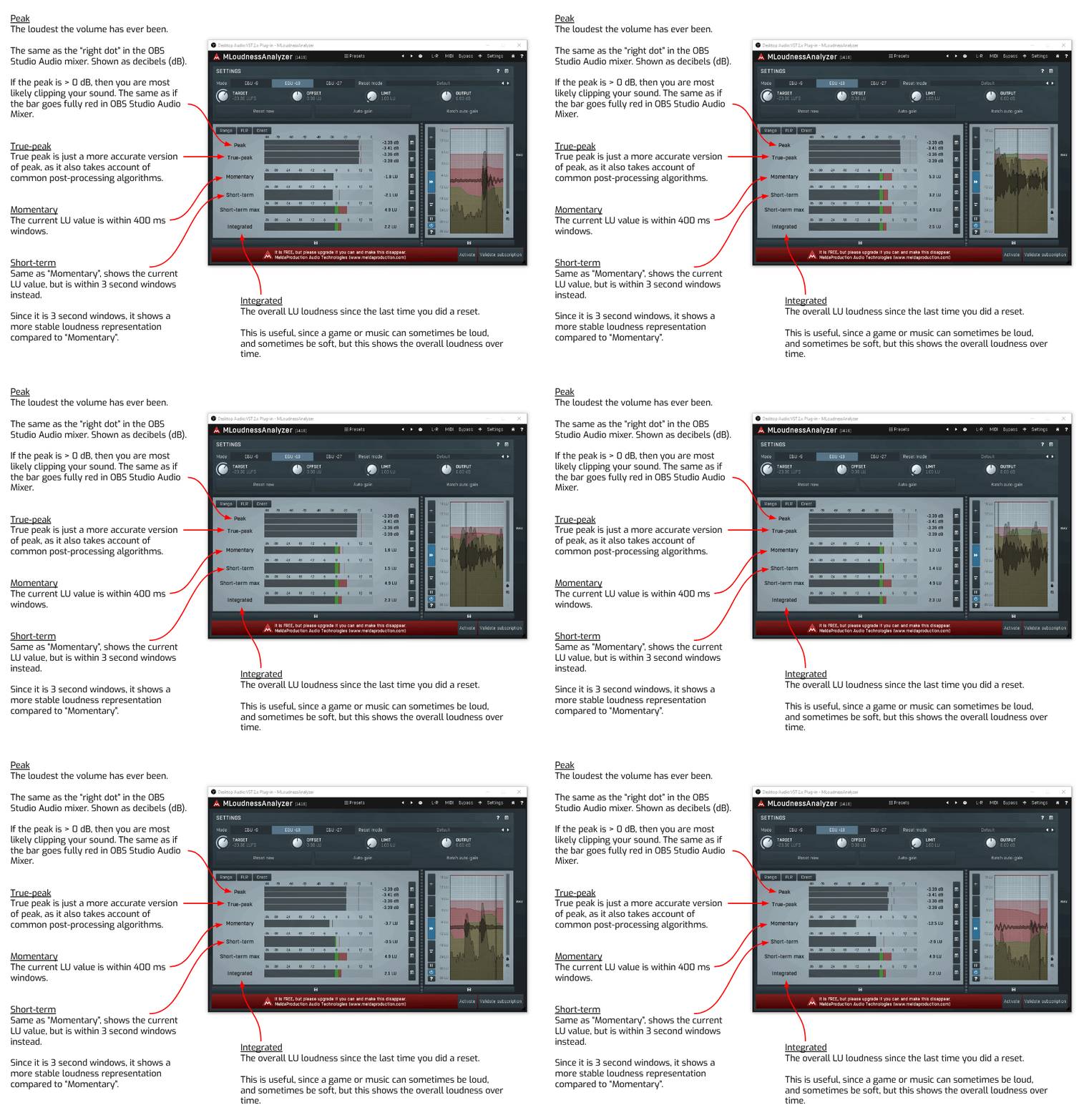
Regardless of whether you use MLoudnessAnalyzer or Loudness Meter 2, they all share the same fundamental metrics and visualizations.
Throughout this blog post, I'll refer to certain metrics, so here's a quick overview of what each one means.
The key metrics are:
- Peak - The loudest the volume has ever been. This is the same as the "right dot" in the OBS Studio audio mixer and is shown in decibels (dB). If the peak is above 0 dB, you're most likely clipping your sound - just like when the bar turns fully red in OBS Studio.
- True Peak - A more accurate version of Peak that also accounts for common post-processing algorithms.
- Momentary - The current LU value measured within a 400 ms window.
- Short-Term - Similar to "Momentary", but measured within a 3-second window. Because it averages over a longer time, it provides a more stable representation of loudness.
- Integrated - The overall LU loudness since the last reset. This is useful because a game or song may have both loud and quiet sections, and this metric shows the overall loudness over time.
If you want to read more about these metrics and values in detail, the official MLoudnessAnalyzer documentation is a great resource.
Setting Your Microphone Loudness to -16 LUFS
Let's say you've just bought a brand-new microphone and want to set it up in OBS Studio.
In this example, I'll be using a Blue Yeti Nano.
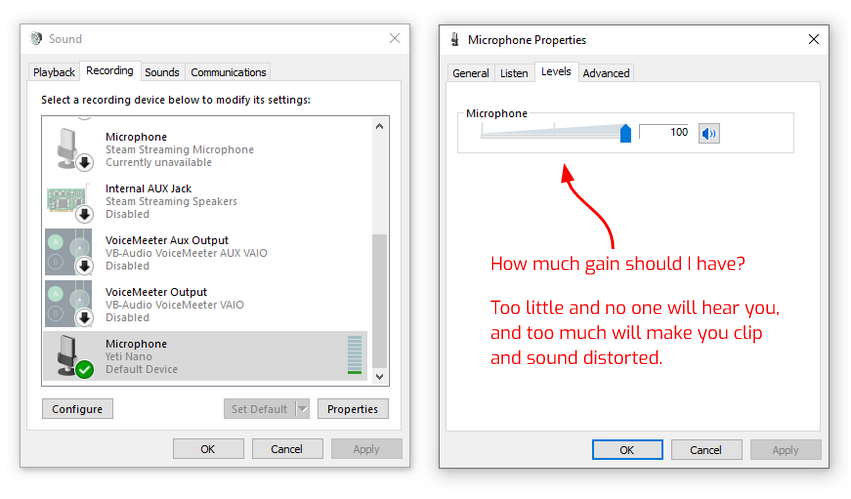
First, plug it into your computer using a USB port. Then, open the Windows Sound Settings - you should see it listed as your default Input device. If you open the Sound Control Panel and view its properties, you'll find the Windows gain slider there.
One of the first questions you might ask yourself is: How much gain should I use?
Too little, and no one will hear you; too much, and you'll clip and sound distorted.
Well, according to industry standards, podcasts usually sit around -16 LUFS, so I think that's a good baseline to use when broadcasting to Twitch and adjusting your gain.
Let's open OBS Studio with our newly installed loudness meters and adjust the gain until we reach -16 LUFS to see how it turns out.
Check out the video below to see me demonstrate this process.
Aim for a -10 LUFS Difference Between Your Microphone and All Other Audio (Music and Games)
While researching this topic, I found several sources stating that the gaming industry usually aims for -24 LUFS, making it slightly quieter than podcasts and radio shows.
However, that's just how loud a game itself is. What's most important here is figuring out a good delta value for your own setup and content.
For example, if you've decided that your voice should sit around -16 LUFS, experiment with how loud you want your other audio sources to be in comparison - loud enough for viewers to hear them clearly, but not so loud that they overpower your voice.
Personally, I've found that keeping music and game audio about 10 LUFS lower than my microphone works well for me. Since my mic averages around -16 LUFS, that means my other audio content lands around -26 LUFS.
To measure how loud your music or game is, simply add a LUFS meter as a filter on the Desktop Audio channel in OBS Studio, just as we did for the microphone.
Below, I've included three videos demonstrating how I adjust the loudness of other audio sources.
Adjusting the Music Audio
In the first video, I'm adjusting the music loudness accordingly.
Adjusting the Game Audio
In the second video, I'm adjusting the game loudness for Left 4 Dead.
Adding a Compressor to the Game Audio to Normalize Loudness
As we saw in the previous video, the audio in Left 4 Dead isn't properly normalized. When there's no action, the loudness sits around -26 LUFS, but when I start shooting, it jumps up to an intense -9 LUFS. This not only overpowers my voice but can also be uncomfortably loud for viewers.
My solution to this problem is to add a compressor, which I demonstrate in the third and final video.
