
Harap dicatat bahwa postingan blog ini diterbitkan pada November 2020, jadi tergantung kapan Anda membacanya, beberapa bagian mungkin sudah kedaluwarsa. Sayangnya, saya tidak selalu dapat memperbarui postingan ini sepenuhnya untuk memastikan keakuratan informasinya.
If you simply paste a link to your Twitch stream in a Tweet, it becomes non-interactive and boring, as shown below.

In this guide I will try and go through how you can embed your Twitch stream directly in a Tweet for others to preview your stream directly on Twitter.
You will be able to understand how to embed your Stream, customize the title, description and the image. In my case, I also went totally crazy and connected to a custom domain.
If you don't own a domain, don't worry, I will show you other ways to make your link look more fancy!

Watch the video
I have also created a video that goes through this blog post, step by step. Feel free to check it out!
Basic introduction to web pages and their metadata
Okay, so let's start with the very basics of web development.
A web page is written in a language called HTML, and the very bare minimum of any web page looks something like this:
<!doctype html>

<html lang="en">
<head>
  <title>This is the web page title</title>
  <meta name="description" content="This is the description">
</head>
<body>

<p>This is a really awesome web page!</p>

</body>
</html>
We can literally take this source code and save it to a .html file on our computer and view it in the browser.
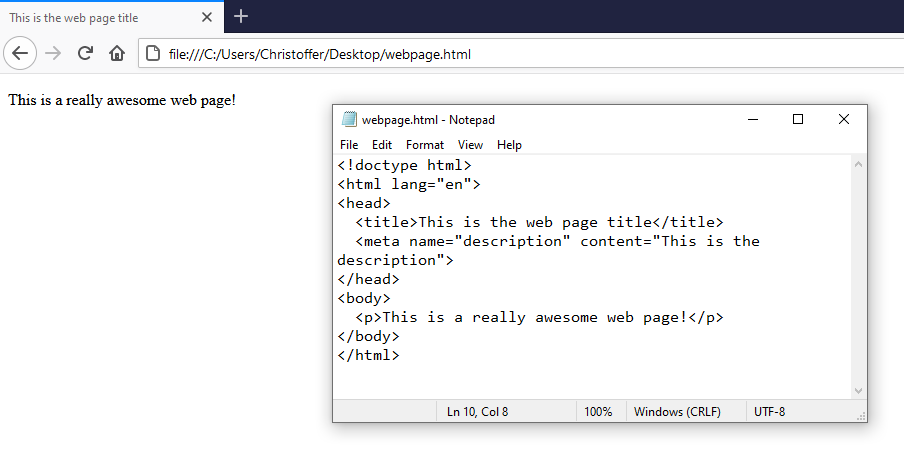
A web page consists of two parts:
- The head - which contains metadata about the page
- The body - what is actually displayed for the user in the browser
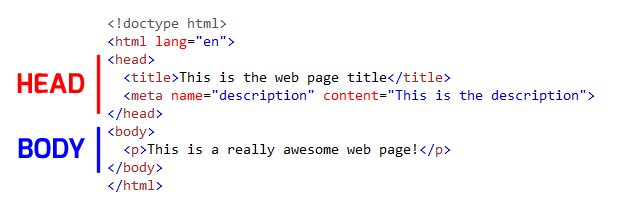
The Head is the most interesting part for us, as it tells other computer systems more information about the web page.Systems such as search engines such Google and Bing, or even social media services such as Twitter and Facebook.
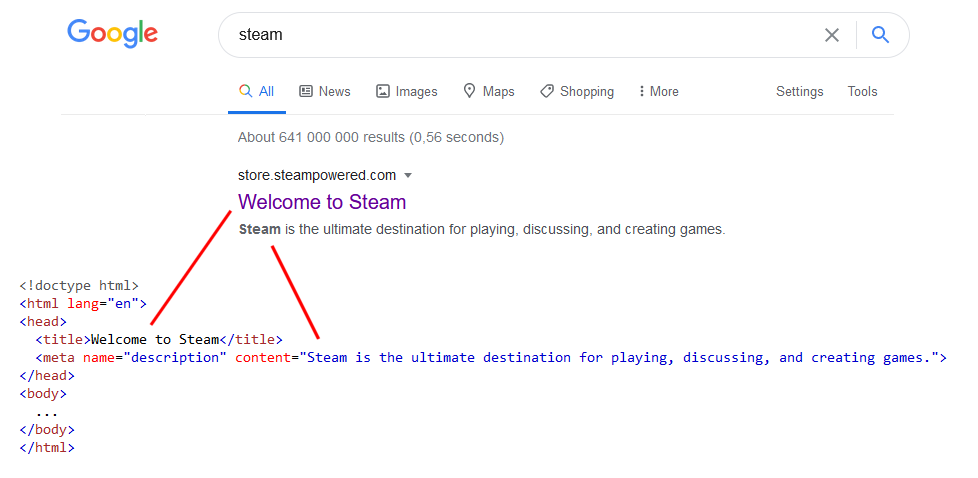
For example, here you can see the direct link between a page's title and description metadata and Google search results.
Inspecting how a link is displayed when it is shared on Twitter
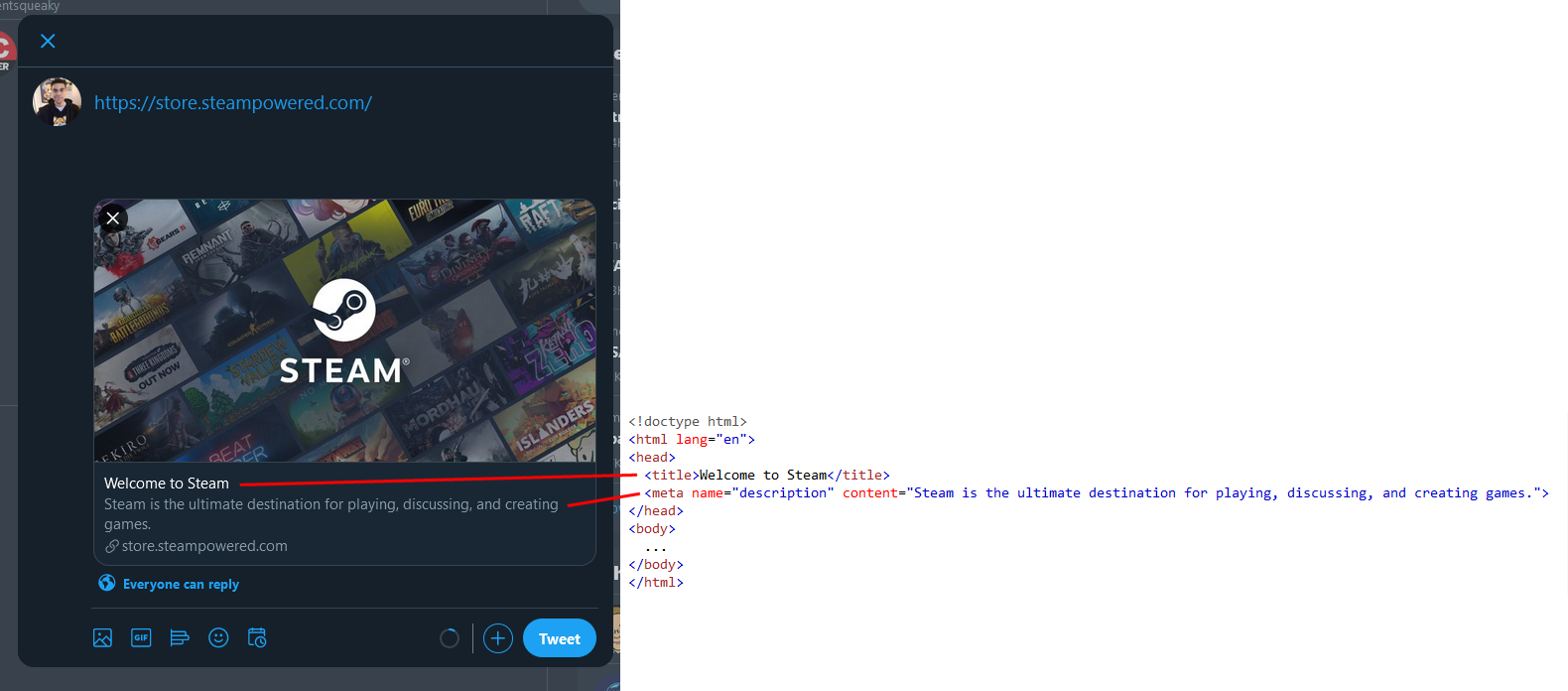
As I mentioned other systems, such as social media services, also look at this metadata.
We can see this by pasting in the link to the Steam store page in Twitter as well.
Twitter has actually released a tool called "Card validator". It is a tool where anyone can insert a link and see how it will be displayed if shared on Twitter.
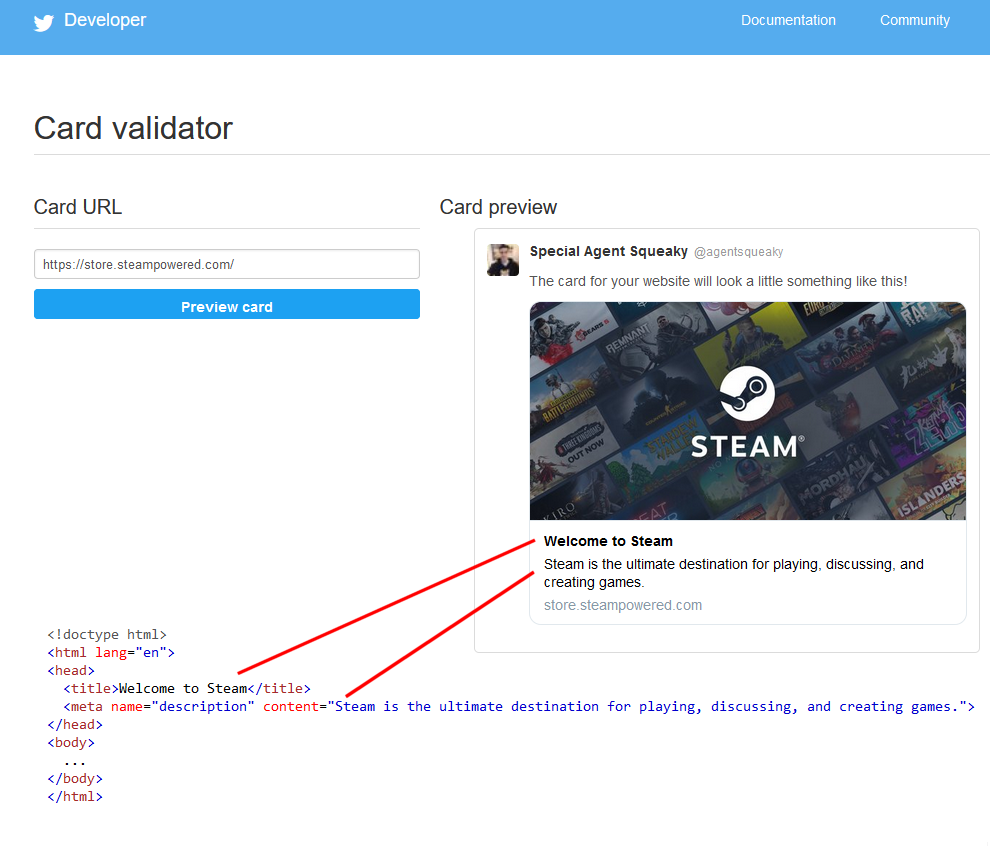
We will be using this tool a lot throughout the guide, so keep it bookmarked.
But as you can see, the tool is called "Card validator", so the next thing we need to go through are what Twitter cards are!
Basic introduction to Twitter cards
However, obviously, a lot of people post links on Twitter, so Twitter came up with something called "Twitter cards" so that website owners can specify the look and feel of how links to their pages look like. Facebook has something similar called "The Open Graph protocol".
I won't go into super much detail here, as you can read the full documentation yourself, but basically it is just additional metadata you can add on a web page (like the ones we mentioned above) that tells Twitter what a link points to.
In our specific case, we are interested in something called "Player cards". By specifying Player cards on a web page, it tells Twitter that the link points to some kind of a video - which our stream is!
There are a lot of details regarding how to implement Player cards on a web page, but here is a quick example of the HTML you can add to page:
<meta name="twitter:card" content="player" />
<meta name="twitter:image" content="https://www.mydomain.com/image.png" />
<meta name="twitter:title" content="This is the title of the page!" />
<meta name="twitter:description" content="This is a longer description of the page." />
<meta name="twitter:player" content="https://www.mydomain.com/video.mp4" />
<meta name="twitter:player:width" content="360" />
<meta name="twitter:player:height" content="200" />
You don't need to memorize this though, as I have created a generator for you to use later down in this blog post!
HTML generator tool
I've moved the tool from this blog post to here:
Suggestion on where to host the preview page online for free
There are a bazillion ways where you can host a web page on the Internet. Each way has their own pros and cons.
If you want something easy and free, where you can easily connect a domain name later on, I would suggest going with GitHub Pages. The downside of using GitHub Pages is that your source code needs to be public, as in, anyone can see it. However, seeing we are just going to host a simple preview page, I don't personally see that as a problem.
Their official documentation is pretty lengthy, so I will do a very quick guide on the steps required below.
If you haven't, sign up for an account and login.
Create a new Repository
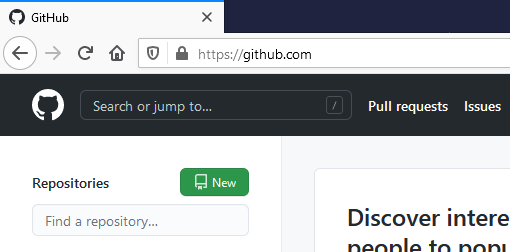
Next you need to create a new "Repository". A repository is, simplified, a folder for a project. Think of it as almost a DropBox folder, but more suited for software development.
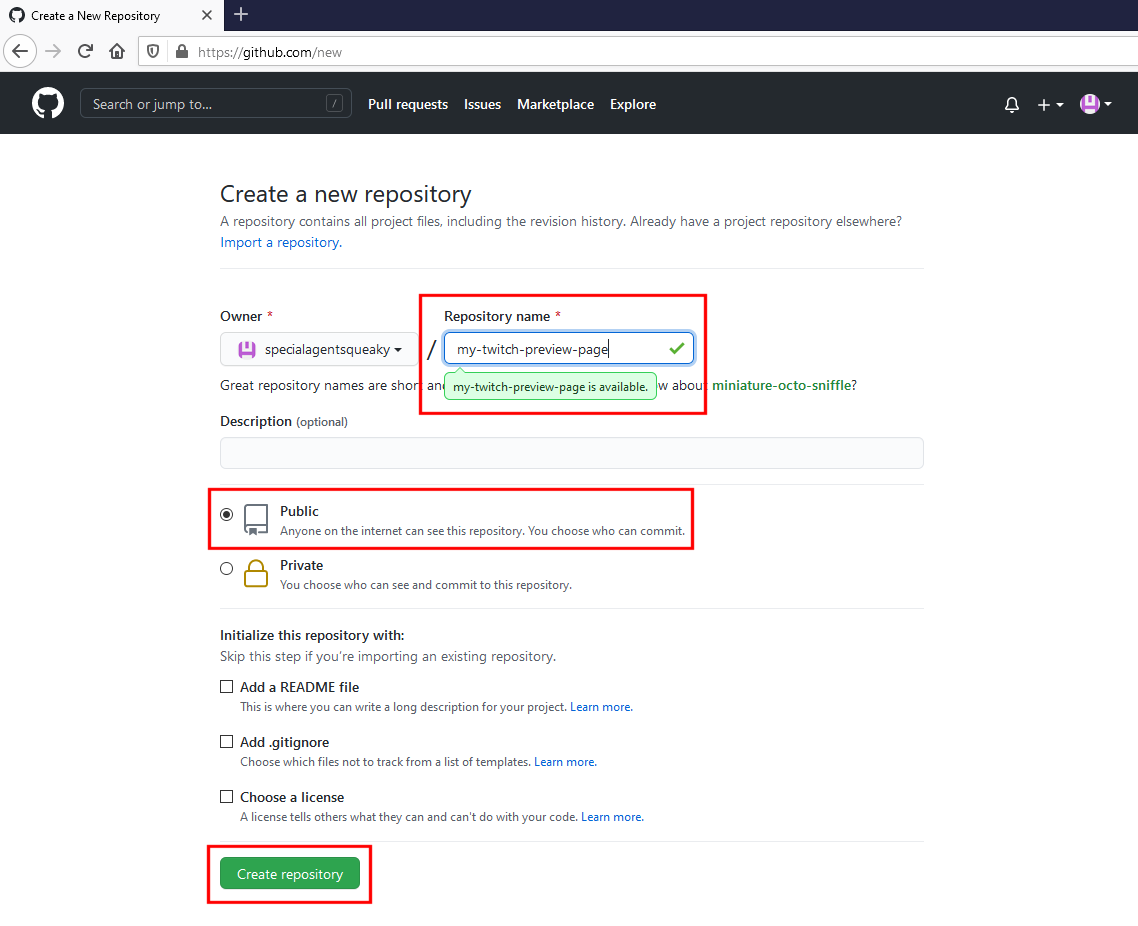
Pick a project name (I picked "my-twitch-preview-page"), make sure the project is "Public" and then finally create the repository with the green button below.
Create to create a new file
Normally you would use specific development tools to maintain files in a repository, but we can actually do everything directly on their website.
So the next thing we need to do is to create a new file in the repository.
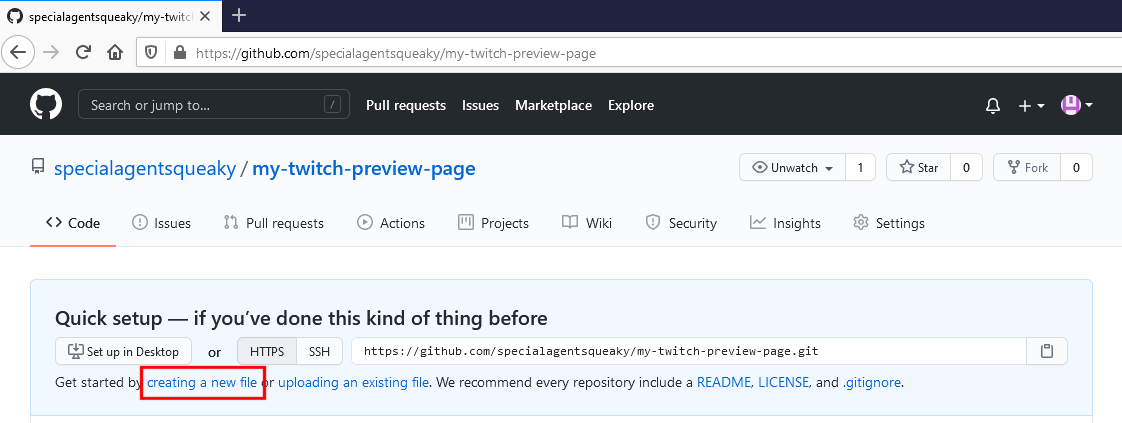
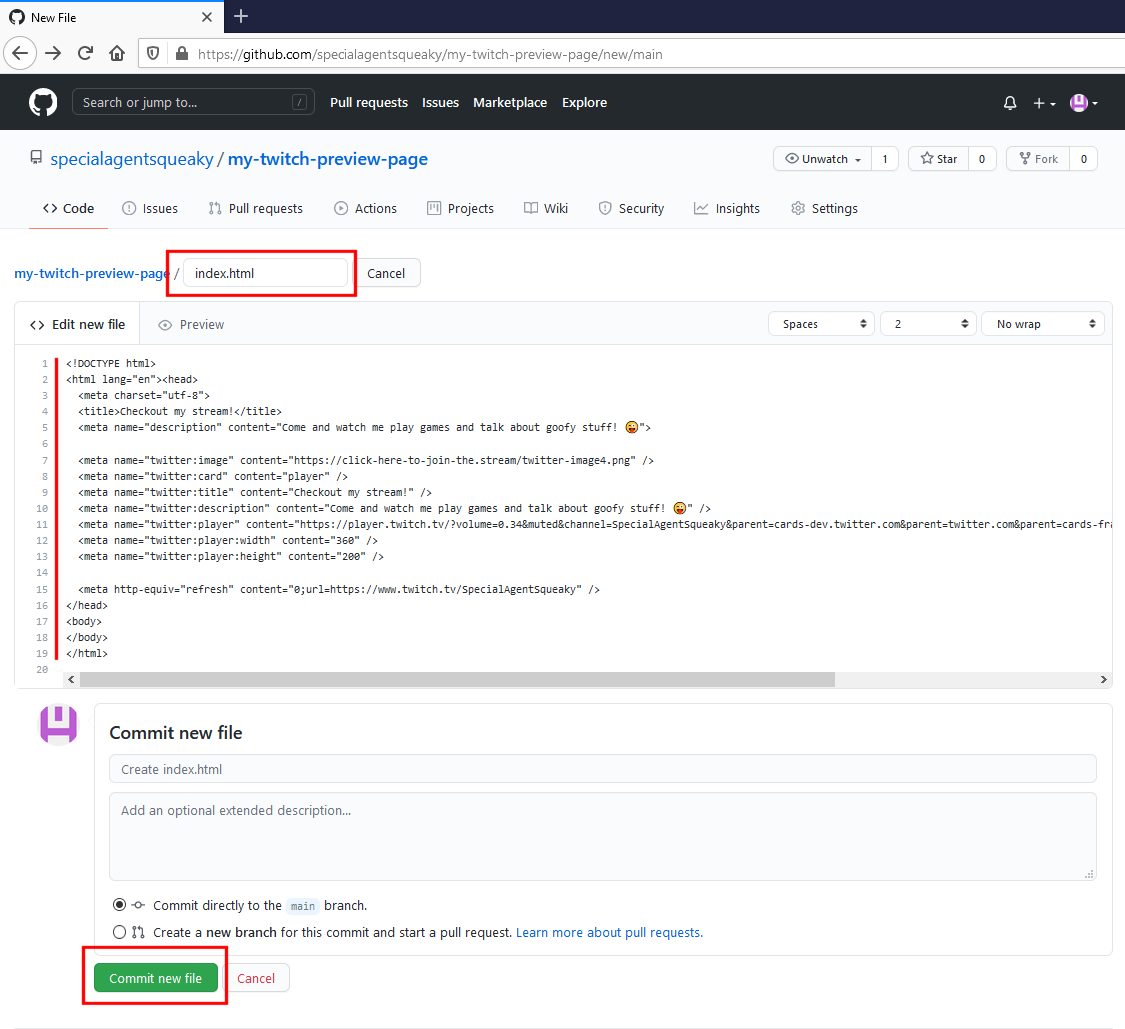
Next name the new file to "index.html". The file extension should be ".html" signifying it is an HTML document, and "index" is an industry norm that signifies this is the first page to be fetched by Browser if nothing else is provided.
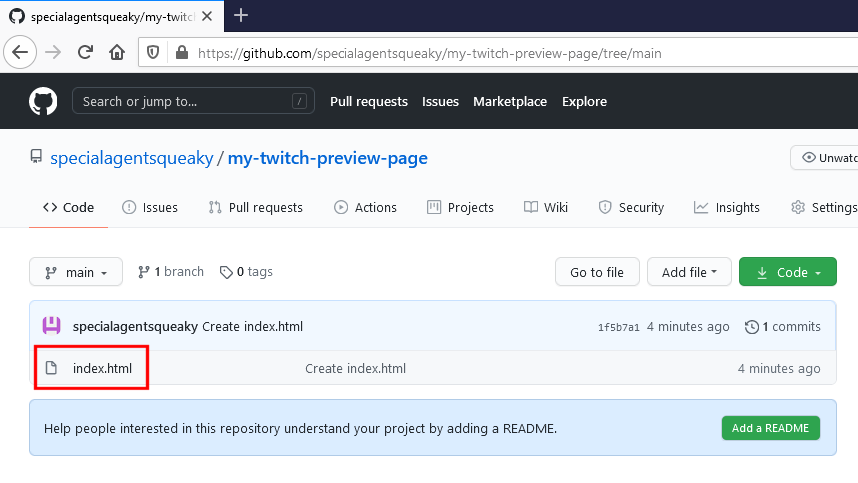
Once you have created your file, you should see that your repository now contains a single file;
index.html.
Enable static web hosting for your repository
Even though you have uploaded a web page and the source code is public, GitHub is actually not hosting this as a web site.So the next thing we need to do is enter the repository's "Settings".

Scroll down to "GitHub Pages" and select "main" as the branch and hit save.
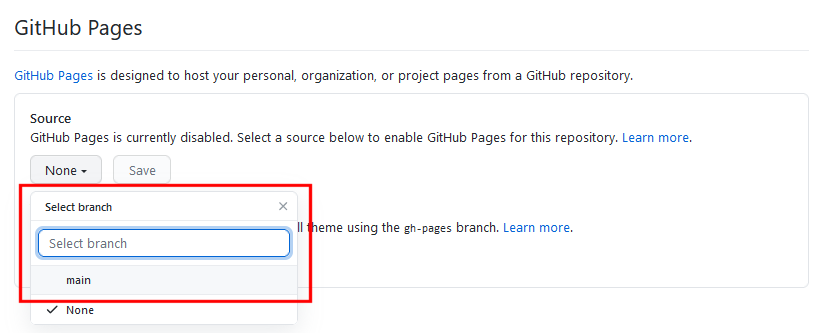
This will reload the page so, scroll down to "GitHub Pages" and you will see that you have been given a public link.

Clicking on this link should open up your Twitch stream (as expected, since we want it to do that), but for now let's copy the link by right clicking on it and pick "Copy link".

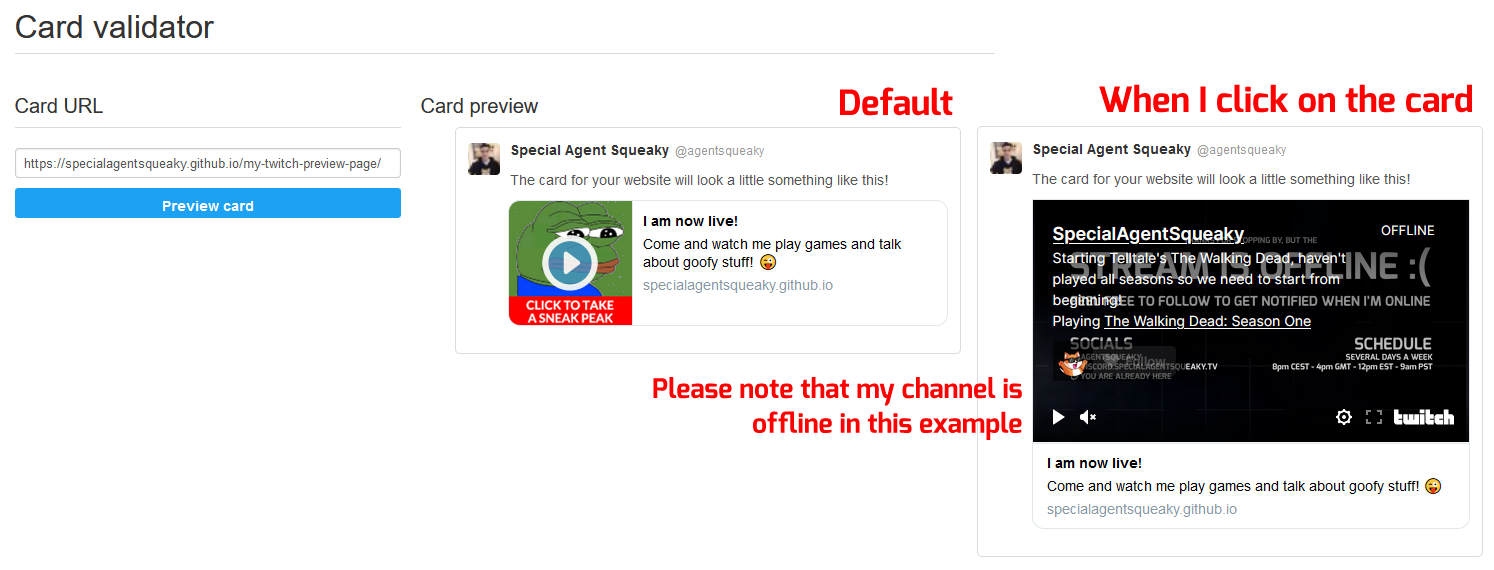
We can now go to the Twitter Card debugger and paste in our link to see how it behaves on Twitter. Alternatively, you could just create a new Tweet with the link to preview it.
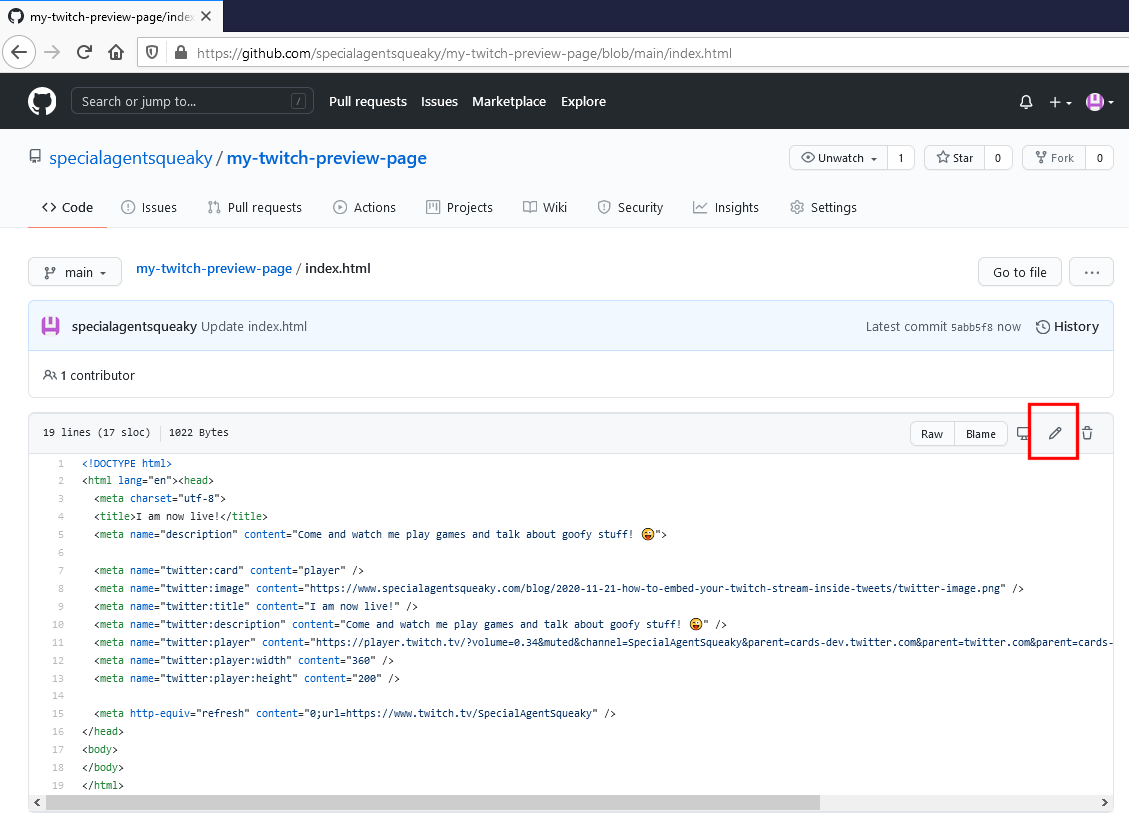
How to edit your HTML file
If you ever need to edit a file on GitHub, simply click into the file and click on the edit button.
How to make the link more pretty for Tweets
The link GitHub Pages has created for you is not really the most appealing link to use in Tweets, so from here you have two options.
You can use an URL shortener service, such as Bitly. In that case you would also automatically get link tracking, meaning you can see how many have clicked on the link, etc.
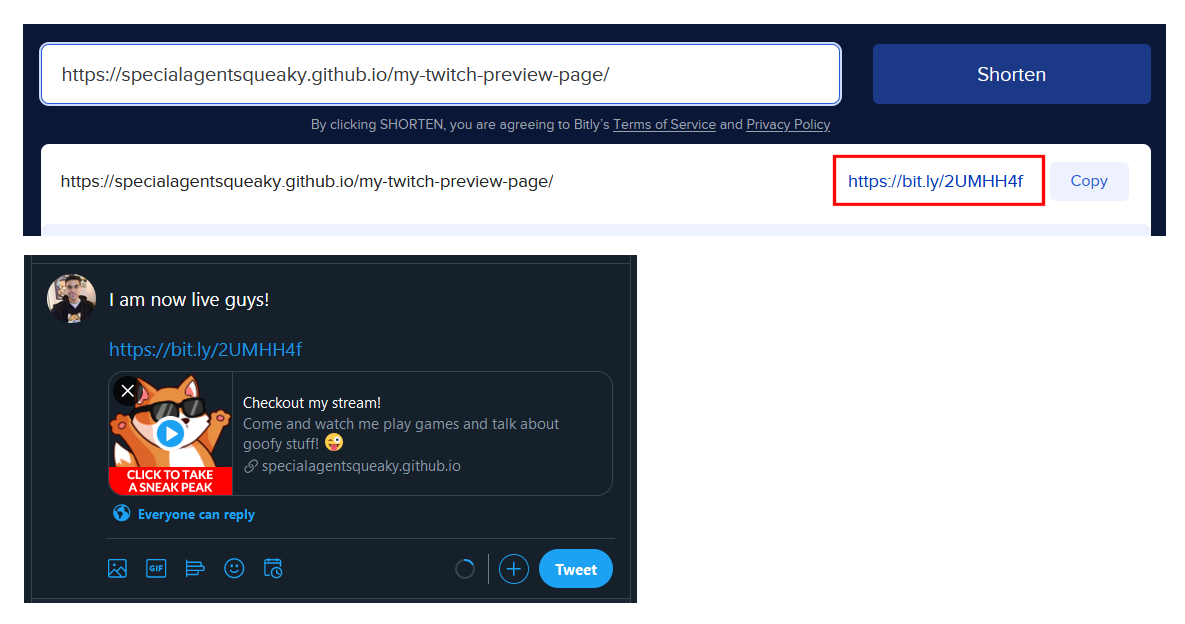
Or if you are more tech-savvy you can point a custom domain to your GitHub Pages. GitHub has instructions on how to properly set up your domain for that.

A quick comment about Twitter link caching
Twitter usually caches web pages, so even if you update your own page, Twitter's cache is not yet updated.
Twitter will eventually update their own case, but if you use the Twitter Card debugger, you will force Twitter to also update their cache for the given link.
