
Please consider helping to keep this tool alive
Since I'm hosting this tool on my own tiny server that runs on coffee and waffles over at Amazon Web Services, please consider supporting me to help keep it running and continued free!
I want to help keeping this tool freeWatch the Video
If you want to see the snow effect in action, I've created a short tutorial on how to use the tool below. Feel free to check it out!
Step 1 - Customize Your Snow Overlay
The first thing you need to do is customize your snowy overlay.
Number of snowflakes shown at the same time:
Snowflake size:
Snowflakes falling speed:
Snowflake shape:
Snowflakes color:
Step 2 - Preview
Here is a preview of how it would look.
Step 3 - Grab the Browser Source URL
The next thing you need to do is copy the URL below.
Step 4 - Create the Browser Source in Obs Studio
As the final step, we need to create the Browser Source in OBS Studio or Streamlabs OBS. The process is basically the same in both.
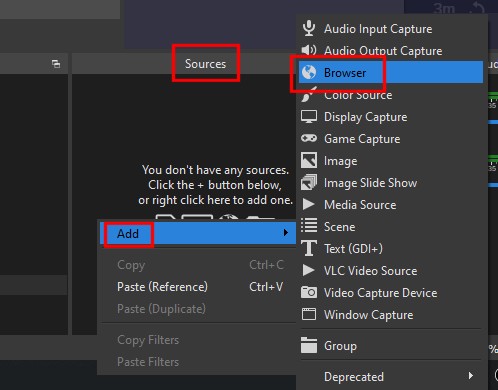
First, right-click on "Sources" for the scene you want to add the overlay to. Then select "Add", and choose "Browser".
Next, all you need to do is replace the URL with the generated one and make sure you specify your screen width and height.
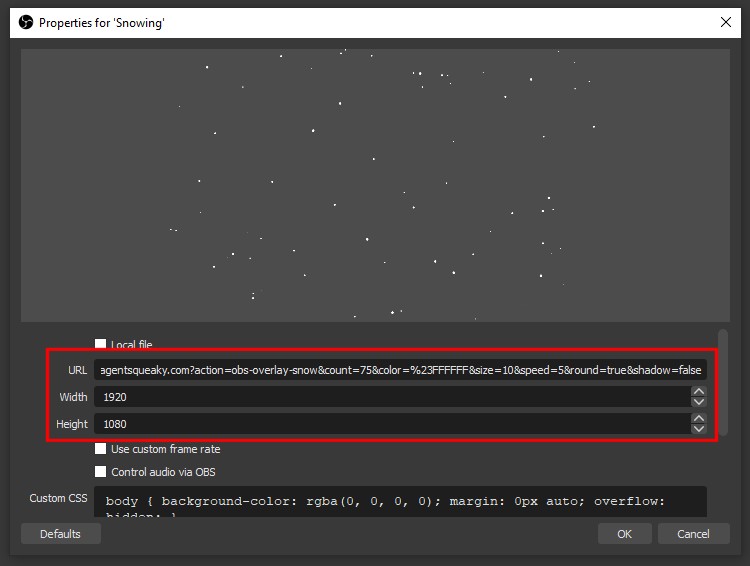
That's it! You should now have a snowy overlay for your stream!
Terms of Service
Please note that by using any tools or services I've built, you agree to follow the Terms of Service.
