
- Watch the Video
- Download
- Quick Guide
- Step 1 - Download and Extract
- Step 2 - Start the Server with the Selected Language
- Step 3 - Drag and Drop a Browser Source into OBS Studioo
- Additional Settings
- Adding Other Languages and Using Custom Models
- Step 1 - Download a New Model
- Step 2 - Copy Files
- Step 2 - Start the Transcriber
- Terms of Service
Please consider helping to keep this tool alive
Since I'm hosting this tool on my own tiny server that runs on coffee and waffles over at Amazon Web Services, please consider supporting me to help keep it running and continued free!
I want to help keeping this tool freeThis transcriber (open caption) tool is built using open-source technologies and runs entirely on your own computer.
Since it operates offline and doesn't rely on cloud processing, its accuracy won't match what powerful online services can achieve - especially while working in real time. As a result, it will make mistakes. Sometimes many.
Use this tool if you need simple, offline open captions for live streaming. For the highest accuracy, adding subtitles during post-production will always deliver the best results.
Watch the Video
If you don't want to read this written guide, feel free to watch the video.
Download
Download the latest versions here. If you want a specific version, feel free to reach out to me.
Please note that the files are quite large because it includes everything you need out of the box.
| Version | Language | File Size | Link |
| 3 | English - High Quality | 2.5 GB | Download |
| 3 | French - High Quality | 1.7 GB | Download |
| 3 | Spanish - Basic Quality | 280 MB | Download |
| 3 | Spanish - High Quality | 1.6 GB | Download |
| 3 | German - High Quality | 2.1 GB | Download |
| 3 | Portuguese - Basic Quality | 270 MB | Download |
| 2 | Basic English, German, Spanish, Portuguese, French, and Swedish | 750 MB | Download |
Quick Guide
Here is a simple, step-by-step quick guide on how to use the Simple Transcriber tool.
Step 1 - Download and Extract
After downloading the version you want, right-click on it and select "Extract All".

Once extracted, the folder structure should look like this.

Step 2 - Start the Server with the Selected Language
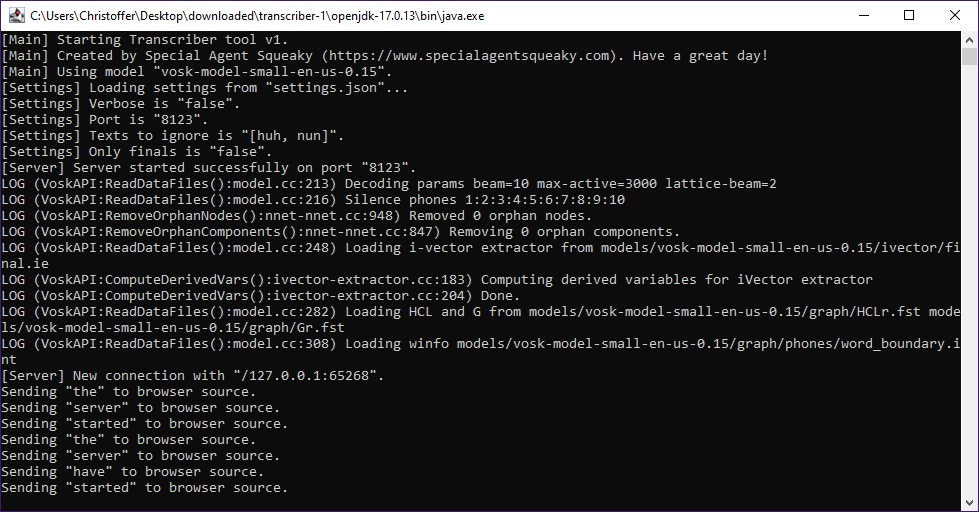
Once downloaded, double-click on the start_transcriber.bat file to launch the transcriber server.

This will start the transcriber server and automatically begin listening to your default microphone.
It will also start a local WebSocket server, which the browser source will connect to.
Step 3 - Drag and Drop a Browser Source into OBS Studioo
In the same folder, you'll also find several HTML files that you can use as browser sources in OBS Studio.
Each HTML file provides a unique open-caption design.
Feel free to try them all - and you can even create your own open-caption style later on.
Simply drag an HTML file into an OBS Studio scene.
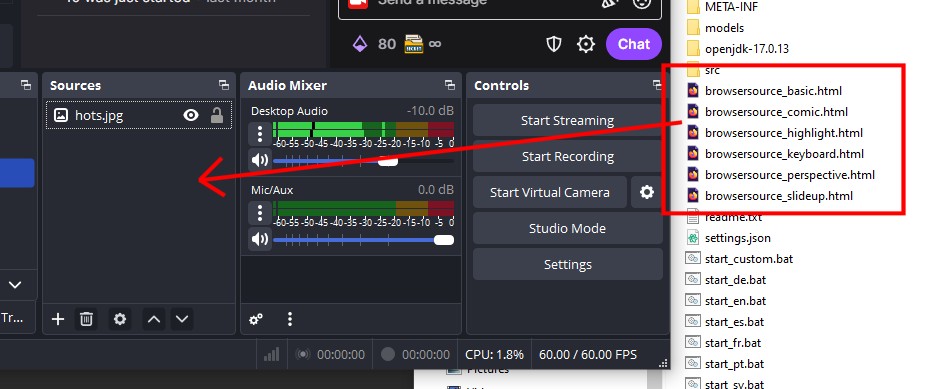
This should instantly start displaying open captions on your stream.
You can now move and adjust the caption box however you like.

And that's it - you're all set!
Additional Settings
In the extracted root folder, you'll find a settings.json file that you can edit for additional configuration options.
Here is a quick overview of each setting.
| Key | Example Values | Description |
| port | 8123 | The port number the WebSocket server should use. If you change this value, you'll also need to update it in src/main.js. |
| onlyFinal | false / true | Specifies whether the transcriber should output only final text or include intermediate (in-progress) text as well. |
| verbose | false / true | Controls whether the server runs in verbose mode, which outputs additional details, including debug information. |
| sendConnectionMessage | false / true | Sends a welcome message to the browser source when it connects. |
| textsToIgnore | ["huh"] | An array of text entries that should be ignored. This can be used to filter out auto-generated text caused by static or silence. |
Adding Other Languages and Using Custom Models
I've only bundled the most common lightweight language models in the downloadable ZIP archive.
However, there are many more models available - including ones with significantly higher accuracy.
Under the hood, the transcriber tool uses the VOSK speech recognition toolkit.
This means you can download any VOSK model and plug it in.
Here's a quick guide.
Step 1 - Download a New Model
Start by finding and downloading a VOSK model you'd like to try from their download page.
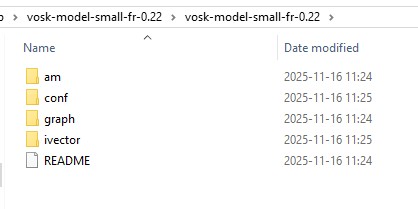
Click here to view all the VOSK models you can downloadOnce you've downloaded and extracted a model, it should look similar to this.
Step 2 - Copy Files
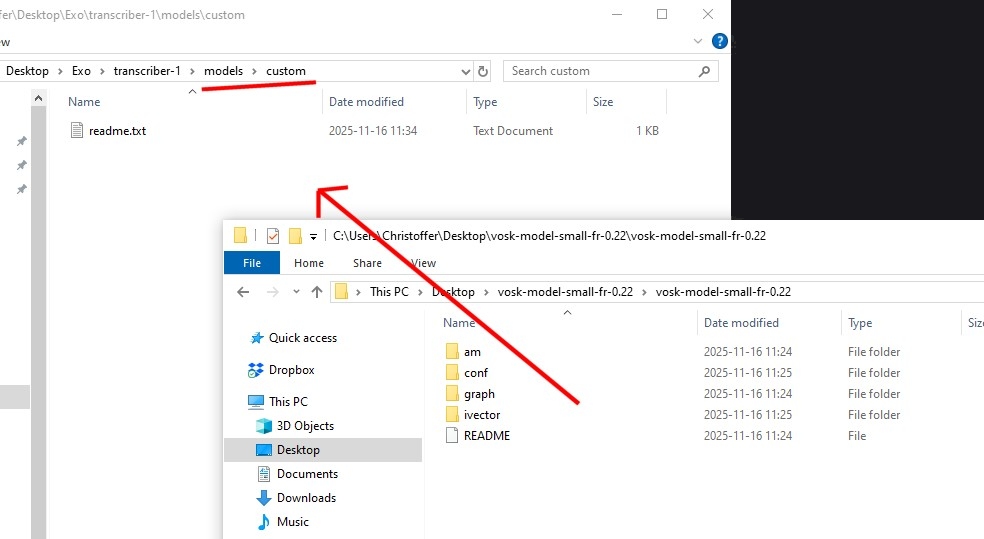
Then copy the VOSK model files into the folder named model.
Step 2 - Start the Transcriber
Once the VOSK files are placed in the model folder, simply launch start_transcriber.bat.

Terms of Service
Please note that by using any tools or services I've built, you agree to follow the Terms of Service.
