
Vezměte prosím na vědomí, že tento blogový příspěvek byl publikován v listopadu 2020, takže v závislosti na tom, kdy si ho přečtete, mohou být některé části zastaralé. Bohužel nemohu tyto příspěvky vždy udržovat plně aktuální, aby informace zůstaly přesné.
I was working yesterday on a game prototype and needed some quick voice over of some texts to create a more immersive demo. Normally a hire professional voice actors over at Fiverr, but seeing my game would generate hundreds of unique sentences, that would cost too much for a personal game prototype at this stage.
Instead I thought; wouldn't it be cool if I could just programmatically send some text, and the voice I wanted, to some kind of an endpoint and it would return an MP3 file which I could just play.
So I wrote my own very basic Text To Speech service, which is basically an Node.js AWS Lambda function that takes in a text string as a Query Parameter and returns an MP3 audio file using Amazons' speech synthesizer Amazon Polly. It actually turned out pretty good!
It actually turned out pretty good, so I thought I would do a quick tutorial on how I did it! This tutorial also assumes you already have an AWS account.
Watch the video
I have also created a video that goes through this blog post, step by step. Feel free to check it out!
Amazon Polly is cool, but not entirely free
Amazon Polly is Amazon's speech synthesizer system that turns text into lifelike speech using deep learning, and seeing Amazon also has Amazon Alexa which is a virtual assistant AI technology, Amazon is probably one of the leading companies in the world in this field.
And you can easily see that if you login to your AWS account and visit their Amazon Polly developer page.As far as I can see, Polly has 7 American English (female & male) voices, but then also multiple voices in 30 other languages from British English to German, French Swedish, Russian, Japanese, etc. Phew!
Granted, when you play around with the voices you will notice it is computer synthesized (compared to a real person), but some voices are still pretty decent.
Another cool feature Polly supports is pronunciation lexicons and using their Speech Synthesis Markup Language giving you a range of abilities to customize how it should be read as well, everything from pronunciations, emotions, emphasis, pausing, pitching, etc.
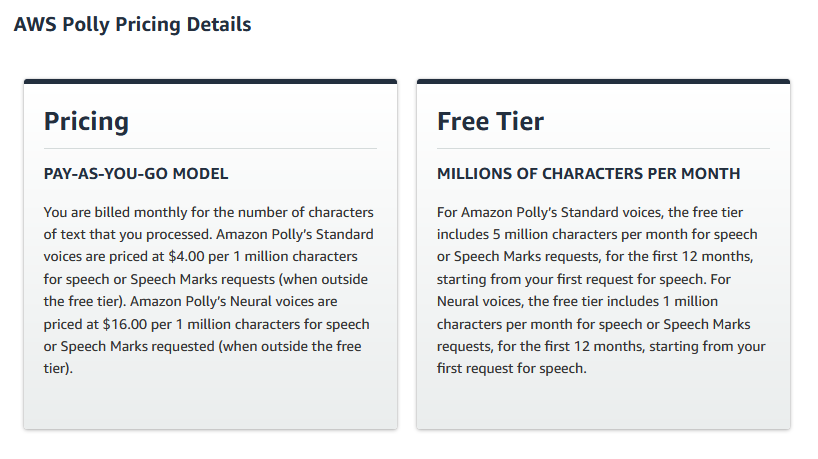
However, please note that Amazon Polly is not free. If you are a new AWS customer, do you do get 5 million characters free each month for 12 months thanks to their AWS Free Tier, however for me, I will be paying $4.00 per 1 million characters. It is really not a lot and I will not even get close to a million characters, but still - it is important to point out that Amazon Polly is not free.
Demo of what we are going to build
Here is a quick demo of what we will be building in this blog post.
Basically, it will be an AWS Lambda function that takes in text to be read, the voice we want and it will respond with an MP3 audio file. It is very simple and straightforward, but also very flexible as it allows me to just call the endpoint on the fly with any given text to create a narrative voice for my game prototype.
As you can see in the video below, I basically just created an
<textarea> for the text, <select> for the voices, a <button> that creates and appends an <audio> element to the page <body>.
Step 1 - Create an AWS IAM user
The first thing we need to do is to grant our future Amazon Lambda function the right to use the Amazon Polly APIs.
There are a lot of ways to do this. For example you could create specific IAM policies for a specific Lambda function, however in this tutorial, we are going to be much faster - and less secure! - approach by creating an IAM user with full access to Amazon Polly.
So the first thing we need to do is to visit our IAM dashboard.
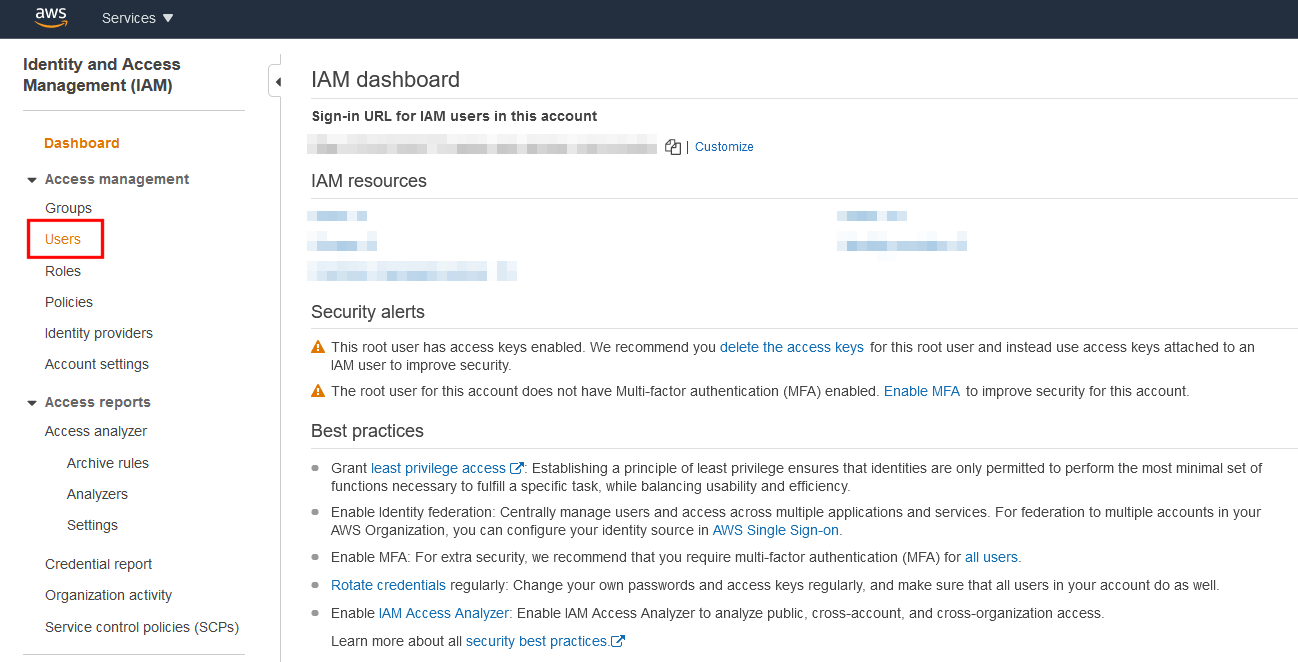
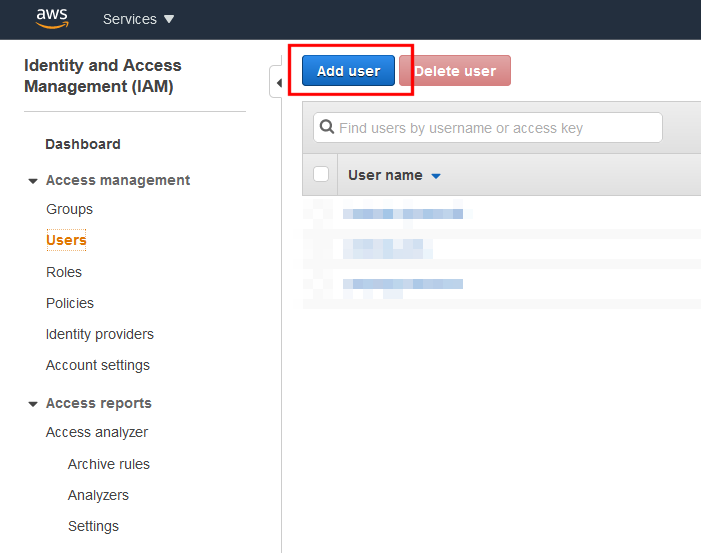
Click on "Add user".
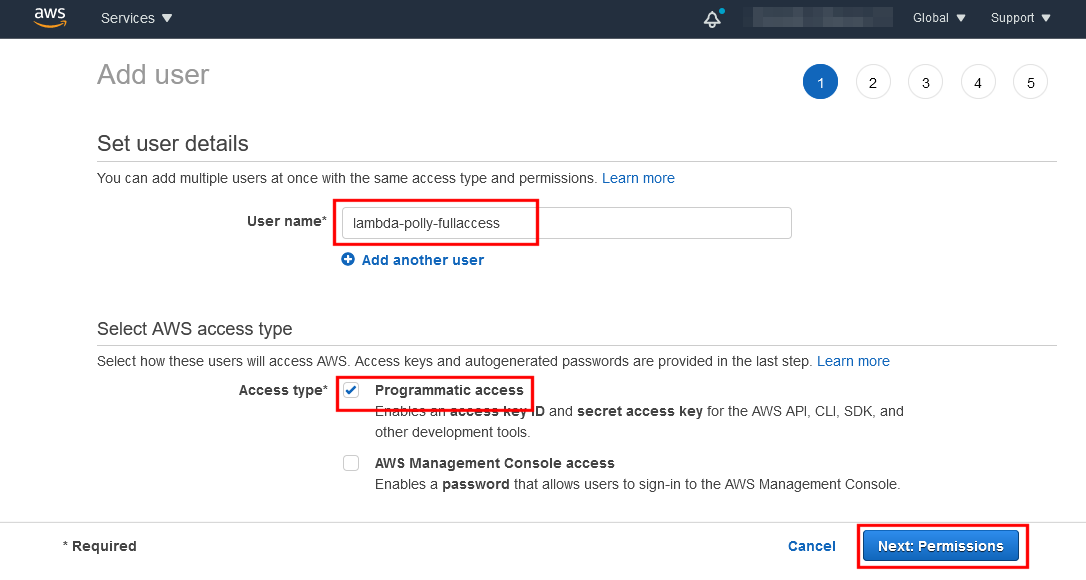
On step 1; pick a name, select "Programmatic access" and continue.
On step 2; select "Attach existing policies directly", search for "Polly" so you can select the "AmazonPollyFullAccess" policy and then continue.
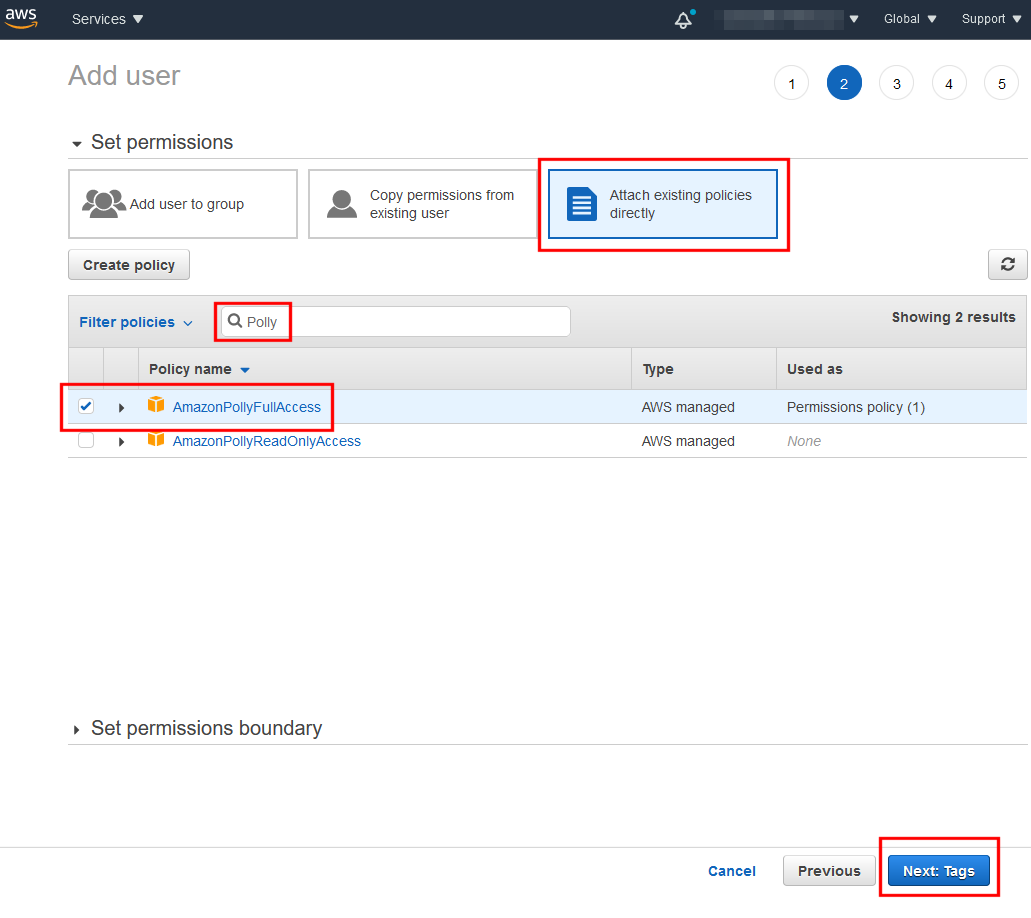
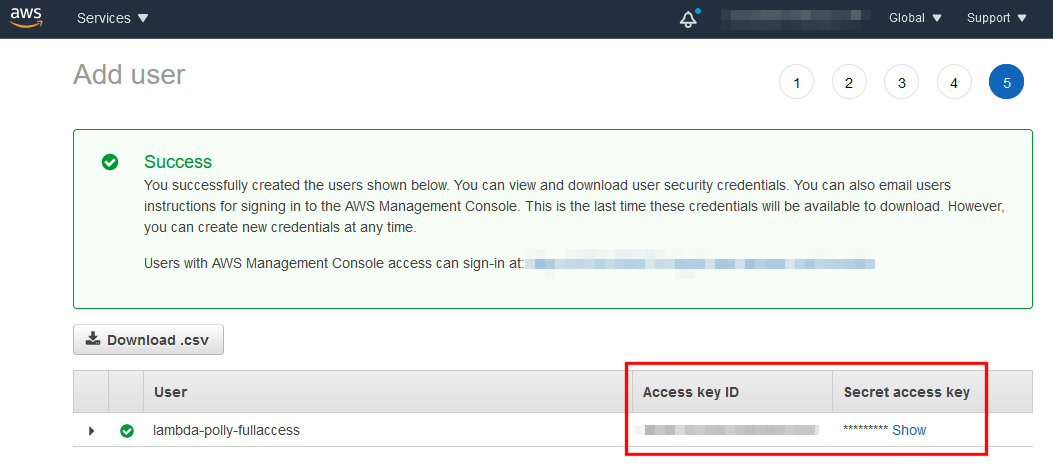
Continue until you are finished and have arrived on step 5. Your new IAM user is now created.
Copy both the "Access key ID" and "Secret access key" as we will be needing them later on.
Please note, these are sensitive information - Keep them secret and do not make them in public to anyone!
Step 2 - Create our basic Lambda function
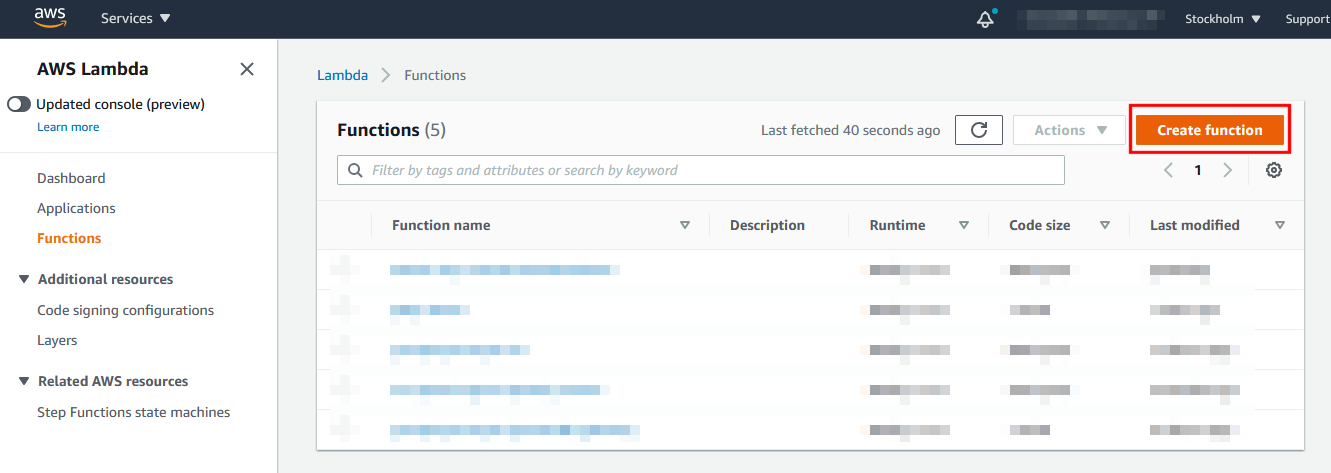
The next thing we need to do is to actually create our lambda function, so let's head over to our Lambda dashboard and click on "Create function".
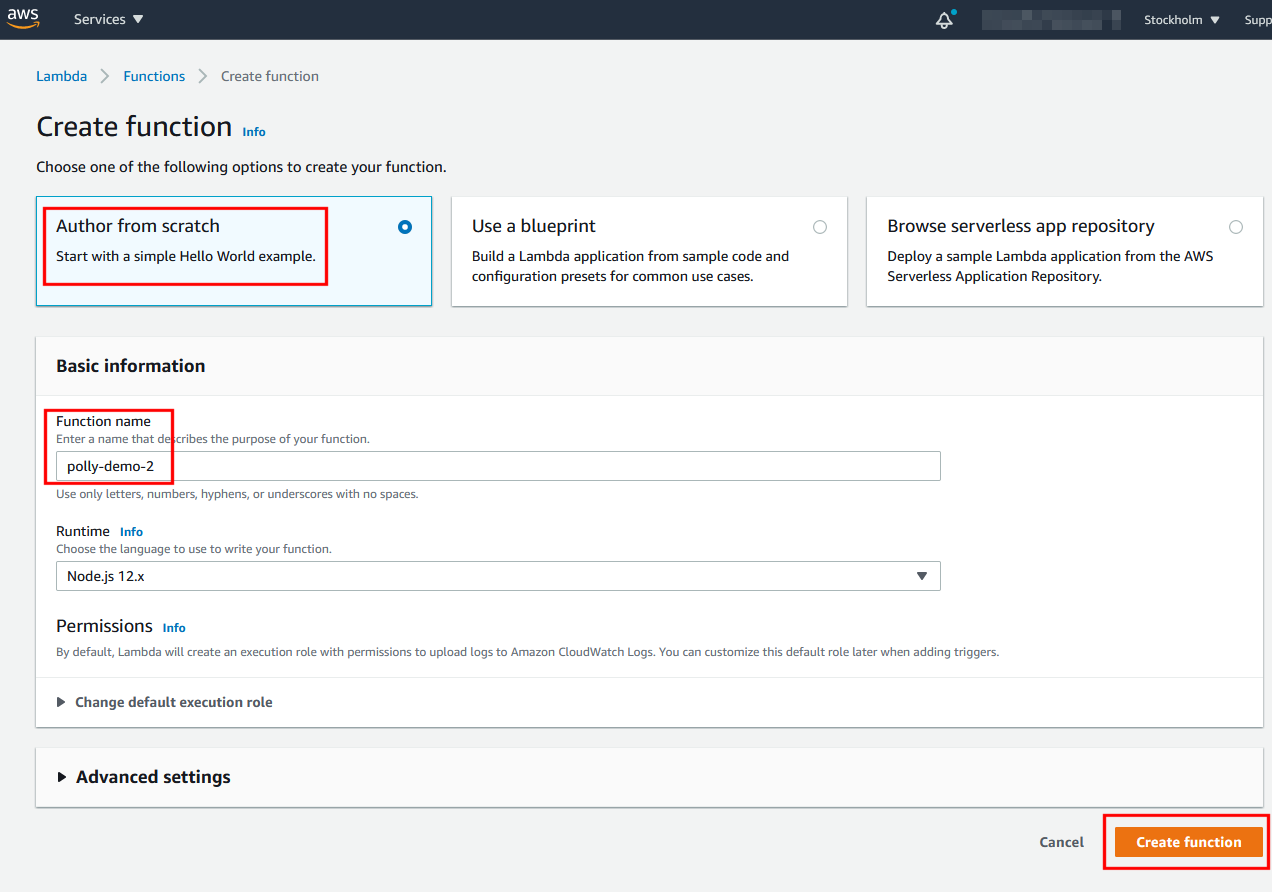
Select to create a new Lambda from scratch, pick a name and create the function.
Step 3 - Increase the Lambda timeout
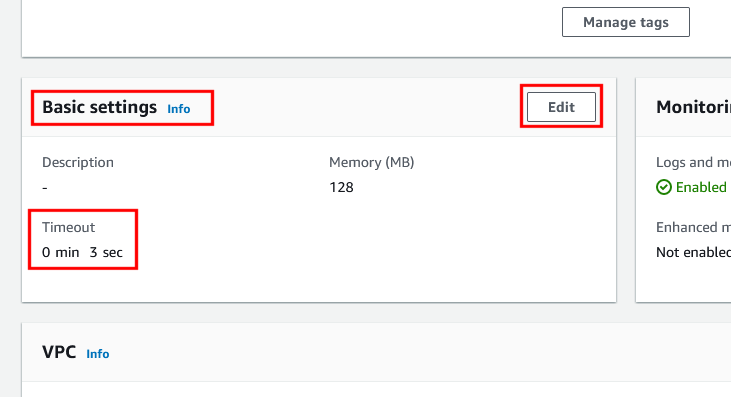
Since our Lambda will be doing API requests to Amazon Polly, we need to increase the execution timeout time of our function.
Simply scroll down to "Basic settings" and click on "edit".
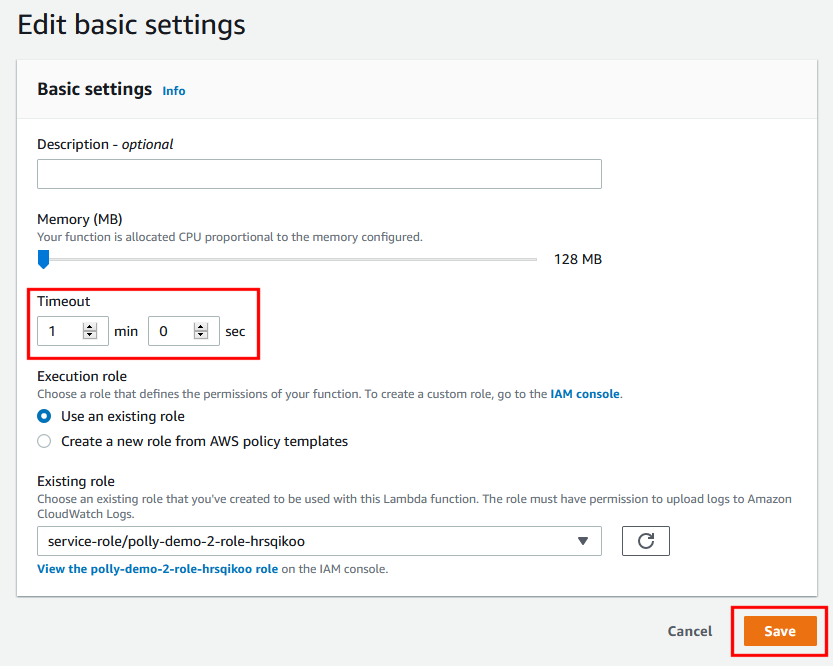
I increased it to 1 minute and then hit save.
Step 4 - Create an API gateway for our Lambda function
Next, we actually need a way to actually trigger our Lambda function over the Internet by creating an API Gateway.
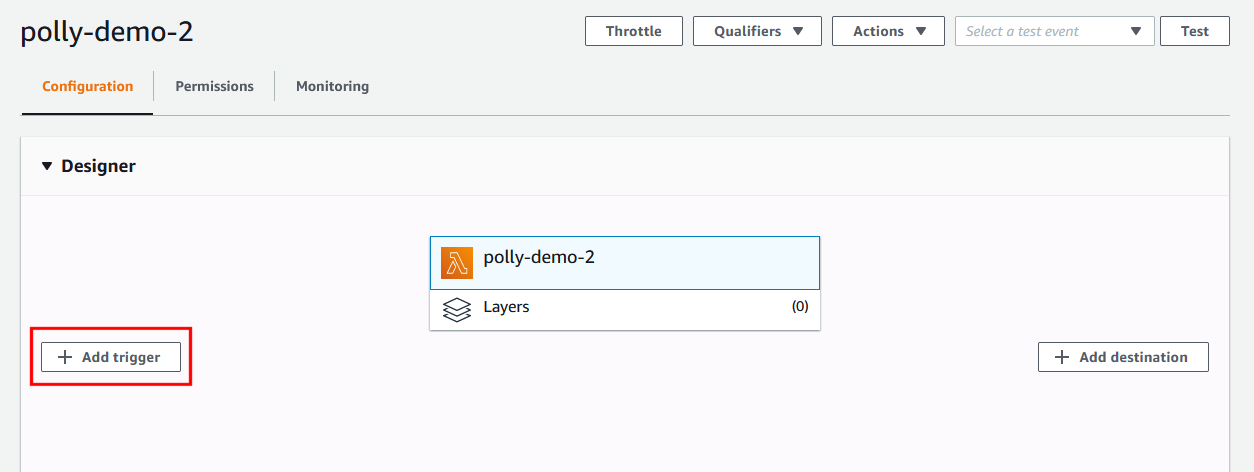
So we start by clicking on the "Add trigger" button.
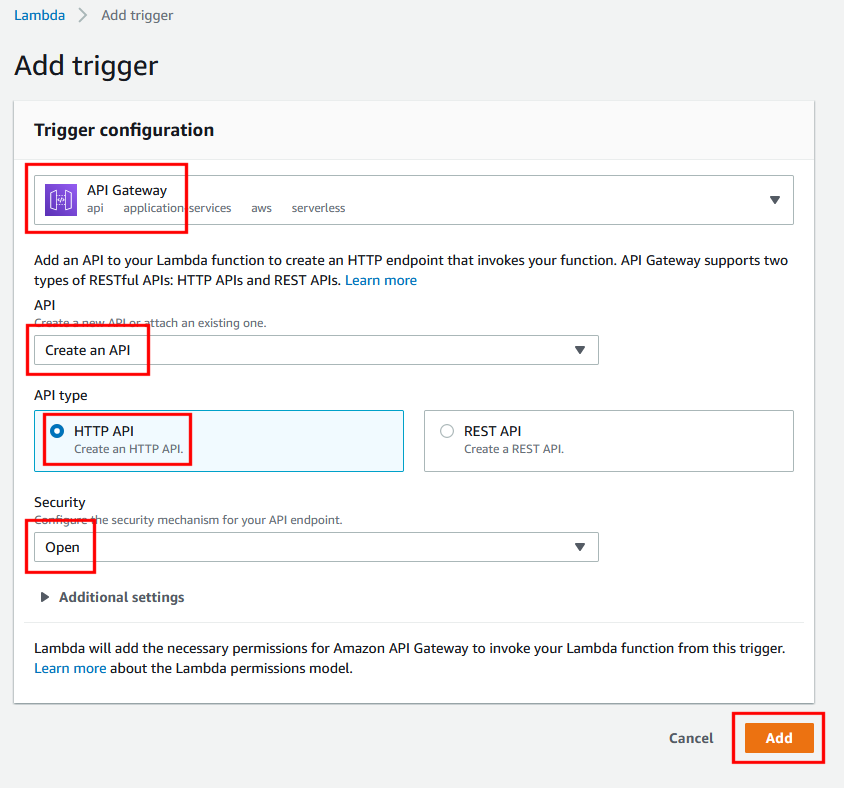
Pick "API Gateway" as the trigger and "Create an API", then select "HTTP API" and make it "Open", finally click on "Add".
Now if you open up your API Gateway, you should see your "API endpoint" URL.
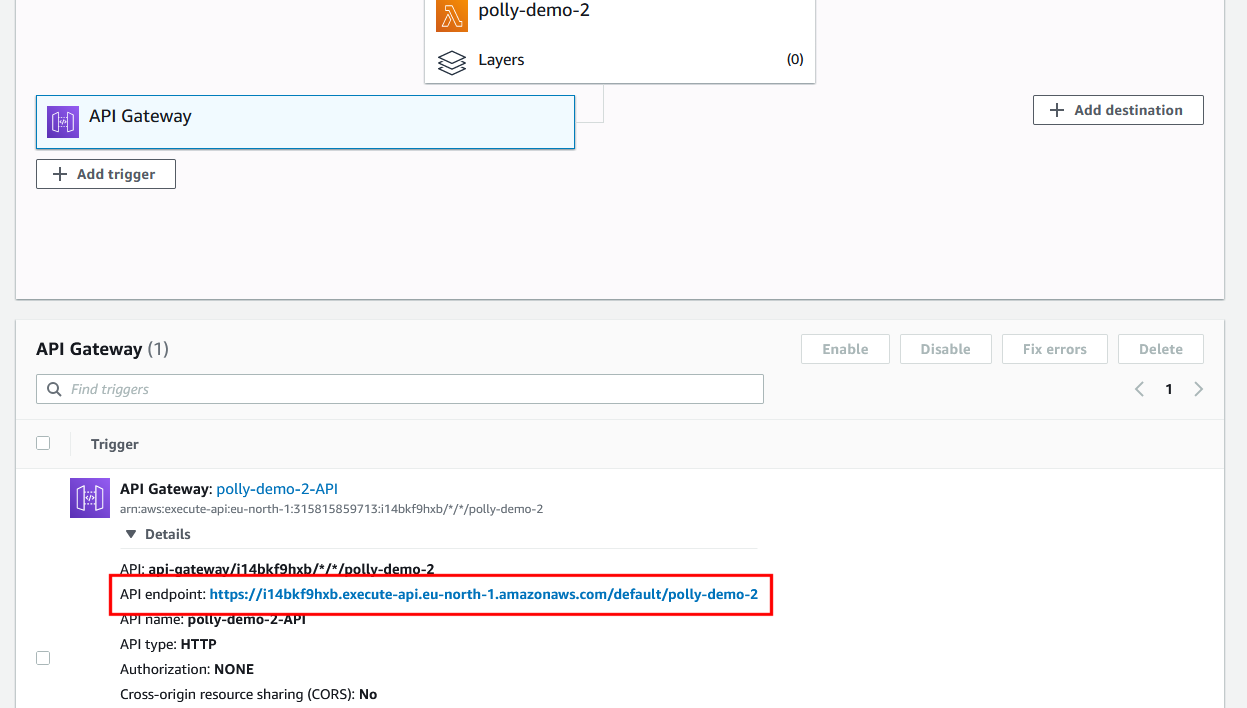
Clicking on that should open up a new tab that triggers your Lambda function, which at the moment responds with the default "Hello from Lambda!" message!

Step 5 - Full Lambda source code that ties everything together
Now as we have prepared everything, the only thing left to do is actually implement the Lambda function!
Simply copy and paste the full source code below into the AWS Lambda editor.
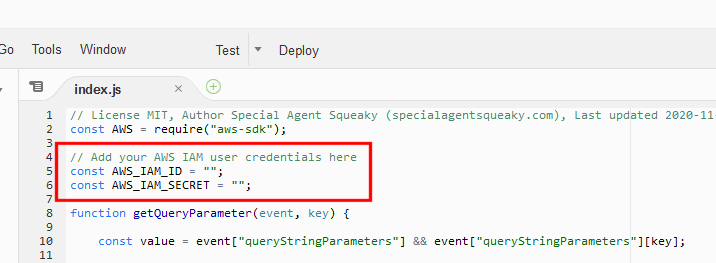
On top of the source code, remember to add your "IAM User ID" and "IAM User secret" keys, we created earlier!
// License MIT, Author Special Agent Squeaky (specialagentsqueaky.com), Last updated 2020-11-25
const AWS = require("aws-sdk");

// Add your AWS IAM user credentials here
const AWS_IAM_ID = "";
const AWS_IAM_SECRET = "";

function getQueryParameter(event, key) {

    const value = event["queryStringParameters"] && event["queryStringParameters"][key];

    if (!value) {
        throw new Error("Could not get the query parameter "" + key + "".");
    }

    return value;

}

async function createAudioData(voiceID, text) {
    return new Promise((resolve, reject) => {

        const credentials = new AWS.Credentials(AWS_IAM_ID, AWS_IAM_SECRET);

        AWS.config.update({
            credentials,
        });

        const pollyParams = {
            OutputFormat: "mp3",
            Text: text,
            VoiceId: voiceID,
        };

        let polly = new AWS.Polly();
        polly.synthesizeSpeech(pollyParams, function(error, data) {

            if (error) {
                reject(error);
                return;
            }

            let audioStream = data.AudioStream;

            resolve(audioStream);

        });
    });
}

exports.handler = async(event) => {

    try {

        const qpVoiceID = getQueryParameter(event, "voice");
        const qpText = getQueryParameter(event, "text");

        const audioData = await createAudioData(qpVoiceID, qpText);

        const response = {
            statusCode: 200,
            headers: {
                "content-type": "audio/mpeg",
            },
            body: audioData.toString("base64"),
            isBase64Encoded: true,
        };
        return response;

    } catch (error) {

        console.error("error", error);

        const response = {
            statusCode: 500,
            body: error.toString(),
        };
        return response;

    }

};
Step 6 - Testing it all
Simply click on the link below, but remember to replace the endpoint URL with your own!
