
이 블로그 게시물은 2020년 11월에 게시되었으므로, 읽는 시점에 따라 일부 내용이 최신이 아닐 수 있습니다. 안타깝게도 정보의 정확성을 보장하기 위해 게시물을 항상 최신 상태로 유지하는 것은 어렵습니다.
Link to the notepad
In this blog post I will show you how I created StreamElements custom widgets that uses Amazon's Text To Speech system Polly that reacts on what's happening in Twitch chat.
Watch the video
Watch the video see the examples live!
This blog post assumes you already have an AWS Polly Lambda set up
This blog post assumes that you have already created an AWS Lambda with Polly. If you haven't you can follow my guide below on how to do it:
Creating the StreamElements custom widget
Okay, so next we need to learn how to do custom widgets. I use StreamElements for my streaming setup and they have something called a "Custom Widget", which let's you to build your own (as the name implies) custom widget by using their documentation.
Custom widgets are created by using basic web technology (HTML, CSS and JavaScript) and can be triggered from a wide range of events. In our examples, we will be listening to chat messages, but you can easily build something that listens on Followers, Subscriptions and Tips.
I am sure other tools such as Streamlabs OBS has something similar, but in this blog post I will be focusing on StreamElements.
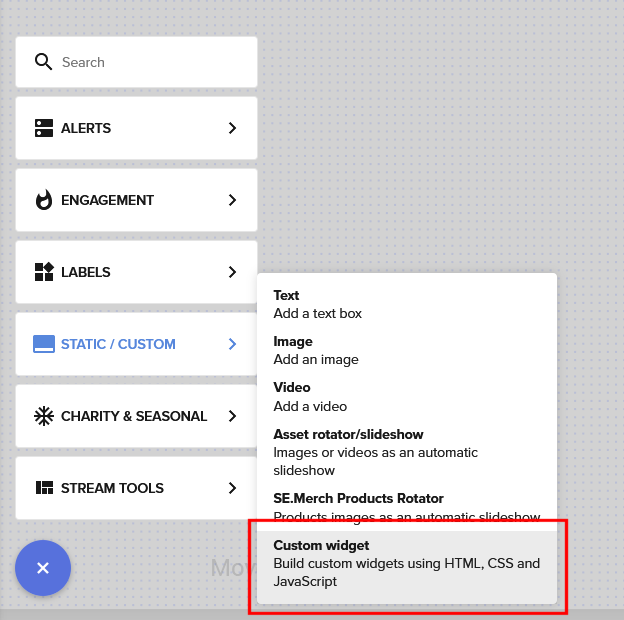
The first thing we need to do is to add the "Custom Widget" on to an overlay.
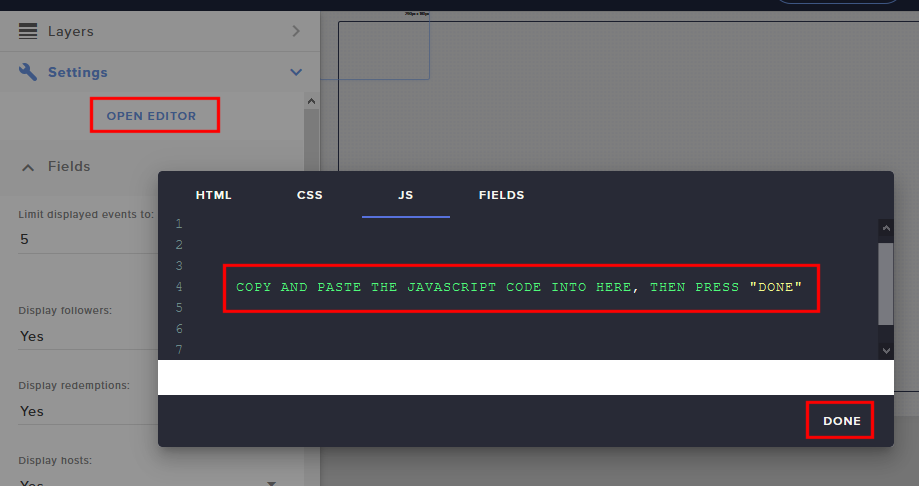
Below I have written multiple example of different ways on how this can be used. To simply try them out, add a "Custom Widget", then open up the editor. In the "JavaScript" tab, paste in the JavaScript code and then hit "Done", save your overlay and then try out the chat command.
Example code 1 - Simple !tts [chat message] command
As soon as someone (anyone) writes
!tts [message] in the chat, the widget will read out the text.
// Replace the AWS_URL_BASE with your own URL to your AWS Lambda end point
const AWS_URL_BASE = "https://66n8bx3xpg.execute-api.eu-north-1.amazonaws.com/default/streamelements-polly";
// AWS_POLLY_VOICE specifies which of the AWS Polly voices it should use
const AWS_POLLY_VOICE = "Joanna";

window.addEventListener("onEventReceived", function ( obj ) {

    const data = obj.detail.event && obj.detail.event.data;
    console.log("data=", data);
    if( !data ) {
        return;
    }

    if( data.text.indexOf("!tts ") !== 0 ) {
        return;
    }

    const text = data.text.substring(5);
    console.log("text="" + text + "".");

    speak(text);

});

function speak( text ) {

    const src = AWS_URL_BASE + "?voice=" + AWS_POLLY_VOICE + "&text=" + encodeURIComponent(text);

    const audioTag = document.createElement("AUDIO");
    audioTag.src = src;
    audioTag.play();
    document.body.appendChild(audioTag);
    audioTag.addEventListener("ended", () => {
        audioTag.remove();
    });

}
Example code 2 - Knock Knock
As soon as someone (anyone) writes "knock knock", say a random Knock Knock joke.
// Replace the AWS_URL_BASE with your own URL to your AWS Lambda end point
const AWS_URL_BASE = "https://66n8bx3xpg.execute-api.eu-north-1.amazonaws.com/default/streamelements-polly";
// AWS_POLLY_VOICE specifies which of the AWS Polly voices it should use
const AWS_POLLY_VOICE = "Matthew";

window.addEventListener("onEventReceived", function ( obj ) {

    const data = obj.detail.event && obj.detail.event.data;
    console.log("data=", data);
    if( !data ) {
        return;
    }

    if( data.text !== "knock knock" ) {
        return;
    }

    let text = `
        Knock knock.
        Who's there?
    `;

    const jokes = [
        `
            Cow says.
            Cow says who?
            No, a cow says mooooo!
        `,
        `
            Annie.
            Annie who?
            Annie thing you can do, I can do better!
        `,
        `
            Wa.
            Wa who?
            What are you so excited about?!
        `,
    ];

    const random = Math.floor(Math.random() * jokes.length);
    text += jokes[random];

    console.log("text="" + text + "".");

    speak(text);

});

function speak( text ) {

    const src = AWS_URL_BASE + "?voice=" + AWS_POLLY_VOICE + "&text=" + encodeURIComponent(text);

    const audioTag = document.createElement("AUDIO");
    audioTag.src = src;
    audioTag.play();
    document.body.appendChild(audioTag);
    audioTag.addEventListener("ended", () => {
        audioTag.remove();
    });

}
Example code 3 - Transcript mods
As soon as a mod says something, say it loud.
// Replace the AWS_URL_BASE with your own URL to your AWS Lambda end point
const AWS_URL_BASE = "https://66n8bx3xpg.execute-api.eu-north-1.amazonaws.com/default/streamelements-polly";
// AWS_POLLY_VOICE specifies which of the AWS Polly voices it should use
const AWS_POLLY_VOICE = "Amy";

window.addEventListener("onEventReceived", function ( obj ) {

    const data = obj.detail.event && obj.detail.event.data;
    console.log("data=", data);
    if( !data ) {
        return;
    }

    if( data.tags.mod !== "1" ) {
        return;
    }

    const text = data.displayName + " says;" + data.text;
    console.log("text="" + text + "".");

    speak(text);

});

function speak( text ) {

    const src = AWS_URL_BASE + "?voice=" + AWS_POLLY_VOICE + "&text=" + encodeURIComponent(text);

    const audioTag = document.createElement("AUDIO");
    audioTag.src = src;
    audioTag.play();
    document.body.appendChild(audioTag);
    audioTag.addEventListener("ended", () => {
        audioTag.remove();
    });

}
Example code 4 - Announce death counter
When the StreamElement bot announces a death, announce it as well.
// Replace the AWS_URL_BASE with your own URL to your AWS Lambda end point
const AWS_URL_BASE = "https://66n8bx3xpg.execute-api.eu-north-1.amazonaws.com/default/streamelements-polly";
// AWS_POLLY_VOICE specifies which of the AWS Polly voices it should use
const AWS_POLLY_VOICE = "Russell";

window.addEventListener("onEventReceived", function ( obj ) {

    const data = obj.detail.event && obj.detail.event.data;
    console.log("data=", data);
    if( !data ) {
        return;
    }

    if( data.nick !== "streamelements" ) {
        return;
    }

    const match = data.text.match(/^has now died (\d+) times now$/);
    console.log("match=", match);
    if( !match){
        return;
    }

    const count = match[1];
    console.log("count="" + count + "".");
    if( !count ) {
        return;
    }

    const text = "Special Agent Squeaky has died " + count + " times now. FeelsBadMan.";
    console.log("text="" + text + "".");

    speak( text );

});

function speak( text ) {

    const src = AWS_URL_BASE + "?voice=" + AWS_POLLY_VOICE + "&text=" + encodeURIComponent(text);

    const audioTag = document.createElement("AUDIO");
    audioTag.src = src;
    audioTag.play();
    document.body.appendChild(audioTag);
    audioTag.addEventListener("ended", () => {
        audioTag.remove();
    });

}
Example code 5 - A "remind me" command
As soon as the broadcaster types
!remindme [duration] [message], create a reminder with the given message.
// Replace the AWS_URL_BASE with your own URL to your AWS Lambda end point
const AWS_URL_BASE = "https://66n8bx3xpg.execute-api.eu-north-1.amazonaws.com/default/streamelements-polly";
// AWS_POLLY_VOICE specifies which of the AWS Polly voices it should use
const AWS_POLLY_VOICE = "Kimberly";

window.addEventListener("onEventReceived", function ( obj ) {

    const data = obj.detail.event && obj.detail.event.data;
    console.log("data=", data);
    if( !data ) {
        return;
    }

    if( data.nick !== "specialagentsqueaky" ) {
        return;
    }

    if( data.text.indexOf("!remindme ") !== 0 ) {
        return;
    }

    const duration = parseInt(data.text.split(" ")[1], 10);
    console.log("duration="" + duration + "".");

    const text = "This is a reminder: " + data.text.split(" ").splice(2).join(" ");
    console.log("text="" + text + "".");

    setTimeout(() => {
        const u = new SpeechSynthesisUtterance(text);
        window.speechSynthesis.speak(u);
    }, duration * 1000);

});

function speak( text ) {

    const src = AWS_URL_BASE + "?voice=" + AWS_POLLY_VOICE + "&text=" + encodeURIComponent(text);

    const audioTag = document.createElement("AUDIO");
    audioTag.src = src;
    audioTag.play();
    document.body.appendChild(audioTag);
    audioTag.addEventListener("ended", () => {
        audioTag.remove();
    });

}
