
이 블로그 게시물은 2015년 6월에 게시되었으므로, 읽는 시점에 따라 일부 내용이 최신이 아닐 수 있습니다. 안타깝게도 정보의 정확성을 보장하기 위해 게시물을 항상 최신 상태로 유지하는 것은 어렵습니다.
iOS의 Safari에서 최근에 발생한 스크롤 문제를 해결하기 위해 직접 간단한 테스트 페이지를 만들고, 인터넷에서 찾을 수 있는 모든 정보와 방법들을 적용해 문제를 해결하려고 했다.
다음은 이 과정에서 제가 발견한 내용에 대한 간략한 개요입니다.
제 테스트 페이지
제 테스트 페이지는 비교적 기본적이었습니다. 페이지를 나타내기 위해 정적 div에 모의 데이터를 담았고, 그 위에 오버레이된 '메뉴'를 표시하기 위해 고정된 div를 함께 사용했습니다. 다음과 같은 방식으로요.
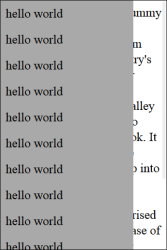
이 페이지의 전체 소스 코드는 이 블로그 글의 맨 아래에서 확인하실 수 있습니다.
기본 동작 이해하기
처음으로 한 일은 iOS에서 Safari의 기본 동작을 이해하려고 노력했습니다. 가장 주목할 만한 관찰은 메뉴를 맨 아래까지 스크롤했을 때 페이지 본문에 '고무밴드 효과'가 나타난다는 점이었고, 이는 Safari에 기본적으로 내장된 기능이었습니다.
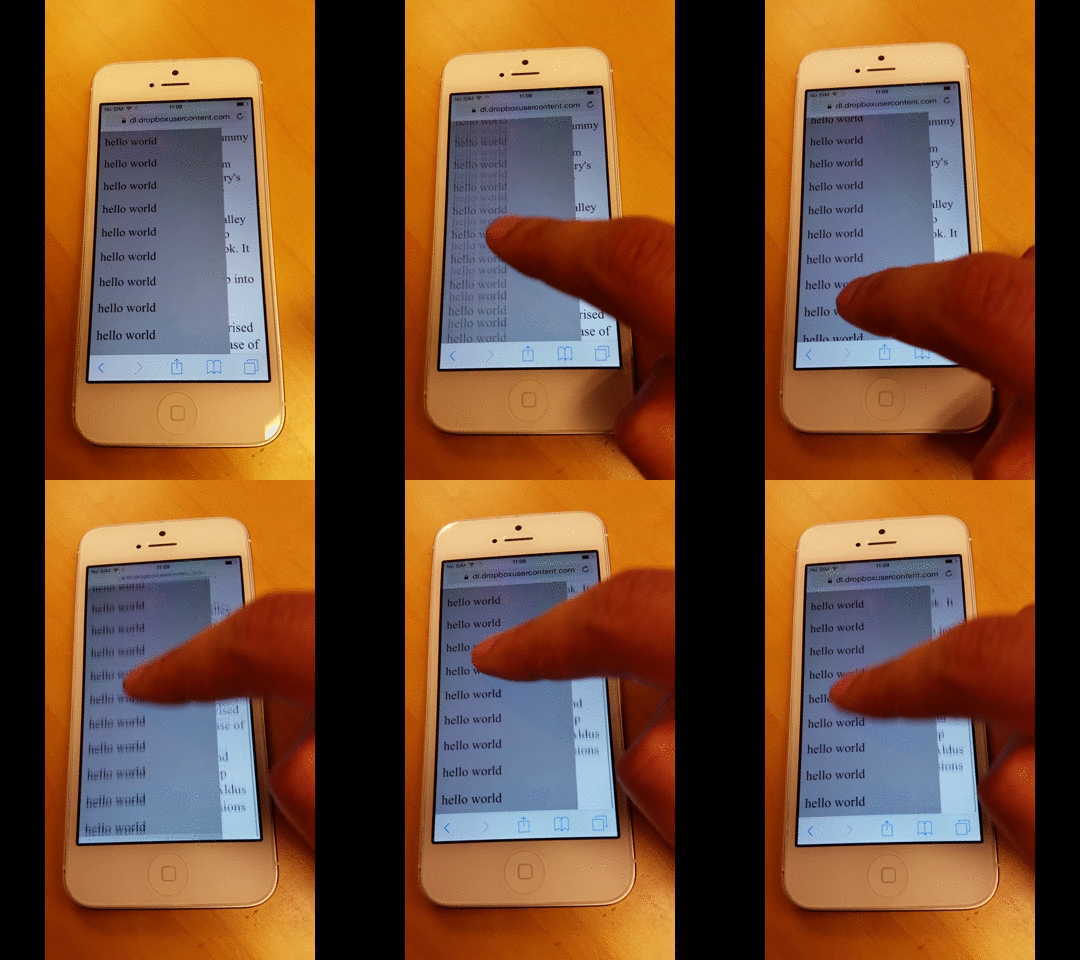
메뉴의 맨 위로 스크롤할 때도 같은 일이 발생했습니다.
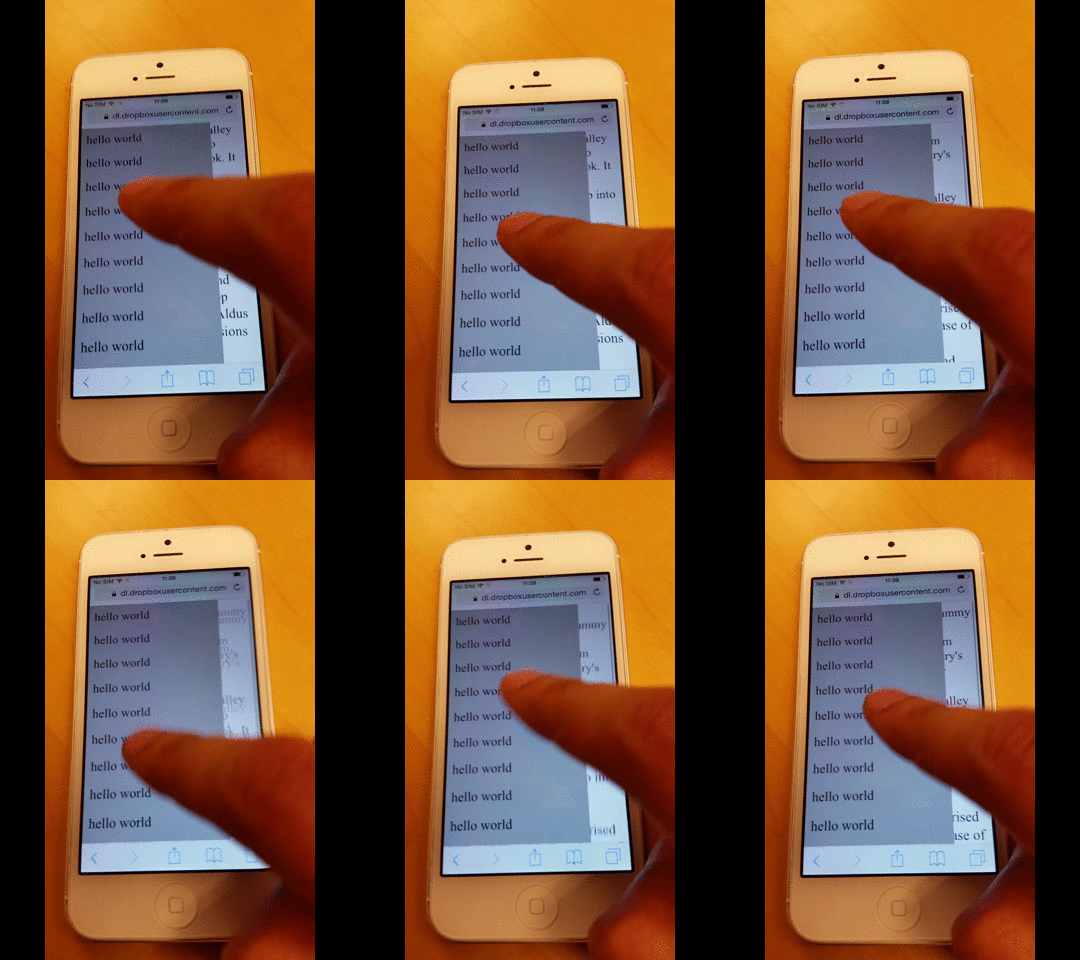
다만 제가 처음으로 발견한 문제는 맨 위나 맨 아래로 끝까지 계속 스크롤하면 Safari에서 배경 페이지와 메뉴 모두에서 렌더링 오류가 생기기 시작한다는 점이었습니다.
왜 그런지는 확실하지 않지만, 아마도 고무줄 효과와 관련이 있는 것 같습니다.
"-webkit-overflow-scrolling" CSS 규칙이 어떤 역할을 하는지 알아보기
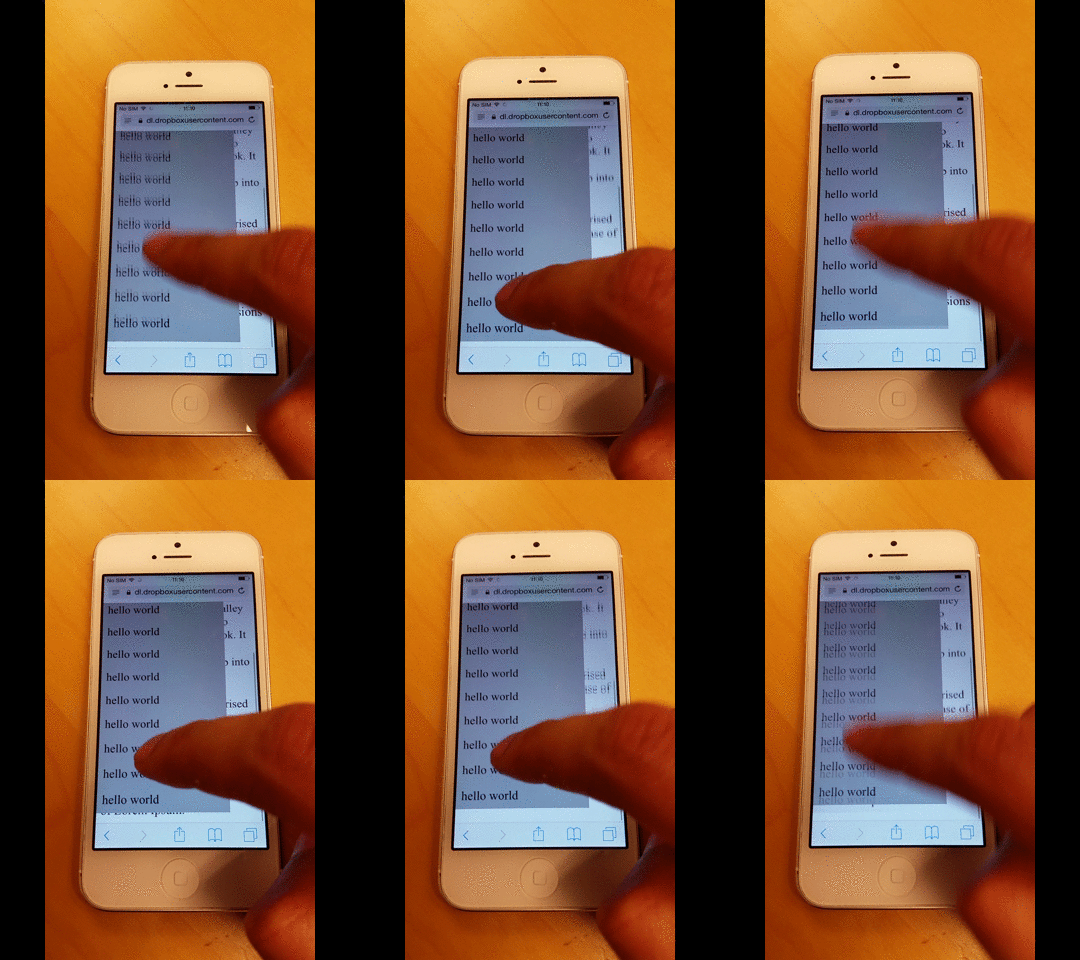
다음으로 메뉴에 -webkit-overflow-scrolling CSS 규칙을 적용했고, 이는 모멘텀 기반 스크롤링을 가능하게 합니다.
아래 이미지에 보시다시피 손가락으로 스와이프해도 스크롤이 계속됩니다.
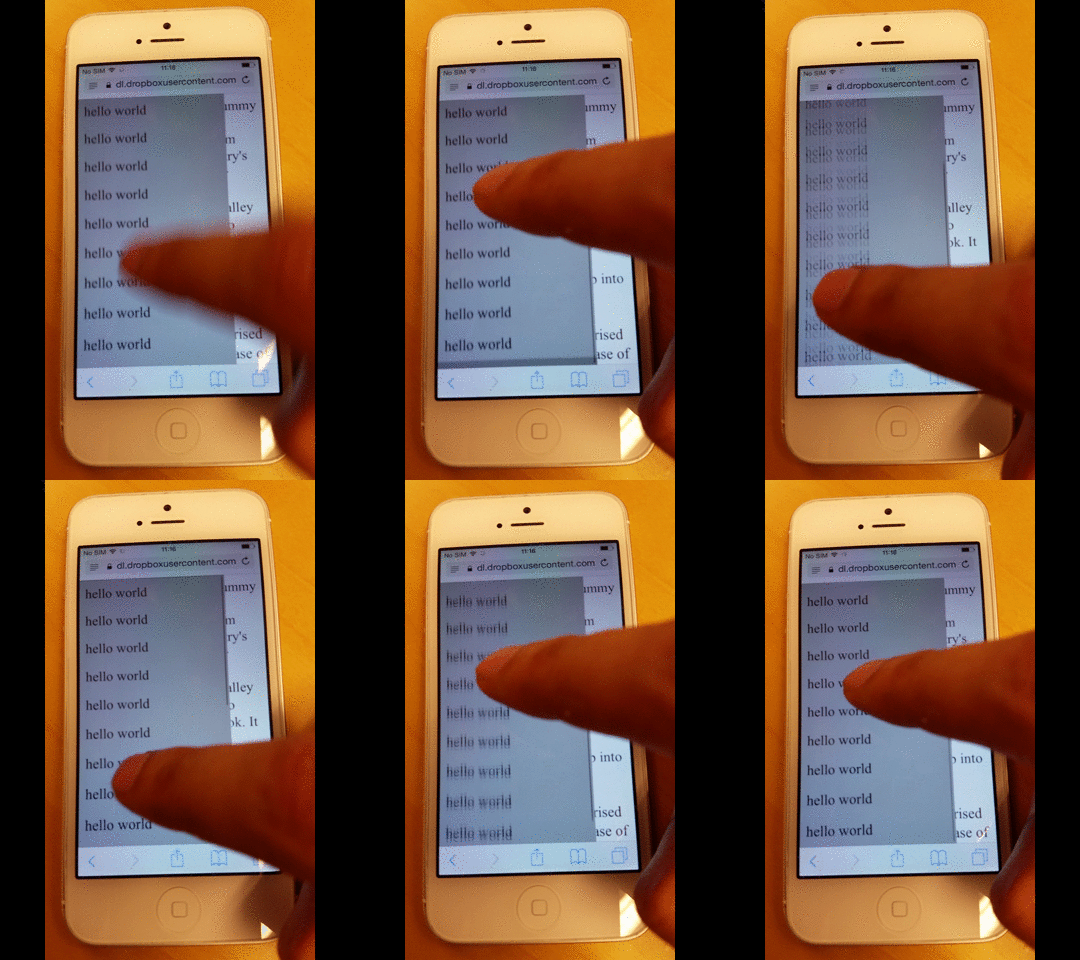
하지만 맨 위나 맨 아래로 스크롤할 때도 탄성 효과가 나타나며, 아래와 같이 보실 수 있습니다.
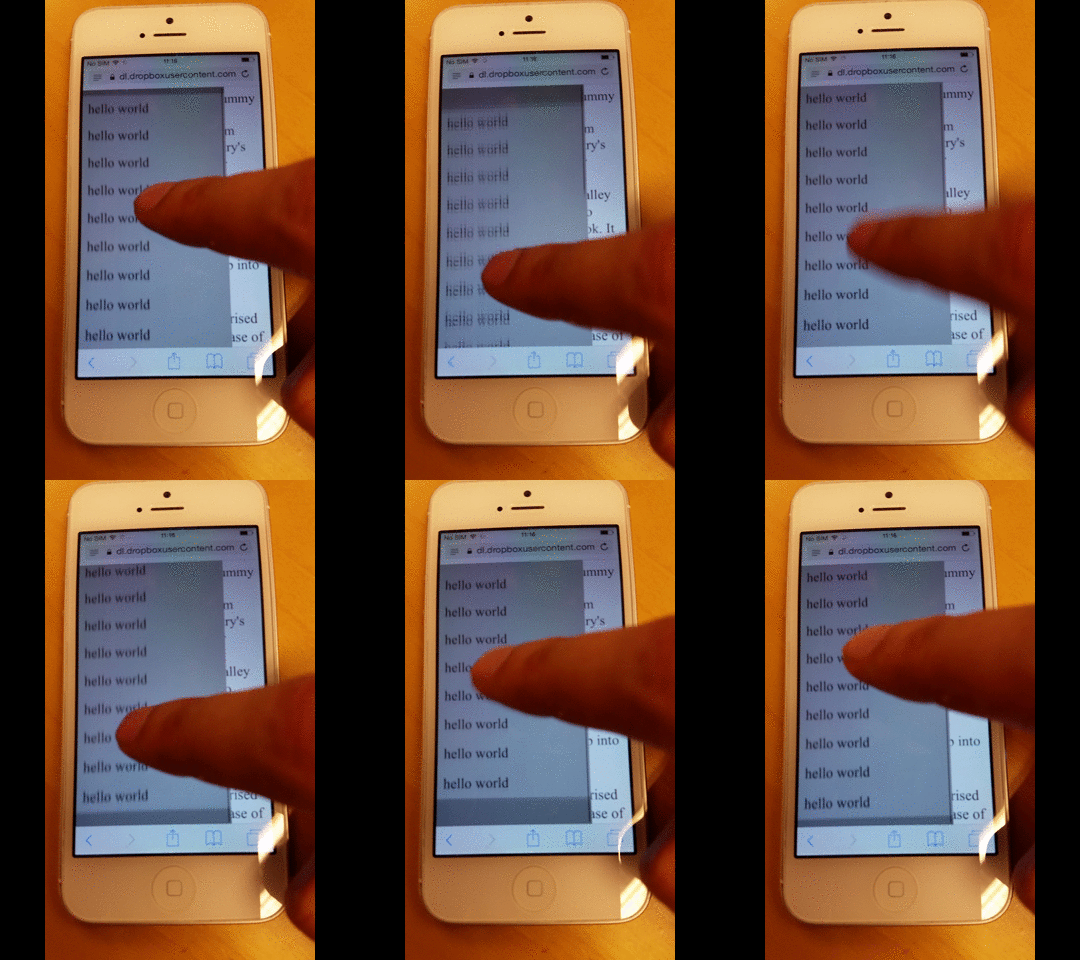
사용자는 고무줄 효과가 끝날 때까지 기다려야 합니다.
테스트하는 동안 고무줄 효과가 진행 중일 때 애니메이션이 완전히 끝날 때까지 사용자가 다른 요소로 포커스를 옮길 수 없다는 것도 확인했습니다.
아래 예시에서 먼저 배경 페이지를 스크롤한 뒤, 빠르게 메뉴를 스크롤하려고 하지만 결국 배경 페이지를 계속 스크롤하게 됩니다.
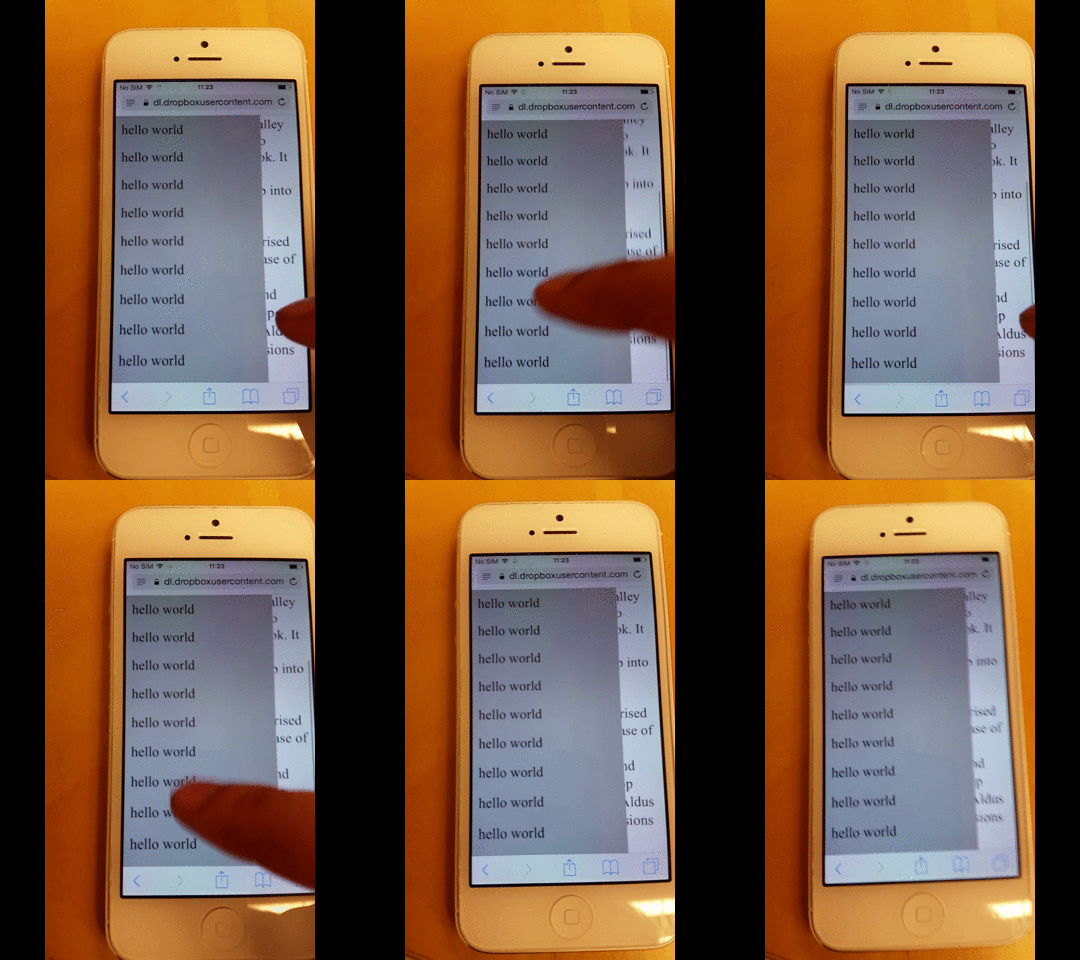
다만 효과가 끝날 때까지 잠시 기다리면 그다음에 메뉴를 스크롤할 수 있습니다.
배경 페이지의 스크롤을 방지하는 방법
테스트 중에도 고무 밴드 효과가 진행되는 동안 애니메이션이 완전히 끝날 때까지 사용자가 다른 요소로 포커스를 옮길 수 없다는 점을 확인했습니다.
다음 Stack Overflow의 답변에 따라, disable-scrolling 속성을 가진 요소가 touchmove 이벤트가 트리거될 때 기본 스크롤 동작을 수행하지 않도록 할 수 있습니다.
document.ontouchmove = function(event) {
    var isTouchMoveAllowed = true,
        target = event.target;
    while (target !== null) {
        if (target.classList && target.classList.contains('disable-scrolling')) {
            isTouchMoveAllowed = false;
            break;
        }
        target = target.parentNode;
    }
    if (!isTouchMoveAllowed) {
        event.preventDefault();
    }
};
그런 다음 disable-scrolling 클래스를 페이지의 div에 적용합니다:
<div class="page disable-scrolling">
이 방식은 어느 정도 작동하지만, 보다 광범위한 테스트에서 메뉴의 맨 위나 맨 아래에 도달했을 때 배경 페이지가 여전히 가끔 스크롤될 수 있다는 것을 확인했습니다.
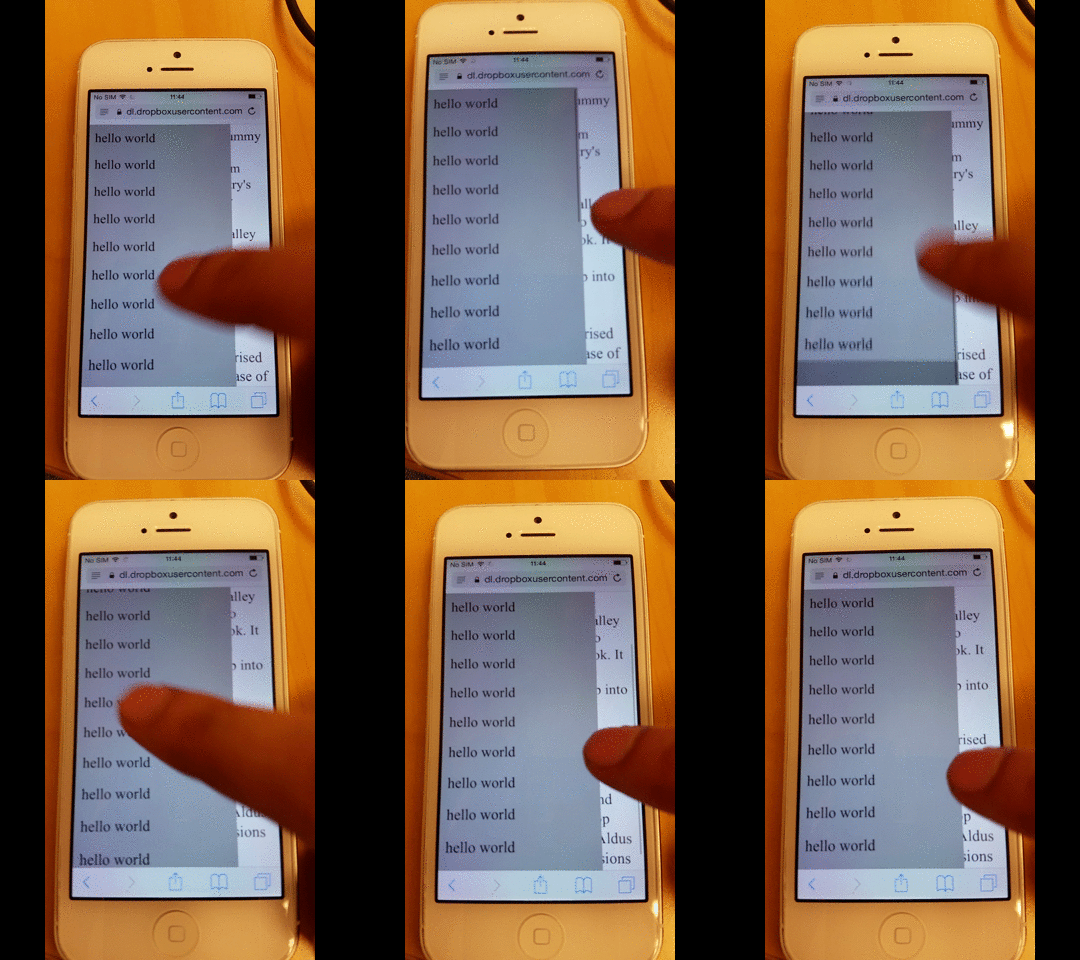
배경 페이지로의 과도한 스크롤을 방지하는 방법
이 수정으로 오버스크롤을 방지할 수 있게 됩니다. 이는 요소가 맨 위나 맨 아래로 스크롤되었을 때, 스크롤이 본문으로 계속 이어지지 않는다는 것을 의미합니다.
그 결과 본문의 스크롤이 차단되어 바운스(탄성) 효과도 나타나지 않습니다.
function removeIOSRubberEffect(element) {
    element.addEventListener("touchstart", function() {
        var top = element.scrollTop,
            totalScroll = element.scrollHeight,
            currentScroll = top + element.offsetHeight;
        if (top === 0) {
            element.scrollTop = 1;
        } else if (currentScroll === totalScroll) {
            element.scrollTop = top - 1;
        }
    });
}
removeIOSRubberEffect(document.querySelector(".scrollable"));
이 자바스크립트 코드 조각은 요소가 맨 위나 맨 아래에 닿지 않도록 항상 1픽셀 떨어진 위치를 유지합니다.
스크롤 위치가 맨 위나 맨 아래에 도달하지 않는 한, 오버스크롤은 발생하지 않습니다.
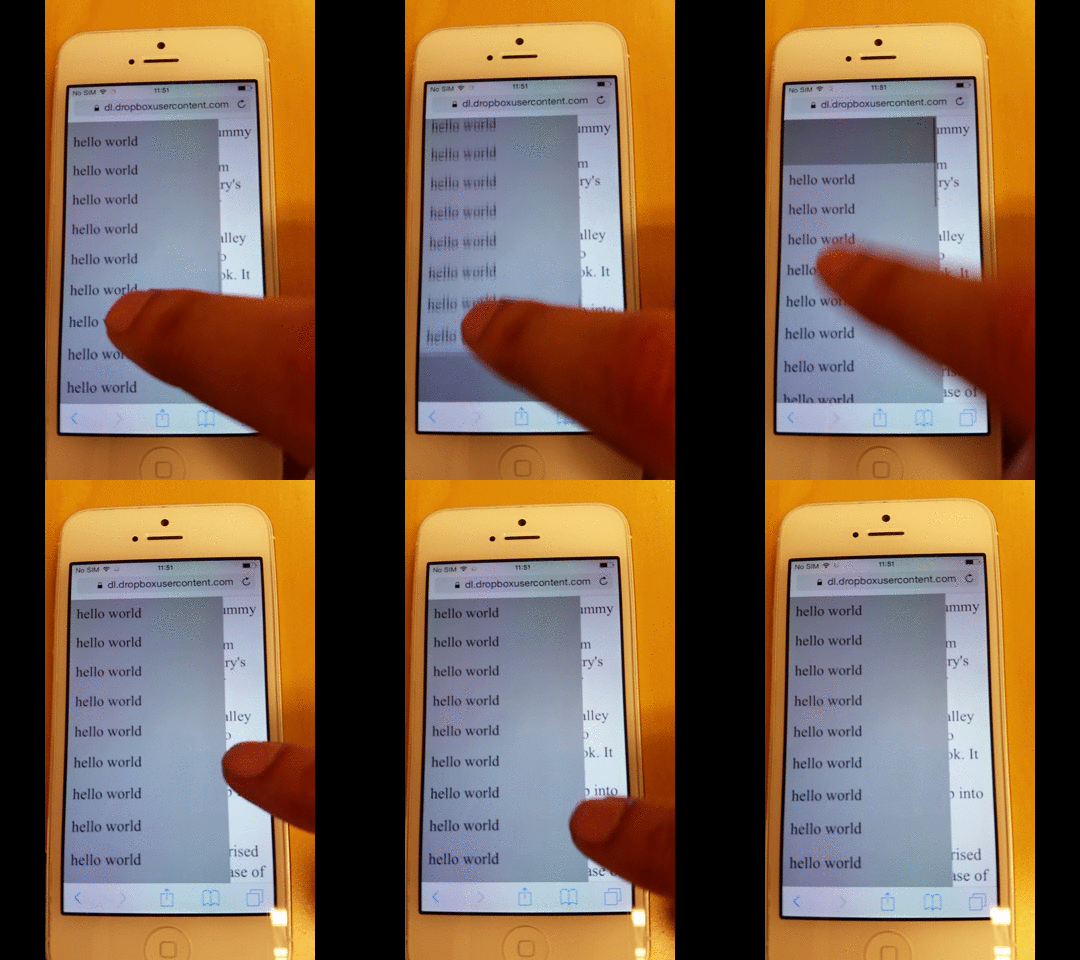
배경 페이지로 넘어가는 과도한 스크롤을 방지하는 방법
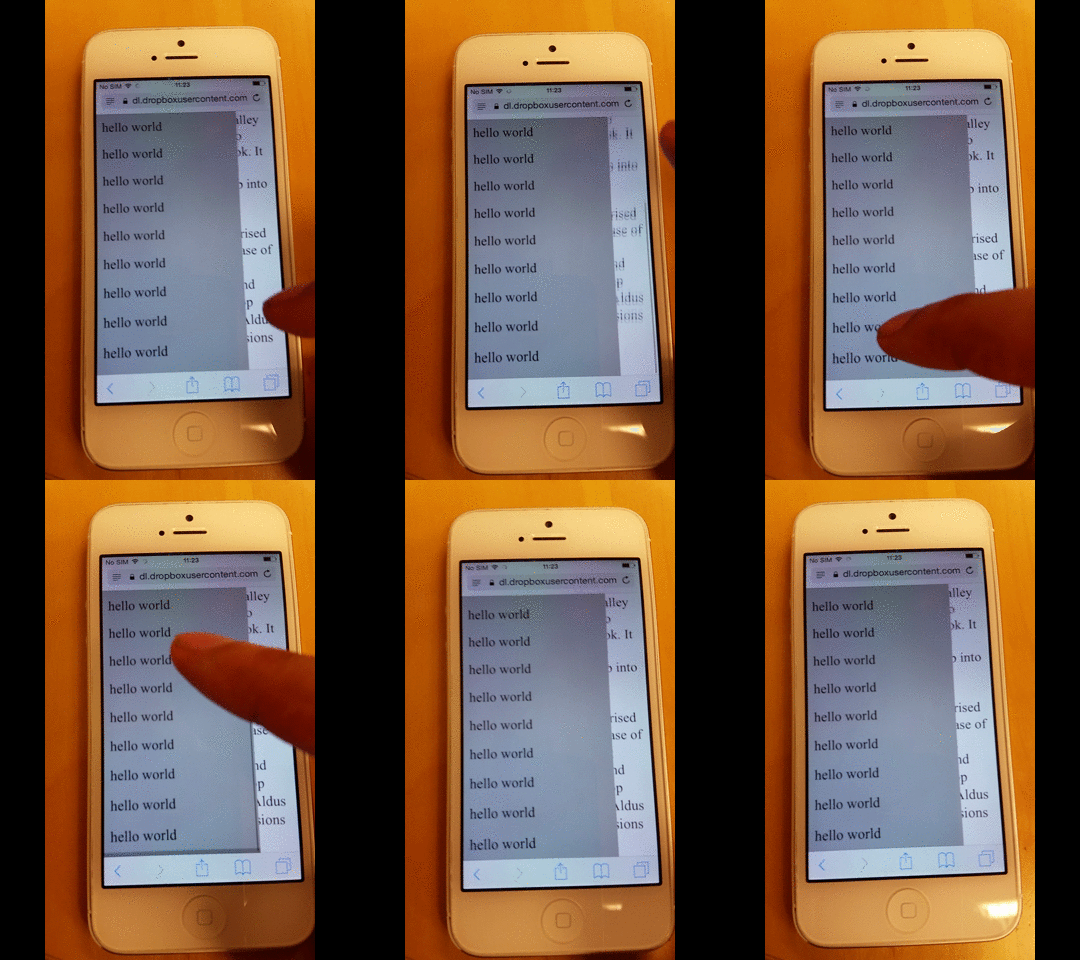
메뉴의 러버밴드 효과를 제거하고 싶다면 미적 이유이든 제 경우처럼 추가 렌더링 글리치를 유발했기 때문이든, -webkit-overflow-scrolling CSS 규칙을 제거하면 됩니다.
다만 아래를 보시면 부드러운 스크롤 모멘텀도 잃게 됩니다.
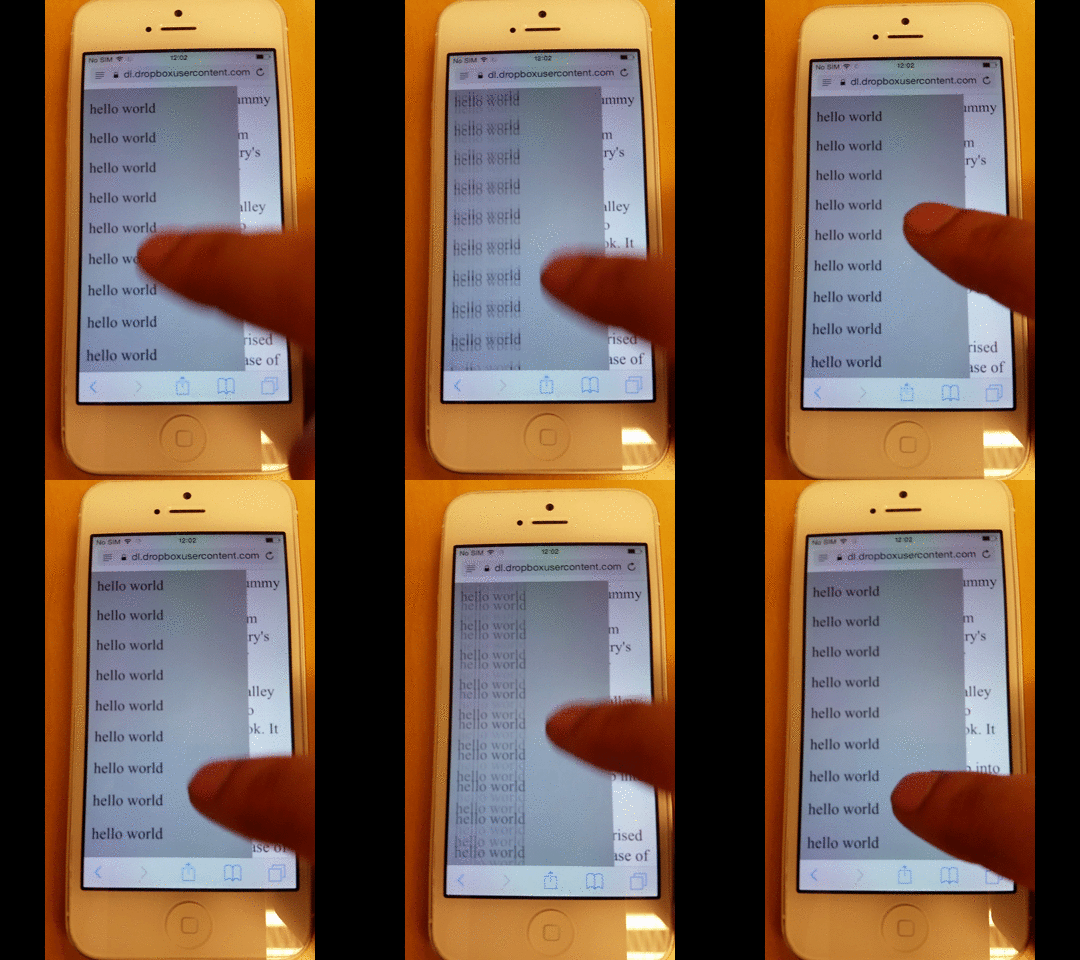
전체 페이지 소스 코드
다음은 이 페이지의 전체 소스 코드입니다.
<!-- License MIT, Author Special Agent Squeaky (specialagentsqueaky.com) --> <!doctype html>
                <html lang="en">
                   <head>
                      <meta charset="utf-8">
                      <meta name="viewport" content="minimum-scale=1.0, width=device-width, maximum-scale=1.0, user-scalable=no, initial-scale=1">
                      <meta http-equiv="Content-Type" content="text/html; charset=UTF-8">
                      <style> .page{ font-size: 24px; overflow: scroll; } .menu{ position: fixed; top: 0; bottom: 0; left: 0; width: 80%; background: gray; z-index: 1; font-size: 10px; overflow: scroll; /* uncomment to get smooth momentum scroll, but also a rubber band effect */ /*-webkit-overflow-scrolling: touch;*/ } .menu-item{ padding: 10px; background: darkgray; font-size: 24px; } </style>
                   </head>
                   <body>
                      <div class="menu scrollable">
                         <div class="menu-item">hello world</div>
                         <div class="menu-item">hello world</div>
                         <div class="menu-item">hello world</div>
                         <div class="menu-item">hello world</div>
                         <div class="menu-item">hello world</div>
                         <div class="menu-item">hello world</div>
                         <div class="menu-item">hello world</div>
                         <div class="menu-item">hello world</div>
                         <div class="menu-item">hello world</div>
                         <div class="menu-item">hello world</div>
                         <div class="menu-item">hello world</div>
                         <div class="menu-item">hello world</div>
                         <div class="menu-item">hello world</div>
                         <div class="menu-item">hello world</div>
                         <div class="menu-item">hello world</div>
                         <div class="menu-item">hello world</div>
                         <div class="menu-item">hello world</div>
                         <div class="menu-item">hello world</div>
                      </div>
                      <div class="page disable-scrolling">
                      Lorem Ipsum is simply dummy text of the printing and typesetting industry.
                      Lorem Ipsum has been the industry's standard dummy text ever since the 1500s,
                      when an unknown printer took a galley of type and scrambled it to make a type
                      specimen book. It has survived not only five centuries, but also the leap into
                      electronic typesetting, remaining essentially unchanged. It was popularised in
                      the 1960s with the release of Letraset sheets containing Lorem Ipsum passages,
                      and more recently with desktop publishing software like Aldus PageMaker including versions of Lorem Ipsum.
                      </div>
                      <script>
document.ontouchmove = function(event) {
    var isTouchMoveAllowed = true,
        target = event.target;
    while (target !== null) {
        if (target.classList && target.classList.contains('disable-scrolling')) {
            isTouchMoveAllowed = false;
            break;
        }
        target = target.parentNode;
    }
    if (!isTouchMoveAllowed) {
        event.preventDefault();
    }
};
 function removeIOSRubberEffect(element) {
    element.addEventListener("touchstart", function() {
        var top = element.scrollTop,
            totalScroll = element.scrollHeight,
            currentScroll = top + element.offsetHeight;
        if (top === 0) {
            element.scrollTop = 1;
        } else if (currentScroll === totalScroll) {
            element.scrollTop = top - 1;
        }
    });
}
removeIOSRubberEffect(document.querySelector(".scrollable"));
                      </script>
                   </body>
                </html>
