
Xin lưu ý rằng bài đăng trên blog này được xuất bản vào tháng 8 năm 2015, vì vậy tùy thuộc vào thời điểm bạn đọc, một số phần có thể đã lỗi thời. Rất tiếc, tôi không thể luôn cập nhật đầy đủ các bài đăng này để đảm bảo thông tin luôn chính xác.
DigitalOcean is my favorite VPS service provider, as it allows you to create droplets of any size, location using with a huge range of available images.
By using Dropbox you can easily deploy and update your Dart server application by simply updating your local files.
Even though I use Windows on my developer machine, it is easy to understand the steps and translate them to a Linux environment.
Given you have just created your DigitalOcean droplet
This guide assumes that you have a newly created Ubuntu droplet of your preferred size and location, with SSH access. Once you have a DigitalOcean account, it is very easy creating droplets. But if you are new there is a great tutorial guide for beginners.
Step 1 - Preparing your Dropbox
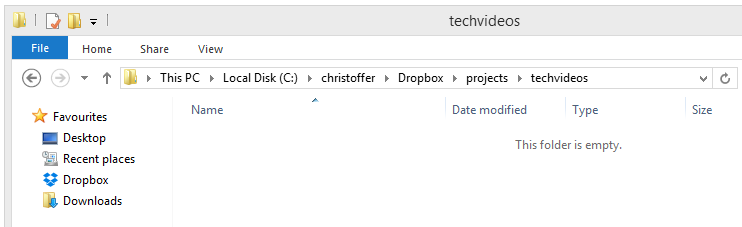
The first thing we do is to create a dedicated folder inside the Dropbox where we will put my whole project. In this case we will create the folder "Dropbox/projects/techvideos/".
Step 2 - Downloading and unzipping the Dart SDK
Since we know our server droplet is a Linux Ubuntu (as that is the image I picked when I created the droplet), we visit the Dart's download archive page, download the latest Dart SDK for Linux 64 bit and extract it that in that folder.

As soon as it is downloaded, we extract the archive into the project folder.
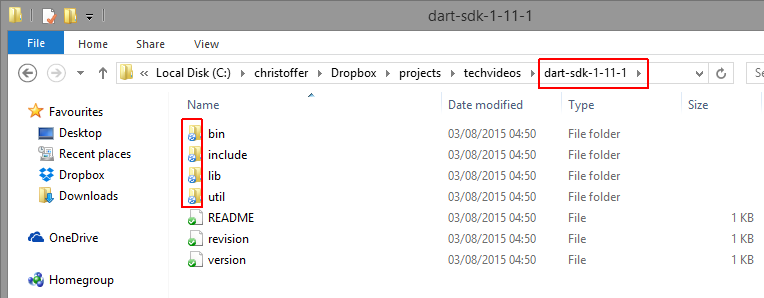
As you can see I put the Dart SDK in a folder called dart-sdk-1-11-1 so we can easily remember what SDK version it is deployed with.
By including the Dart SDK we don't actually need to prepare the server in any way, plus it allows us to easily update the Dart SDK to a newer version by just replacing the files locally on your developer machine.
You can also see that Dropbox has also automatically started to sync all the files towards the cloud, which is expected.
Step 3 - Moving your Dart server application to Dropbox
The next thing we do is create a new folder specifically for my Dart server application. We call this folder "app" and create it next to the SDK folder:
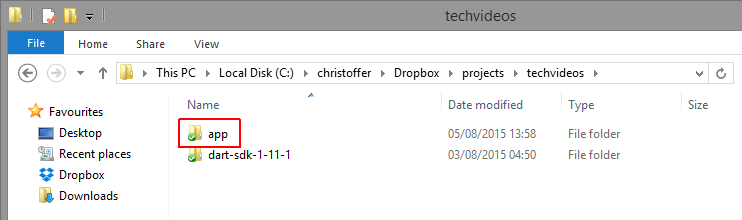
Then we copy the real application folder containing my server application into that folder.
Please note, only copy what you need, such as source code and other configuration files. Do not copy over any pub modules or anything else that can be downloaded via the package module provider. We will do that later.
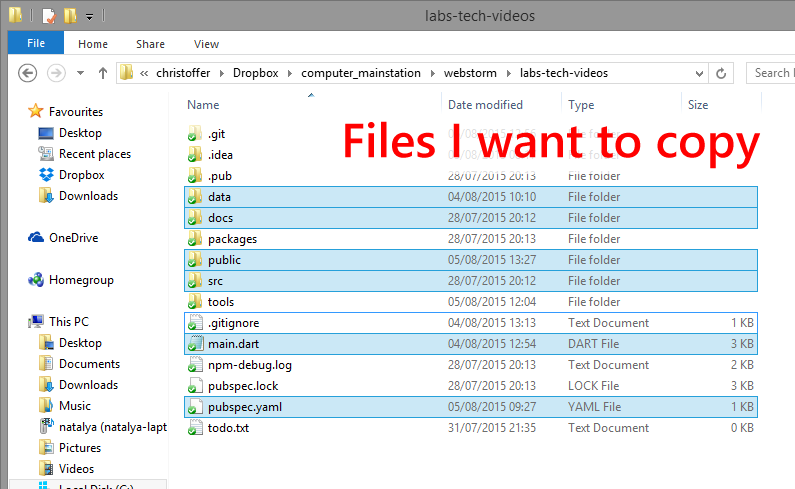
And the end results looks like this:

Everything synchronized and ready to go!
Step 4 - Installing Dropbox on DigitalOcean
Now we just need to follow the steps described on the Dropbox installation guide page for Linux:
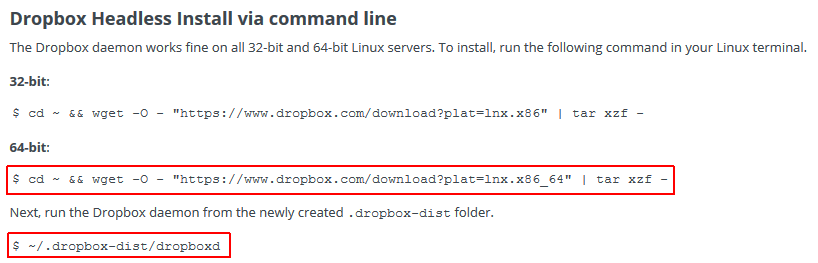
So we create an SSH connection and login into our newly created droplet and simply perform these steps.
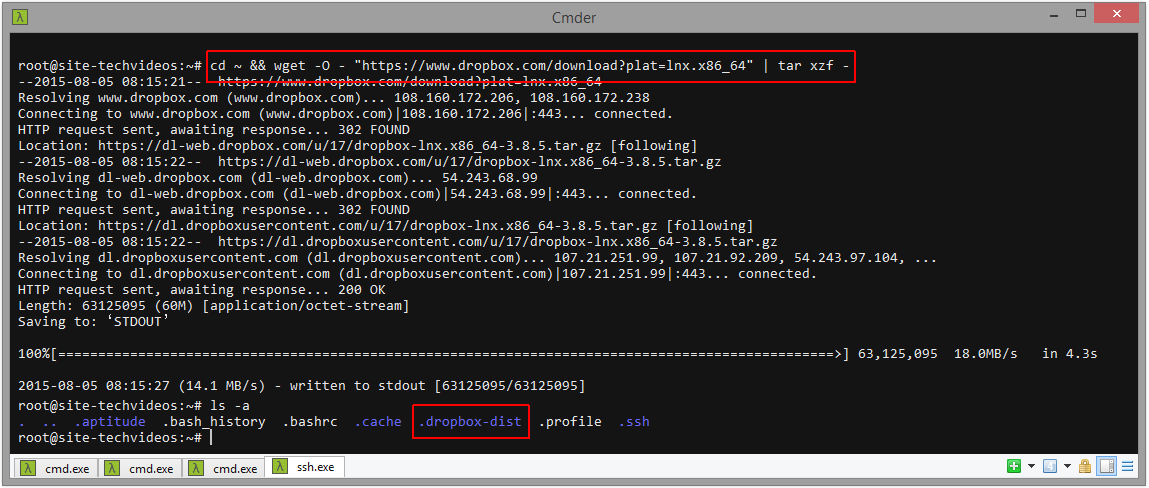
Now we need to start the Dropbox daemon and link our Dropbox account:

Step 5 - Using selective sync to download only the project folder from Dropbox
Since I have more files on Dropbox than the project, what we need to do is "selective sync" and synchronize only the project, ignoring all my other files.
So we download the helpful dropbox.py Python script which allows us easily control Dropbox from command line.
wget https://www.dropbox.com/download?dl=packages/dropbox.py -O dropbox.py
And then we check the status. As expected, its down.
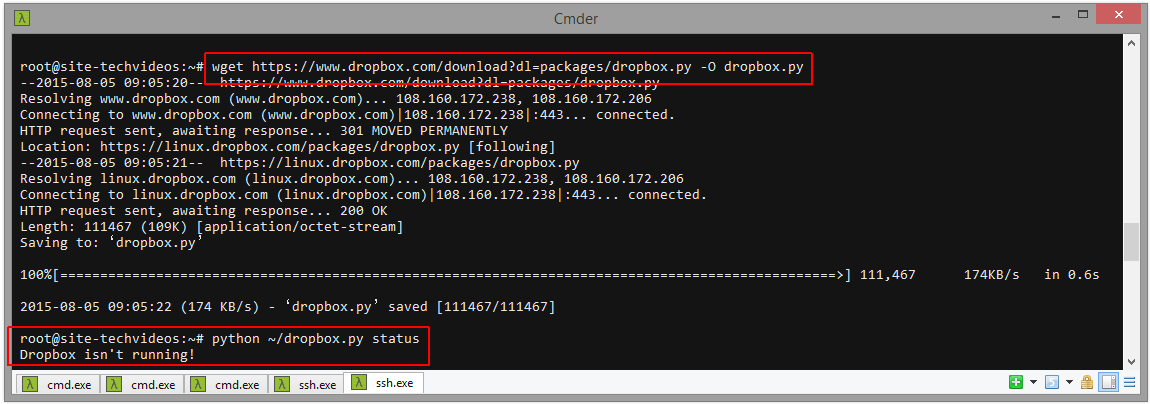
We start it back up as a background process and start excluding all the folders than the project with the
exclude add [folder] command in various folders.

This process takes a while since I have a lot of files on my Dropbox.. but once its done we can type
exclude list to see a list of all folders we have excluded.
With everything excluded and synchronized:

Step 6 - Starting your Dart server application
The first thing we need to start my server application is to download all the third party pub modules.
However, since Dart or pub isn't registered as global commands, we need to compose a funky command:
../dart-sdk-1-11-1/bin/pub install
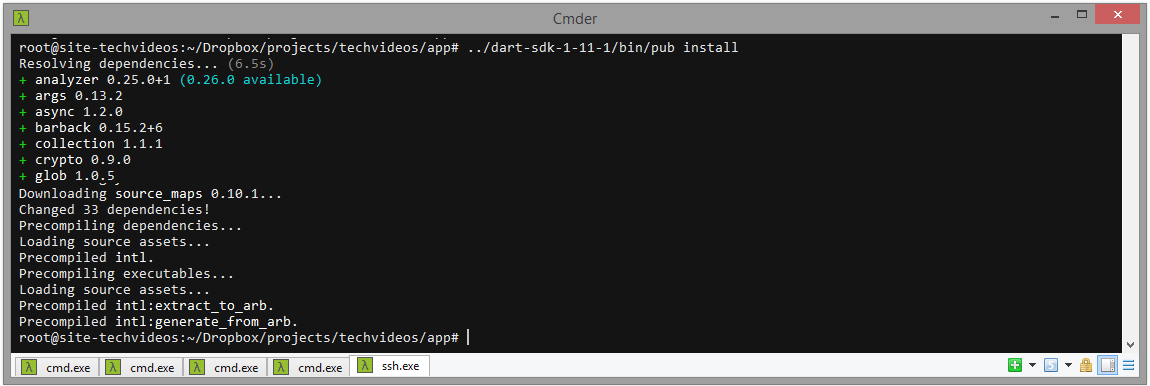
If you get a "permission denied" you might need to chmod your project folder with
chmod -R 755 techvideos/, since the files were dropped from Windows to Linux.
Now to finally can finally start he server application. Remember the
& which makes it a background process
../dart-sdk-1-11-1/bin/dart main.dart &
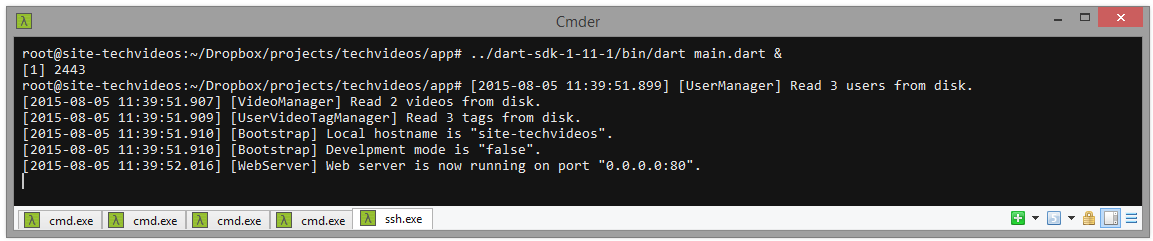
Server application is now deployed!
Step 7 - How to update your code and restart Dart server application
Deploying a new version is now dead easy, as all you need to do is update the source control on your developer machine and it will automatically be synchronized to the DigitalOcean droplet thanks to Dropbox.
If you started Dart as a background process you can easily kill it with the following command:
pkill dart
and then use a similar command again to start it
../dart-sdk-1-11-1/bin/dart main.dart &
Done!
Other benefits
Another cool benefit I found using this technique is that when my Dart server application writes to log files on the disc, but since the whole project is on Dropbox, those files are automatically synced, meaning I can view the logs both on my developer machine, but also via the Dropbox website.
