
Vă rugăm să rețineți că această postare pe blog a fost publicată în martie 2011, așa că, în funcție de momentul în care o citiți, este posibil ca anumite părți să fie învechite. Din păcate, nu pot menține întotdeauna aceste postări complet actualizate pentru a asigura acuratețea informațiilor.
If are you working on a large software project, or even your own hobby project at home, and the project uses external resources (such as various images, XML documents or any other static files on the disk), it is a strongly recommended idea to refer to these files programmatically through constants instead to hard coding their resource names directly into the code where they are being used.
Meaning instead of referring to images via manually created hard coded strings, such as.
loadImage("cat.jpg");
You should create some kind of constants for each resource in the project:
public static final String IMAGE_CAT = "cat.jpg";

loadImage(IMAGE_CAT);
This gives you and your developers colleagues benefits, such as:
- You can take references on the constants, seeing where in the project the resource is currently being used
- You can remove unused and old resources from the project without worrying about if the resource is in use
However, for large software projects, manually creating and maintaining 100 and more constants for images will become really tedious for the developers in the long run. In addition using this solution doesn't actually guarantee that the file on the disk actually exist, even though the code constant does.
To solve this, you can simple create a logic that auto-generates these constants directly into the source code to be used by the team, based on the current existing files on the disk. If you are using Eclipse IDE, I'll show you how.
The project's current status
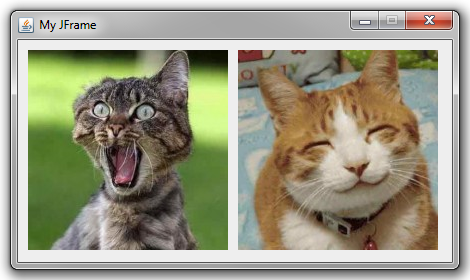
In this example I have a simple Java project that creates a JFrame and displays two images:
Looking at my project structure; I have two Java class files and two images:
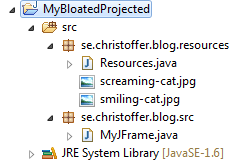
My Resources.java is an empty class:
public class Resources {

}
While my MyJFrame.java contains all the code:
public class MyJFrame extends JFrame {

    private static final long serialVersionUID = 1L;

    public static void main(String[] args) throws Exception {
        new MyJFrame();
    }

    public MyJFrame() throws Exception {

        super("My JFrame");
        setSize(440, 250);
        setResizable(false);
        setLayout(null);

        JLabel label1 = new JLabel(createImageIcon("screaming-cat.jpg"));
        label1.setBounds(10, 10, 200, 200);
        add(label1);

        JLabel label2 = new JLabel(createImageIcon("smiling-cat.jpg"));
        label2.setBounds(220, 10, 200, 200);
        add(label2);

        setVisible(true);

    }

    private static ImageIcon createImageIcon(final String file) throws Exception {
        URL url = Resources.class.getResource(file);
        return new ImageIcon(url);
    }

}
As you can see I have hard coded the image names directly in my code, where they are being used.
createImageIcon("screaming-cat.jpg")
Creating the Java logic
First of I make Resources.java into a stand alone application that finds all images in the project and then writes a Java source file into the same directory.
public class Resources {

    public static void main(String[] arguments) throws Exception {

        List files = new ArrayList();
        listFiles(files, new File("src\"), "jpg");

        PrintStream out = new PrintStream(new FileOutputStream("src/se/christoffer/blog/resources/Image.java"));

        out.println("package se.christoffer.blog.resources;");
        out.println("");
        out.println("public class Image {");
        out.println("");

        for (File resource : files) {

            String name = resource.getName().toUpperCase();
            name = name.substring(0, name.lastIndexOf('.'));
            name = name.replace('-', '_');

            String filename = resource.getName();

            out.println("    public static final String " + name + " = "" + filename + "";");

        }

        out.println("");
        out.println("}");

    }

    private static void listFiles(final List files, final File folder, final String extension) {

        if (folder.isDirectory()) {

            for (File f : folder.listFiles()) {
                listFiles(files, f, extension);
            }

        } else {

            if (folder.toString().endsWith("." + extension)) {
                files.add(folder);
            }

        }
    }

}
Creating the ANT script
In the root of the project, I create an ANT script file named "build_generate_resources.xml".
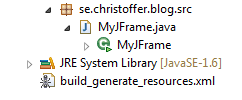
That contains this XML:
<project basedir="." default="Run" name="GenereateResources">

    <target name="Run">
        <java classname="se.christoffer.blog.resources.Resources" failonerror="true" fork="yes">
            <classpath>
                <pathelement location="bin"/>
            </classpath>
        </java>
    </target>

</project>
Hooking into the Eclipse automatic builds
I right click on my project to bring up the properties. Then I pick "Builders" and then "Import...". From there I select my newly created ANT script from the list and add it to the bottom of the list of builders.
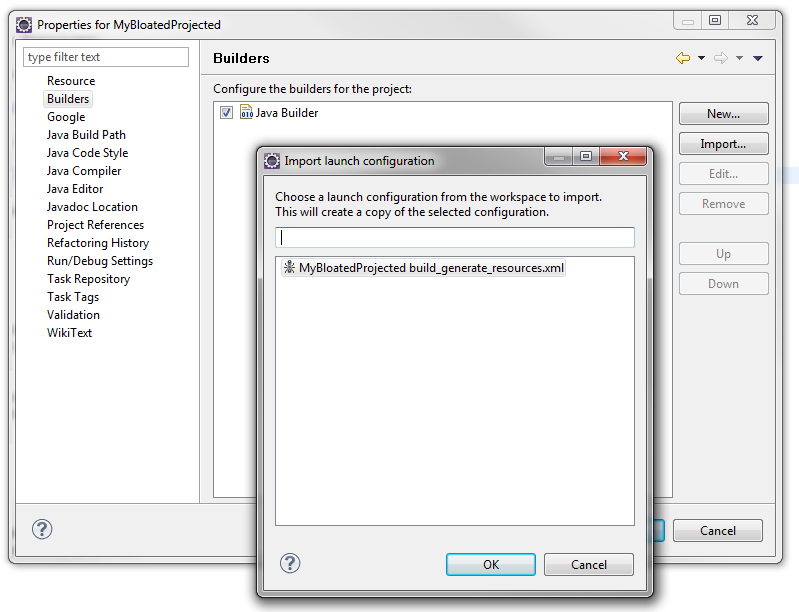
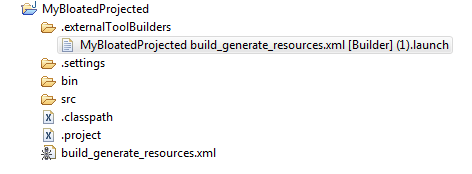
This actually creates a hidden directory in the project with a new launcher towards your ANT script. It can be displayed using the Navigation view.
To make it run more frequently
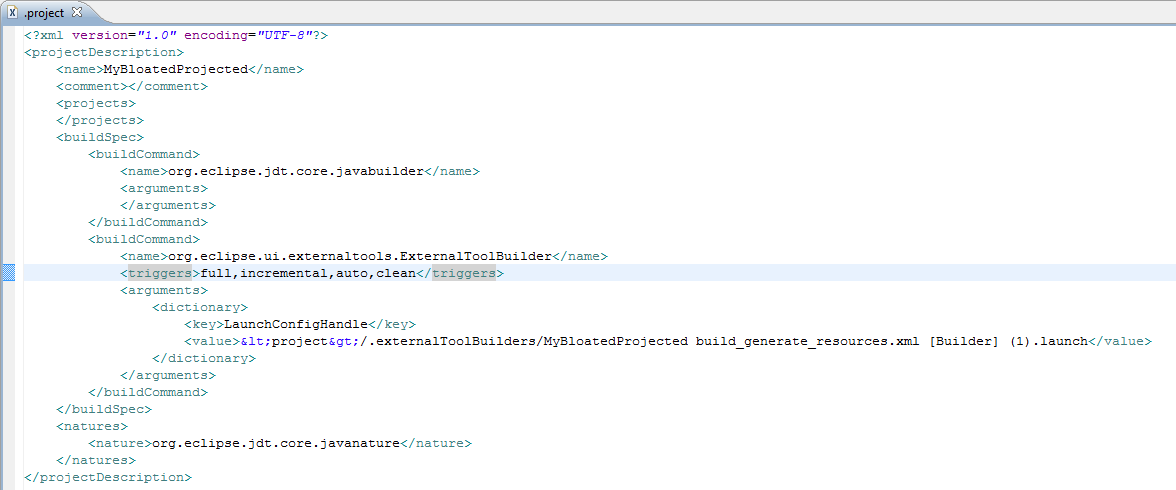
By default external builders will only be executed during a full or incremental builds. To make it build each time I save a file in Eclipse, I need to change the triggers in my .project file. In the .project file, I find the appropriate build command and change its triggers from full, incremental to full, incremental, auto, clean.
Now the
Resources.java will be executed automatically in the background.
Viewing and using Java references
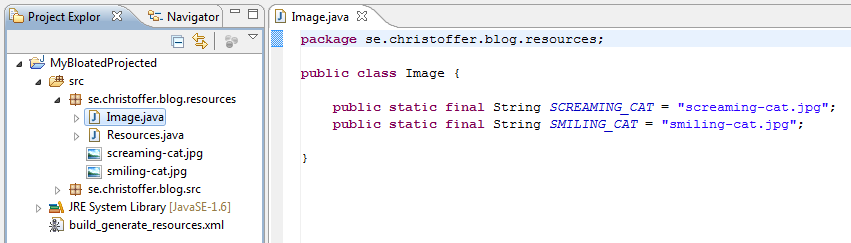
Once the Eclipse has built the project, we will see a new class called
Image.java.
To use it, I simply change my code in
MyJFrame.
JLabel label1 = new JLabel(createImageIcon(Image.SCREAMING_CAT));

JLabel label2 = new JLabel(createImageIcon(Image.SMILING_CAT));
That's it!
