Houd er rekening mee dat deze blogpost in juli 2015 is gepubliceerd. Afhankelijk van wanneer u hem leest, kunnen bepaalde delen dus verouderd zijn. Helaas kan ik deze berichten niet altijd volledig up-to-date houden om ervoor te zorgen dat de informatie accuraat blijft.
Cloud9 is a pretty cool cloud based IDE. Even though it does not support Dart code formatting, you can still develop and run Dart server applications in the IDE by downloading and installing the Dart SDK.
Download the SDK
The first thing you need to do is to figure out is if you are on a 32 or a 64 bit architecture. Most likely you are on a 64 bit, but let's make sure. To do that you can type in the command:
uname –a

Here we can see are on a 64 bit machine, so we need to download the 64 bit version of the Dart SDK for Linux on their archive page:

Copy the URL, as we are going to use it later. In my case, at the time I published this blog post, the URL is:
Open up a terminal in the Cloud 9 IDE and go to your home directory:
cd ~
and download the SDK with wget:
wget https://storage.googleapis.com/dart-archive/channels/stable/release/latest/sdk/dartsdk-linux-x64-release.zip
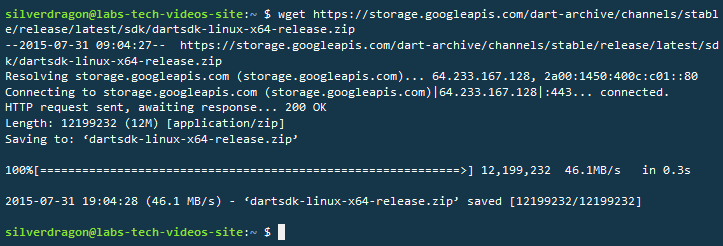
After it has been downloaded type
ls and you should see it:

Configure as global command
If you read the Dart SDK page it tells us how to make Dart as a global command using the export command:
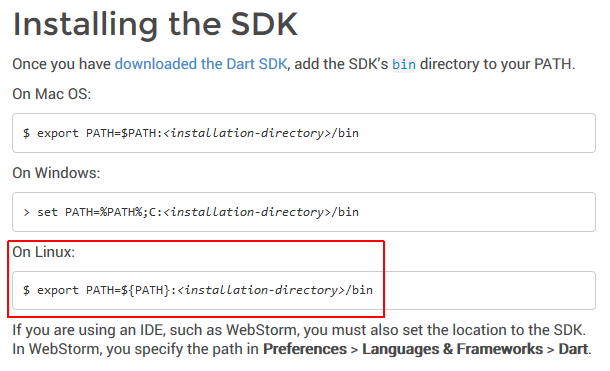
So in our case, the full syntax will be
export PATH=${PATH}:~/dartsdk-1-11-1/dart-sdk/bin/
We can check if was added successful by typing
echo $PATH

Testing it all
Now if we return to our workspace directory (
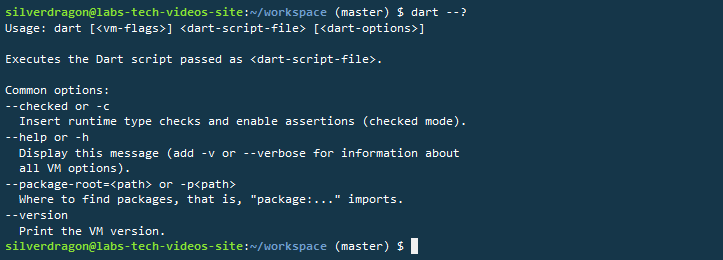
cd ~/workspace/) we can see that we have access to Dart by simple typing dart.